Uninstall PowerPlay
Follow these steps to disconnect and uninstall PowerPlay from your HubSpot portal. You'll need a HubSpot user with permission to manage connected apps (Super Admin or App Marketplace access).
01
How to Uninstall PowerPlay
Follow these simple steps to disconnect the PowerPlay application from your HubSpot portal.1
Open HubSpot Settings
Log in to HubSpot and click the Settings icon (gear) in the top-right corner of the main navigation bar.
2
Navigate to Connected Apps
In the left sidebar, scroll to the Integrations section and click Connected Apps.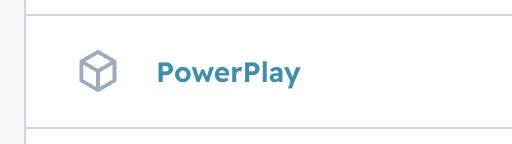
3
Locate PowerPlay
Find PowerPlay in your list of connected applications.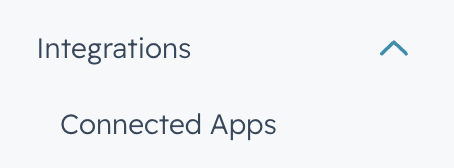
4
Uninstall the app
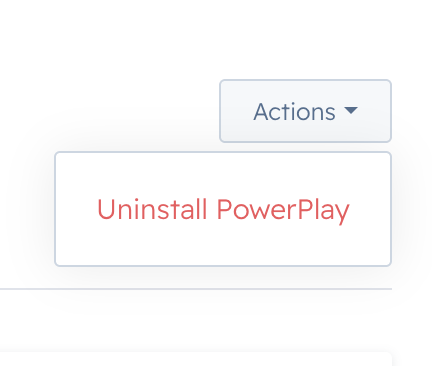
Click the Actions dropdown next to PowerPlay and select Uninstall. HubSpot asks you to type 'uninstall' to confirm. Once confirmed, PowerPlay is completely disconnected from your portal.