Skip to content
CTA_BG

How to Install PowerPlay

Follow this step-by-step installation guide to set up the PowerPlay on your HubSpot portal.

Before you start

PowerPlay builds and edits pages using the POWER Pro theme, so POWER Pro must be installed in your HubSpot portal. If you don't have it yet, install it first from the HubSpot Marketplace. You'll also need a HubSpot user with permission to install apps (Super Admin or App Marketplace access).

2. Connect PowerPlay to HubSpot

After verifying your email, you will be redirected to HubSpot to authorize the application.
1
Choose Your HubSpot Account

If you have access to multiple HubSpot portals, select the correct one.
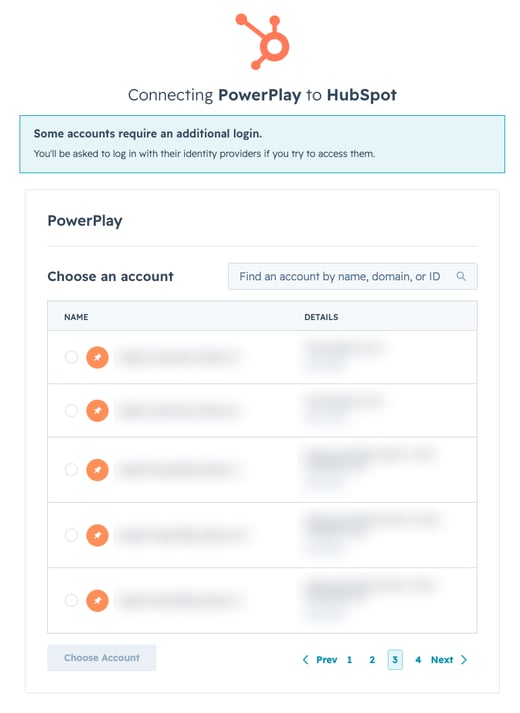
chooseaccount

2
Review Requested Permissions

HubSpot shows you exactly what PowerPlay is requesting access to
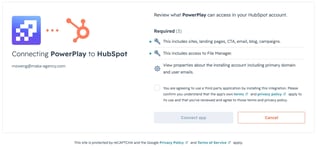
reviewpermissions

3
Confirm Connection

As long as PowerPlay is not in the marketplace yet, HubSpot asks for an explicit confirmation.

acceptrisk

3. Welcome to PowerPlay

You'll be redirected instantly to your brand new PowerPlay dashboard.
1
Automatic First-time Setup

Your installed themes are automatically synced to PowerPlay. No action required.

The 'Syncing themes from HubSpot…' loading state
2
The installation is finished

A green "Subscription active" banner confirms that the installation succeeded.
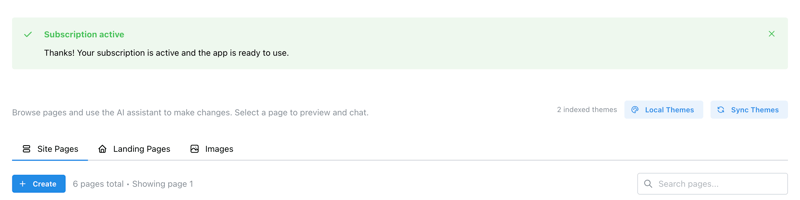
dashboard

3
PowerPlay is ready to use 🚀

Browse your Site Pages or Landing Pages and select any page to preview and start making changes with your AI assistant.

NextHow to use PowerPlay

Troubleshooting & FAQ

No verification code received

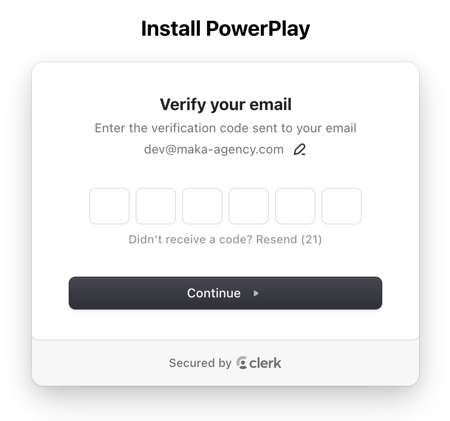
Wait for the resend countdown, click Resend, and check your spam/junk folder.

The correct HubSpot portal isn't listed

You may be signed in as the wrong HubSpot user. Log out of HubSpot and sign back in using the credentials that have admin access to the target portal.

"Connect app" fails or permissions error

Your HubSpot user must have Super Admin or App Marketplace installation rights. Ask a portal Super Admin to run the installation or grant you access.

The "Connect" button stays disabled

Make sure you have typed "I accept the risk" exactly as shown in the text field, without any leading or trailing spaces.

Why does HubSpot show an "unverified app" warning?

HubSpot displays this warning for all apps that are not yet listed and reviewed directly in the public HubSpot App Marketplace. This is completely expected for PowerPlay and is not an error; it simply means the app is distributed directly by the developer (maka Agency) instead of through the marketplace.