

Page Editor
This page covers everything you click and do around the PowerPlay Agent: browsing your pages, creating new ones, previewing, page settings, and publishing.
01
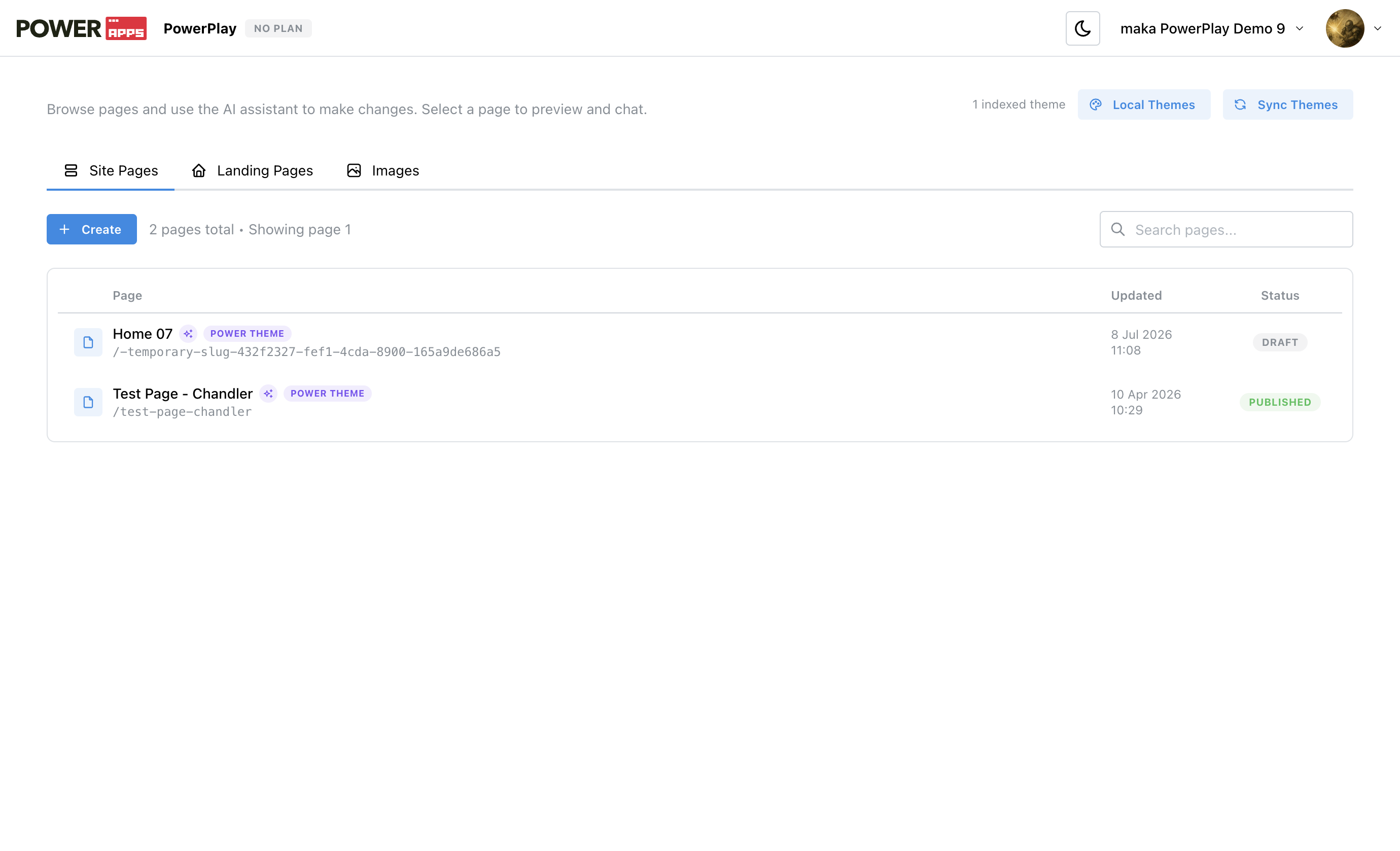
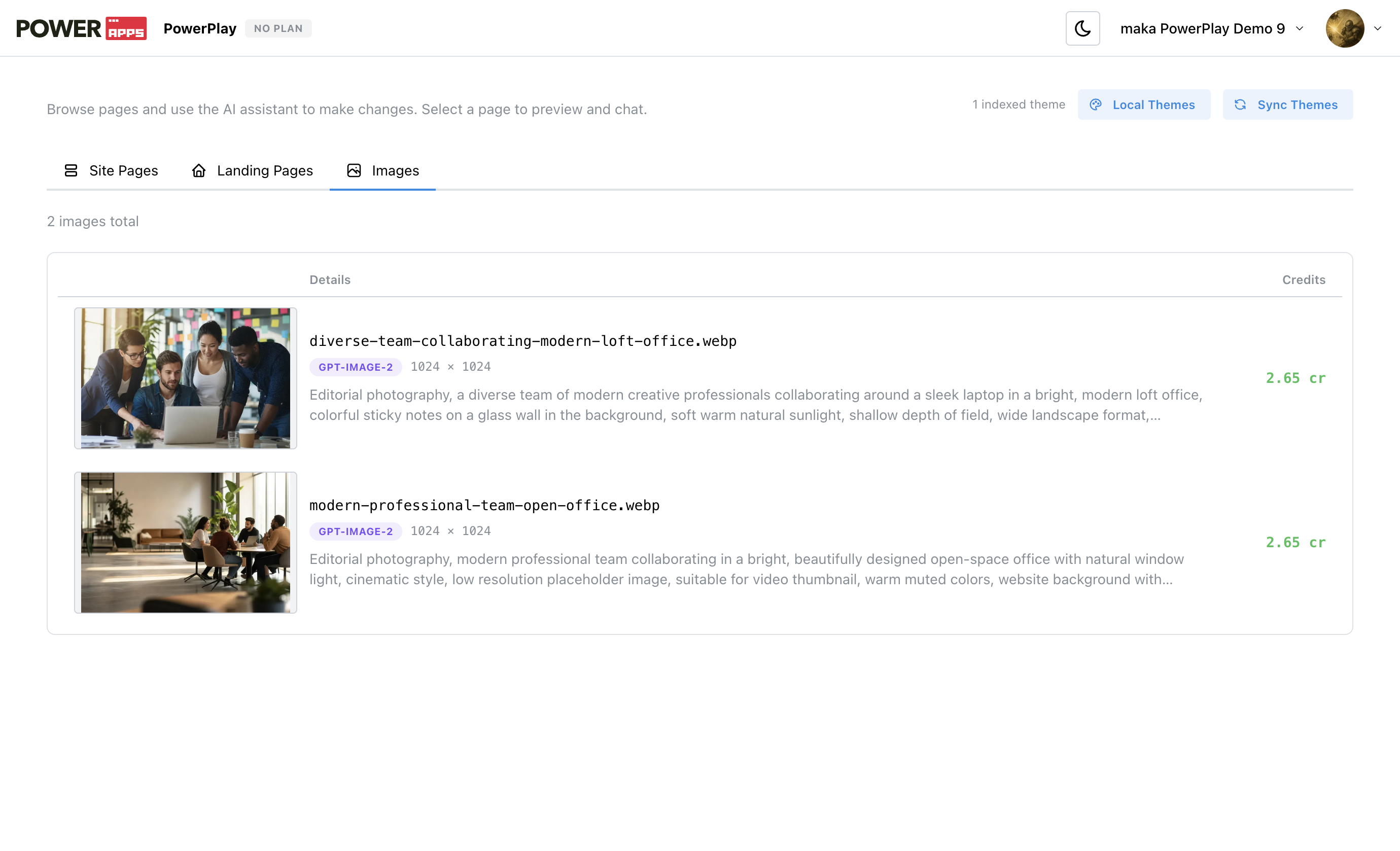
Browse your pages and images
From the PowerPlay home, use the tabs:
- Site Pages — your HubSpot website pages.
- Landing Pages — your HubSpot landing pages.
- Images — AI-generated images created while using PowerPlay, ready to reuse on your pages.
02
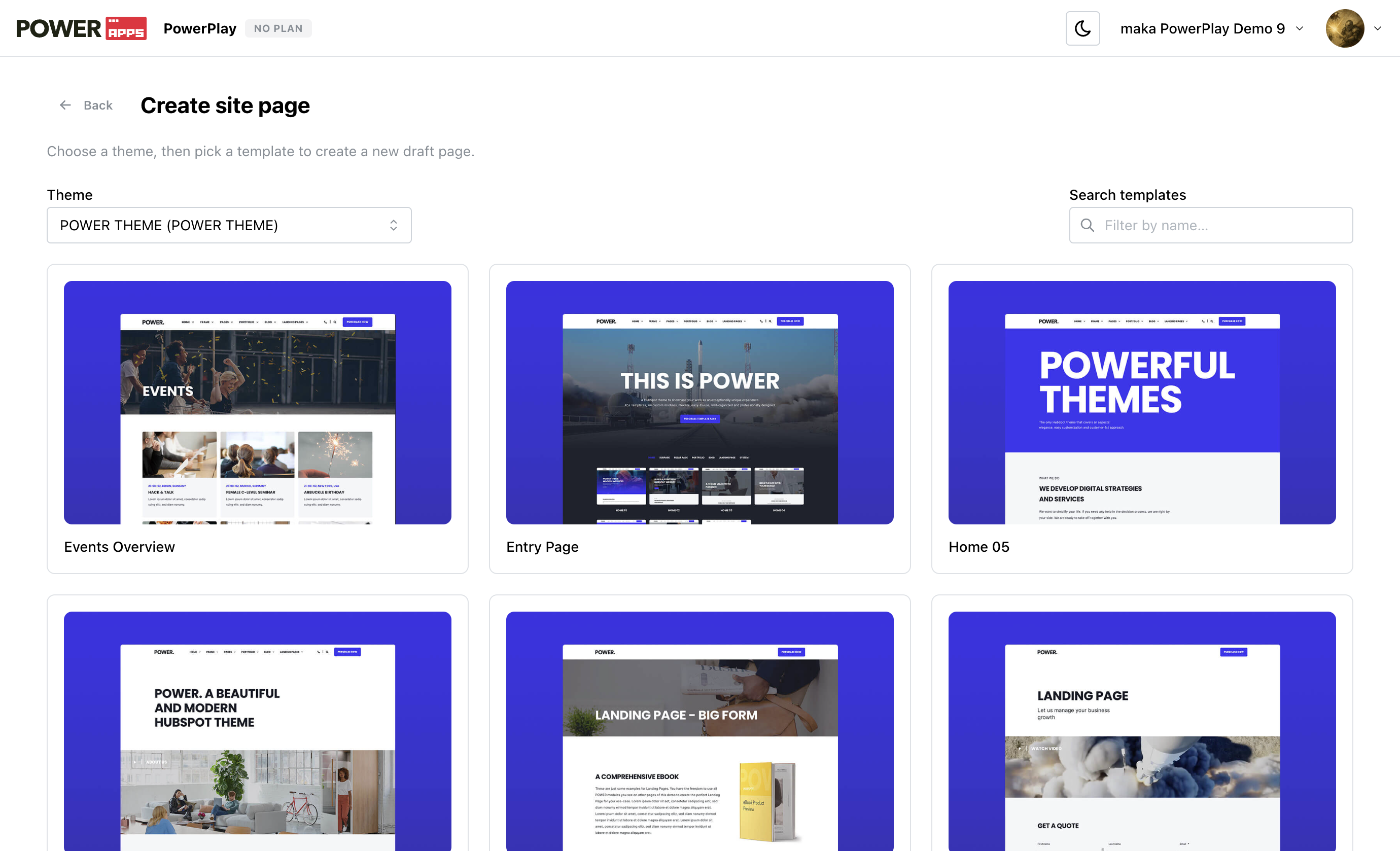
Create a new page
- On the home screen, click the create action on the Site Pages or Landing Pages tab.
- Pick a theme.
- Pick a template.
- PowerPlay creates a draft page and opens it in the Page Editor.
03
The editor workbench
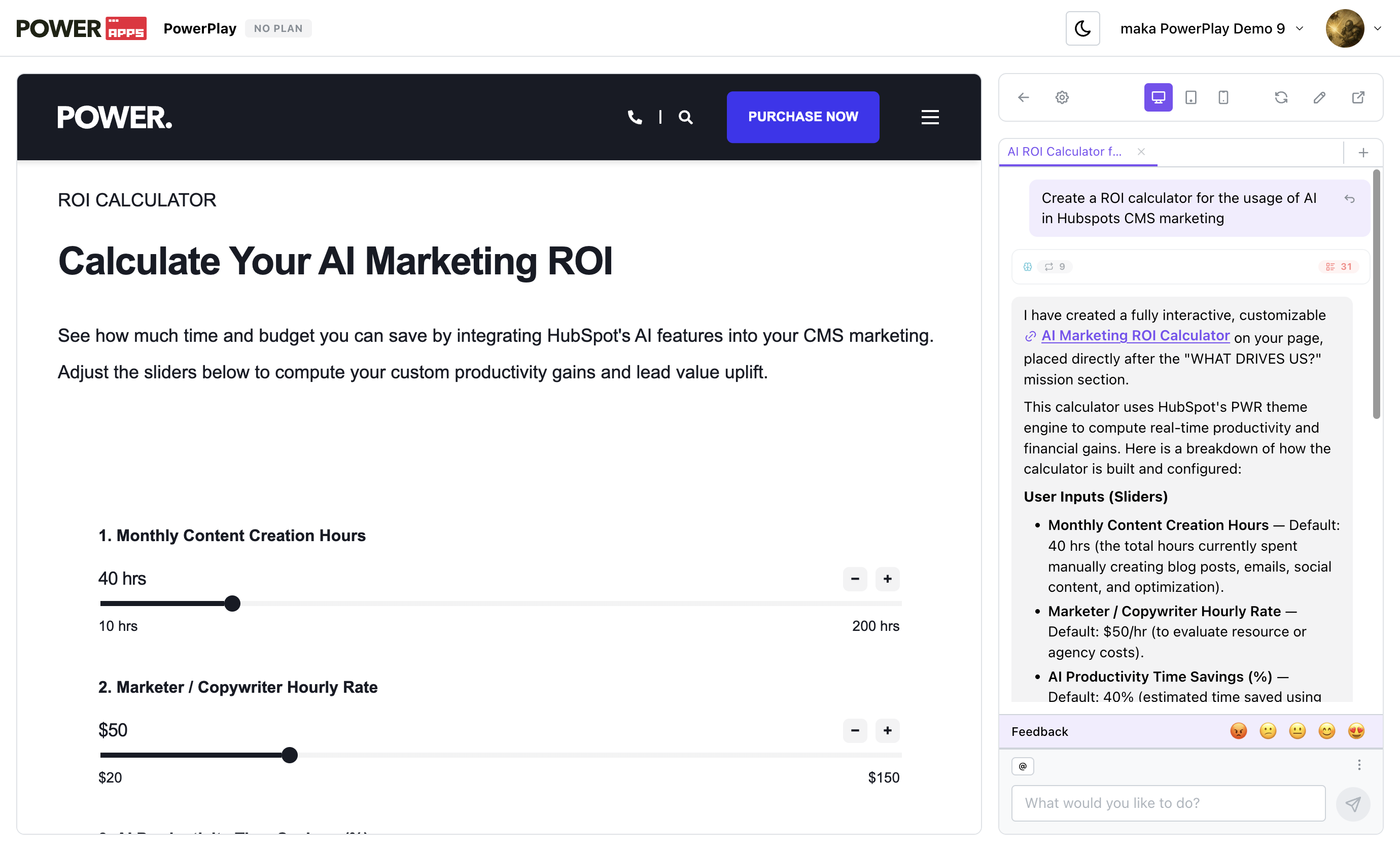
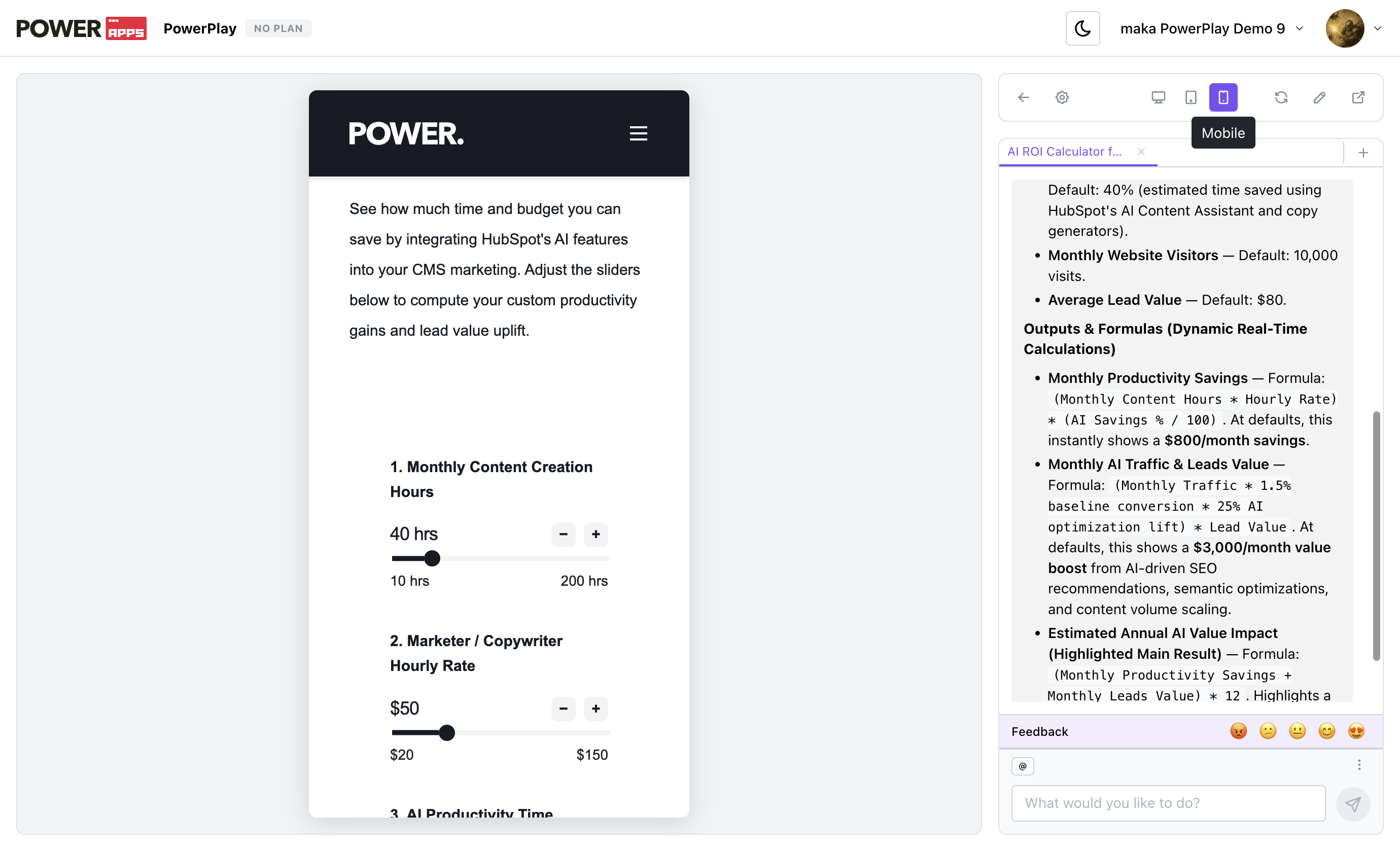
Click any page in the list to open the Page Editor. It shows a live preview on the left and the PowerPlay Agent chat panel on the right.
Use the Desktop, Tablet, and Mobile toggles in the toolbar to preview how the page looks at different viewport sizes.
04
Edit page settings
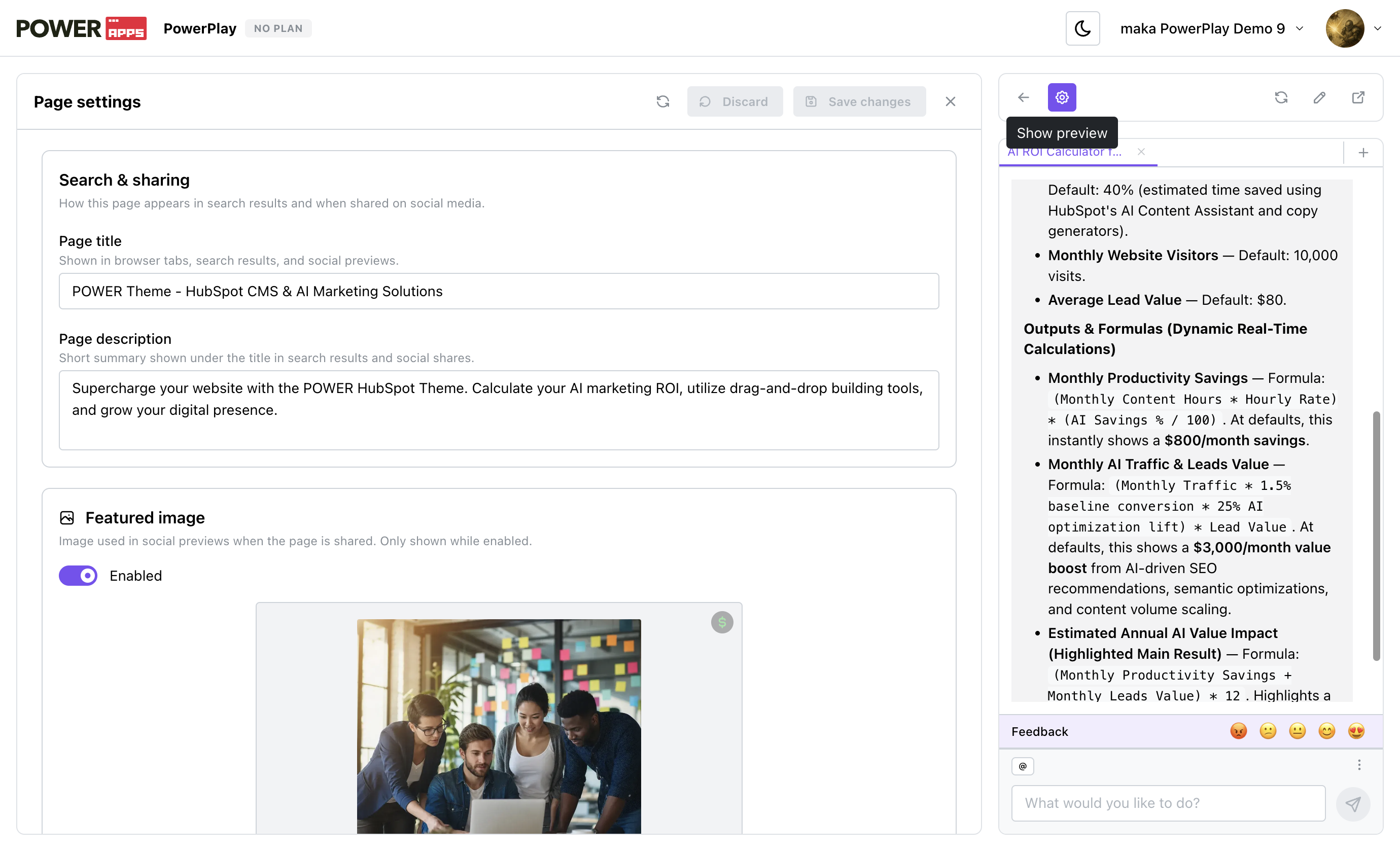
Click the Settings (gear) icon in the toolbar to switch the left panel from the preview to the page settings form. From here you can edit:
- Search & sharing — the page title and description used in browser tabs, search results, and social previews.
- Featured image — the image shown in social previews.
- Custom code — advanced header and footer code (e.g. analytics or chat-widget snippets).
Changes are saved to the draft; publish the page in HubSpot to make them visible to visitors.
05
Toolbar reference

| Button | What it does |
|---|---|
| Back | Return to the page list. |
| Page settings | Toggle the page settings form. |
| Viewport | Preview at desktop, tablet, or mobile size. |
| Refresh | Reload the live preview. |
| Edit in HubSpot | Open the page in HubSpot's CMS editor. |
| Open preview | Open the standalone page preview in a new tab. |