

Account & Settings
Open your account settings
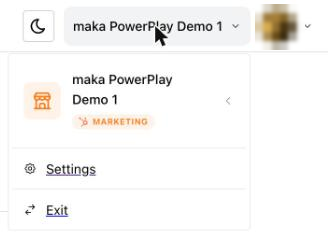
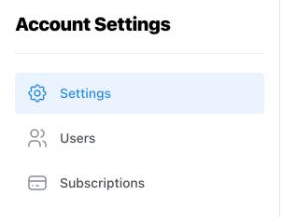
All account setup happens in Account Settings: open the account menu (top right) and click Settings. The sidebar has three sections: Settings (general), Users, and Subscriptions.
Set the account name
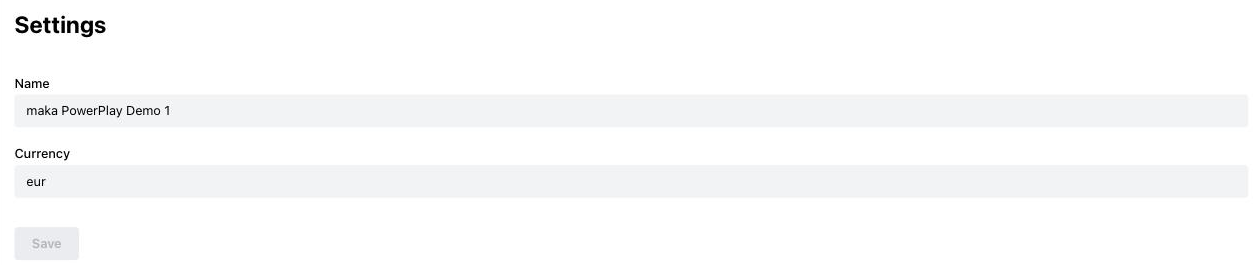
The account name is shown in the top bar and the account picker, so choose a name your team will recognize. Your company or portal name works well.
- In Account Settings, open the Settings section.
- Enter the new name in the Name field.
- Click Save.
Invite users and manage roles
Anyone who should work with PowerPlay in this account needs to be a member. You invite them by email:
1. In Account Settings, click Users in the sidebar.
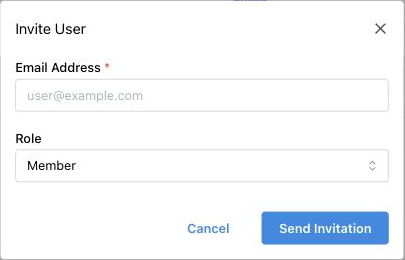
2. In the Invitations section, click Invite User.

3. Enter the person's email address and choose a role:
Member — can use PowerPlay: create and edit page drafts.
Admin — can additionally manage the account: users, the subscription and top-ups, and connected portals.
4. Click Send Invitation. Once the person accepts, they appear under Account Members.
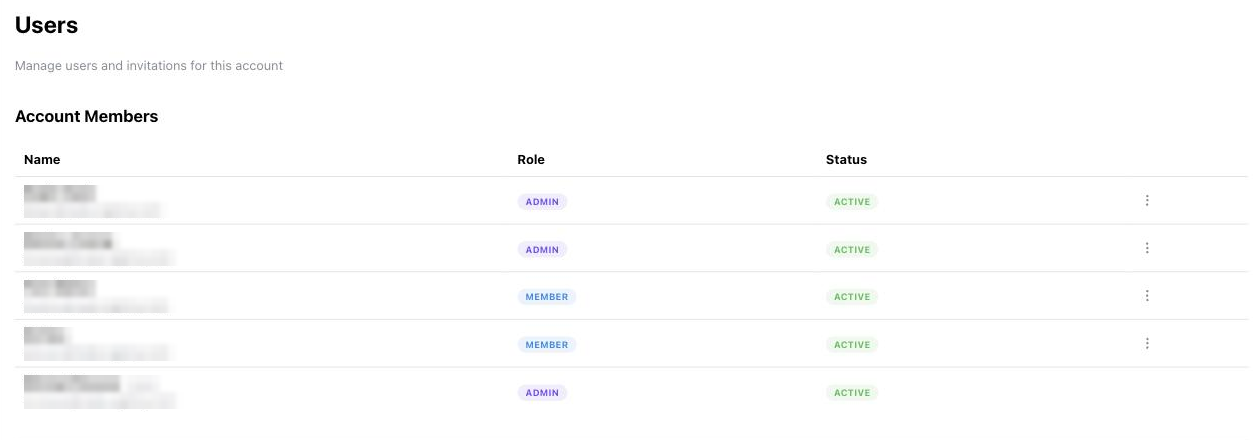
The user who created the account is an Admin.
The Users page lists all current members with their role and status, and all sent invitations. Only invite people who should have access to your connected HubSpot content. Members can edit page drafts through PowerPlay.
Sync themes from HubSpot
When you first connect PowerPlay, it automatically syncs your themes from HubSpot, no action needed. If you add or update themes in HubSpot later, re-sync so PowerPlay sees the latest data:

- Open the PowerPlay home.
- Click Sync Themes (top right). The button shows 'Syncing…' while it runs.

⚠️ Note: PowerPlay currently supports the POWER Pro theme. If no themes are available for creating pages, install POWER Pro from the HubSpot Marketplace first.
Manage your subscription
To review or change your plan and top-ups:
- Open the account menu (top right) and click Settings.
Click Subscriptions in the sidebar.
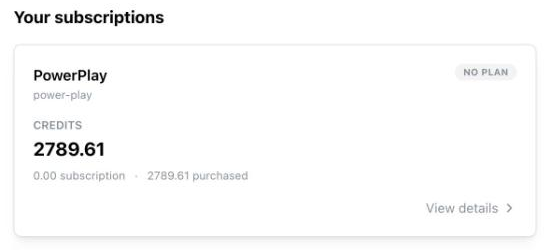
On your PowerPlay subscription card, click View details.
⚠️ Note: Only Admins can manage the subscription. For how credits work, see Credits & Plans.