

PowerPlay Agent
Meet the PowerPlay Agent
The PowerPlay Agent is the heart of PowerPlay. It lets you edit and build web pages just by asking — no HubSpot know-how, no drag-and-drop, no digging through settings panels.
You type what you want in plain language in the chat panel on the right of the Page Editor, and the Agent makes the change for you. The live preview on the left refreshes so you see the result immediately. Everything happens on the page draft — nothing goes live until you publish it in HubSpot.
If you can describe it, you can usually ask for it: from a quick typo fix to building a whole landing page from scratch.
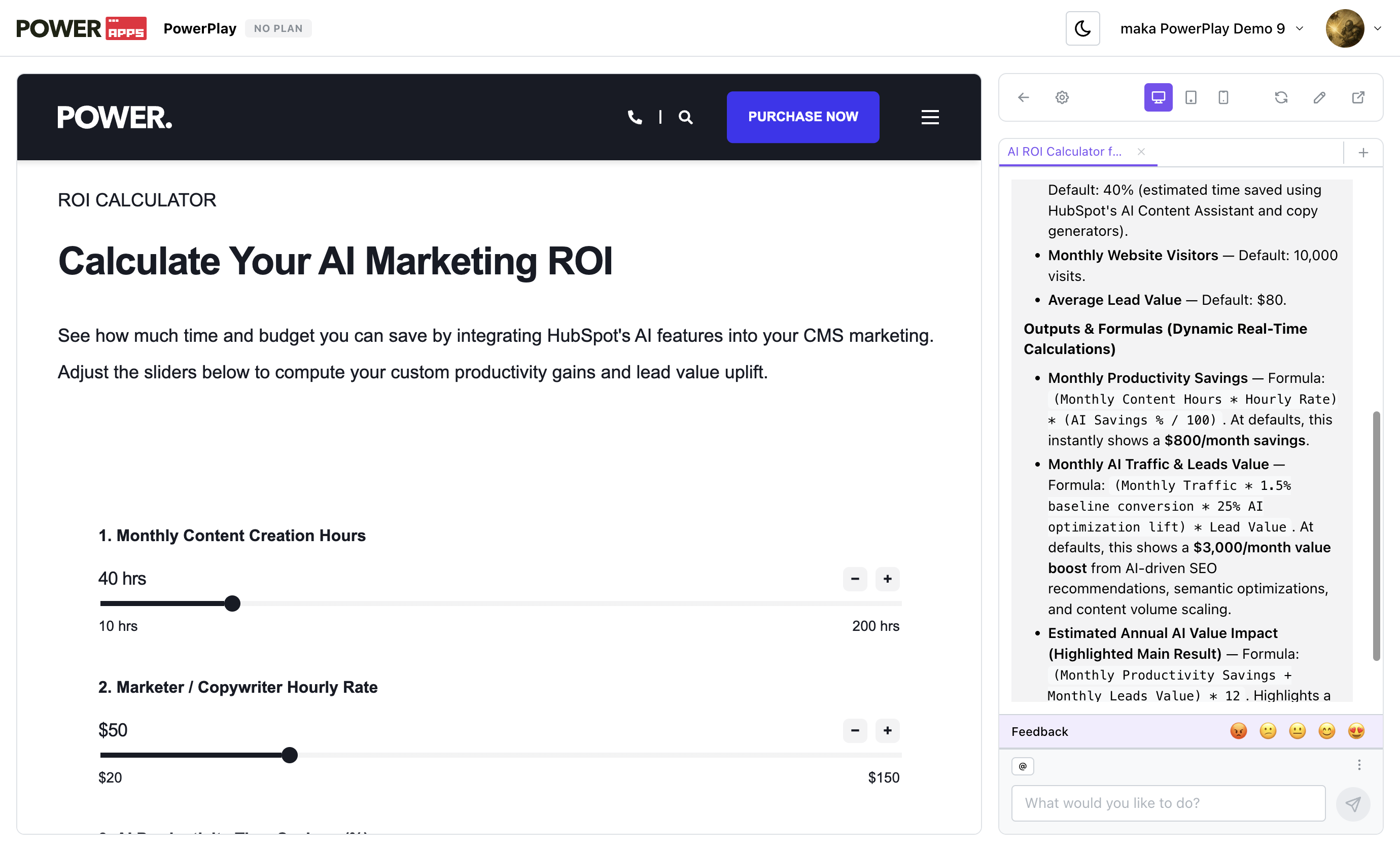
Chats and chat tabs
Your work with the Agent is organized into chats, shown as tabs at the top of the panel.

- Switch chats — click a tab to jump back into that conversation.
- Start a new chat — click the plus button on the right.
- Close a chat — click the cross icon on a tab. You can revisit it later under Archived chats.
Recommendation: start a new chat for each task. Give every distinct piece of work — a new landing page, a hero rewrite, a pricing table, a batch of images — its own chat. This keeps each conversation focused, makes the Agent more accurate, and leaves you with a tidy, clearly named history.
Undo a change with message rollback
Not happy with where the Agent took your page? You can roll back to any earlier point in the conversation, and PowerPlay restores the page to the exact state it was in at that message.
Every message you sent has a small rollback icon (a back-arrow) next to it. When you click it, PowerPlay will restore the page's earlier state (undoing every change made after that message), refresh the preview so you immediately see the restored version, and remove the later messages from the chat, dropping your message text back into the input box so you can tweak the wording and try a different direction.
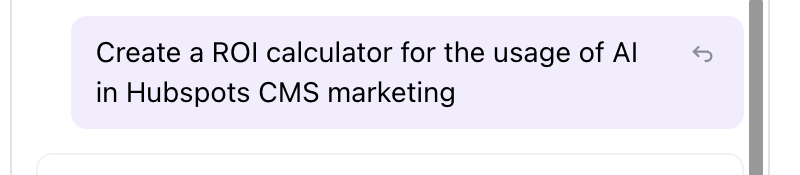
Each of your messages has a rollback icon. Click it to rewind the conversation and restore the page to that point.
Think of it as an undo for the whole conversation. As always, this only affects the draft — nothing is published until you publish it in HubSpot.
Tip: rollback rewinds to the message you click and everything after it. If you only want a small correction, it's often faster to just ask the Agent for a follow-up change.
Rate a chat and send feedback
PowerPlay is under active development, and your feedback directly shapes what we build next. Every chat has a built-in Feedback bar at the bottom of the panel with five quick ratings.

The Feedback bar at the bottom of the chat panel
- Click the emoji that matches your experience — this opens the Rate this chat window.
- Add a short note on what went well or what could be improved.
- Click Submit Rating.
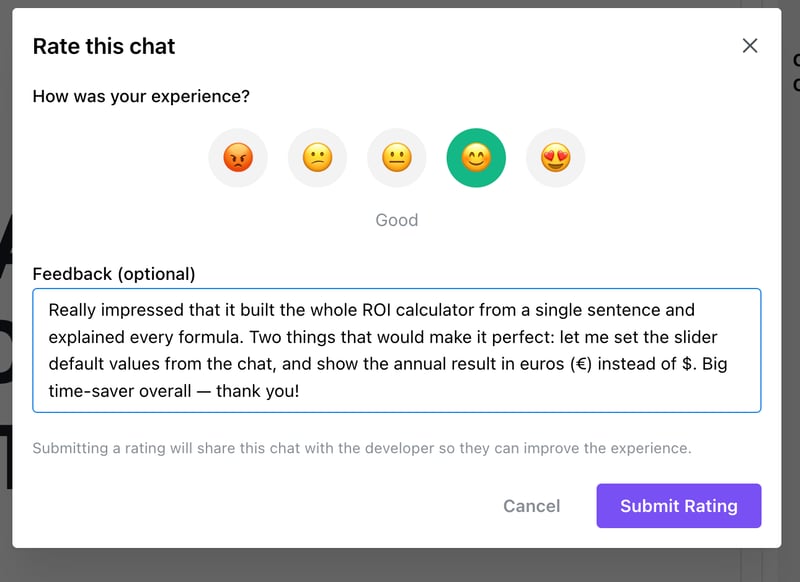
The Rate this chat window: pick a rating, add an optional comment, and submit.
Note on privacy: submitting a rating shares that chat with the PowerPlay developer so they can reproduce what happened. Only submit a rating when you're comfortable sharing the conversation.
The most useful feedback is specific: what you were trying to do, what worked, and what didn't.
Archived chats
Each page keeps its chat history. Closed chats aren't gone — review them anytime in the archived chats view for that page. From there, archived chats can also be recovered back to your active tabs or permanently deleted.
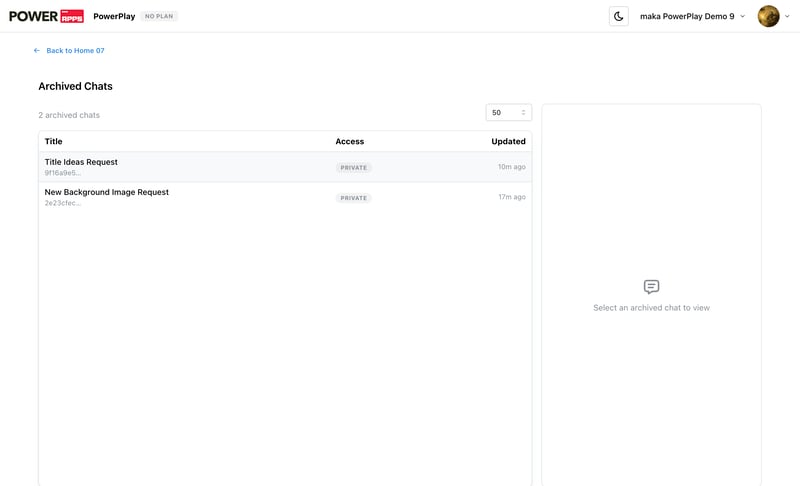
The archived chats screen: select a chat on the left to review it on the right.