
What are Theme Settings?
Theme Settings is the centralized location to edit all the global styles for your website.
Purpose: Control all design and functionality settings from a single location for consistent branding across your entire site.
What you can configure:
- Brand colors and color schemes
- Typography (fonts and formatting)
- Styling details (buttons, corners, effects)
- Blog appearance and functionality
- Layout structure and spacing
- Responsive behavior
- Performance optimization
- SEO and schema markup
- Animation effects
- System pages
Benefits:
- One location for all settings
- Consistent design across site
- Easy global updates
- Preview changes in real-time
- Reset capability for safety
- No coding required
Settings → Website → Themes → POWER x YOURCOMPANY child theme
If you're just getting started and haven't created any pages yet, you'll want to access from settings.
From your HubSpot Settings, on the left sidebar scroll until you reach the Tools section, expand the Website section and select Themes & Modules.
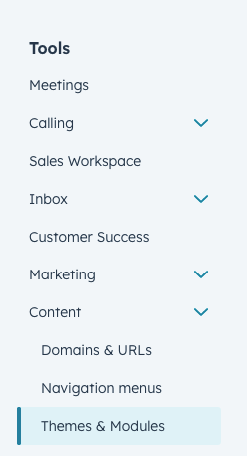
Once selected, you'll see all of the themes available in your account - make sure you choose the child theme.
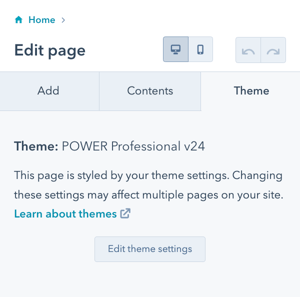
Page Editor → Theme tab → Edit Theme Settings
If you're already building pages and need to make an adjustment, you can do so quickly and easily right from the page editor by clicking the Theme tab.
The theme tab is accessible in the original HubSpot Page Editor UI.
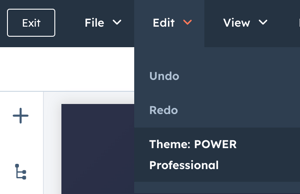
Page Editor → Edit → Theme: POWER x YOURCOMPANY child theme
If you are in the new Page Editor UI beta, you can access the theme from the Edit menu:
What is the Setup Guide?
Setup Guide Overview
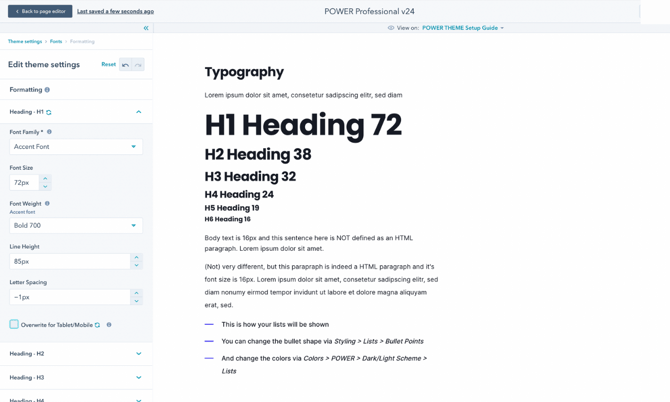
When you open Theme Settings, the initial page you see for POWER theme is our Setup Guide and provides you with an overview of how you can work with and modify theme settings.
Purpose: This template includes all the major page elements used in the theme so you can immediately see how your changes will look on your website.
What the Setup Guide shows:
- Sample headers
- Typography examples (headings, body text)
- Button styles
- Color scheme examples
- Form elements
- Section layouts
- Common module examples
- Footer elements
Benefits:
- See changes in real-time
- Understand impact before publishing
- Preview all major elements
- Test combinations
- Make informed decisions
Preview Pages in Theme Settings
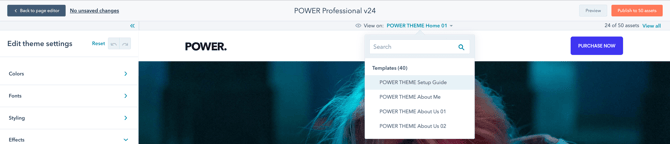
At the top center of the page, there is an option for "View on" which gives you the ability to switch the page or template that you see to make it easier to preview how your changes impact your layouts for pages built with the theme you're working on or any of the POWER templates.
Here you have access to Published Pages, Draft Pages, and Templates (not including system templates).
How are Theme Settings organized?
Theme Setting Organization
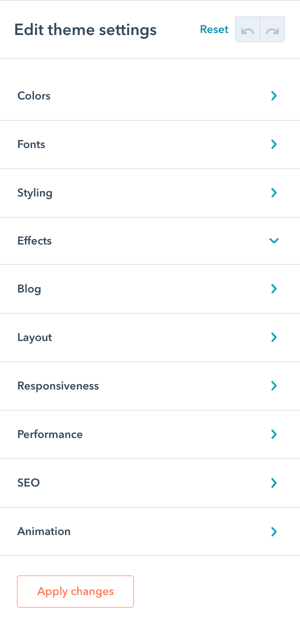
The options available for POWER theme are organized into design groups, each with sub-groupings to make it easy to find what you're looking for.
Organization structure:
- Major categories (Colors, Fonts, Styling, etc.)
- Sub-categories within each major category
- Logical groupings of related settings
- Hierarchical navigation
The structure of POWER theme settings allows you to quickly adapt the theme for your brand and the flexibility to further refine the settings to adjust smaller details to reflect your brand style guide.
Navigation benefits:
- Easy to find specific settings
- Related settings grouped together
- Logical hierarchy
- Scalable organization
- Efficient workflow
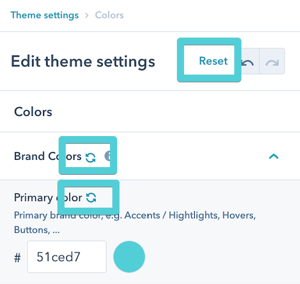
Every change you make is tracked and can be reset individually by clicking the reset icon for that item or group, or for the whole theme by clicking reset at the top.
Basic Theme Setup
The quickest way to get the theme up and running is to make these updates:
- Set your Brand Colors under Colors → Brand Colors
- Set your Base and Accent Fonts under Fonts → Basic Setup
Once you make these updates, all of the styles will inherit these settings and you can start building pages. As your design starts to come to life, you can return to the theme settings to make further adjustments, like choosing a default form style or changing the corner radius for buttons.
Advanced Theme Setup
If you have a Brand Style Guide, you can work your way through each of the settings to make adjustments that align with your brand guideline.