
Our Mini Module is a small but mighty. Easily add an Icon, CTA, or Tag to your section layout and apply styles to match your design.
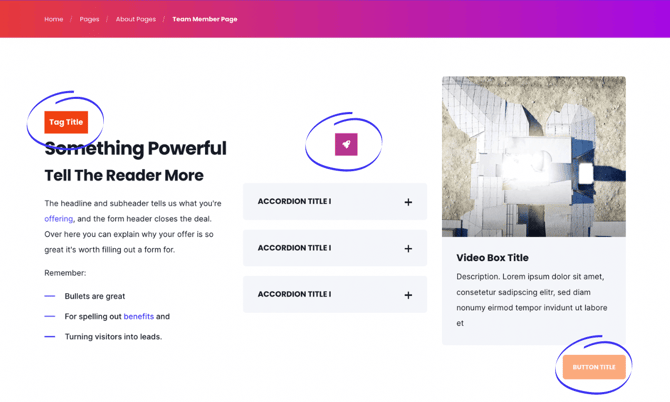
Ready to enhance your custom section layouts? Check out our Mini Module!
With the Mini Module, you can use HubSpot's drag-and-drop page editor to its full potential:
- Add Tags to draw attention to your content, maybe you have something "NEW" to share
- Add Icons quickly and easily to build custom sections
- Add CTAs or Buttons within your custom sections
What is the Mini Module?
The Mini Module is a flexible, lightweight module that enhances custom drag-and-drop sections with small but impactful elements.
Module capabilities:
- Add tags to highlight content
- Insert icons quickly and easily
- Include CTAs or buttons
- Enhance custom section layouts
- Draw attention to specific elements
Benefits:
- Lightweight and fast
- Highly customizable
- Multiple element types
- Easy drag-and-drop placement
- Consistent with theme styling
How to find the Mini Module in the Page Editor
The Mini Module is labeled in the Page Editor as "PWR Mini" and is a flexible modules that allow you to enhance your section layouts to add emphasis to your page designs.
Available Mini Modules:
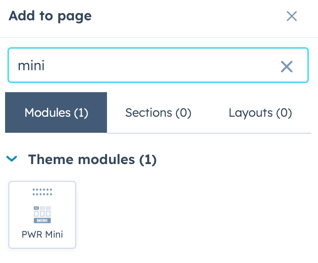
Adding a Mini Module to a Section
Once you've added the main content to your section, drag and drop a Mini Module into the Column where you'd like it to go.
Settings Available for the Mini Module
How do I configure Button Link?
Button Type
The Button Link dropdown allows you to choose the type of link to include for the button:
- External
- Content
- File
- Email Address
- Blog
Button Type > CTA
When CTA is chosen, the option to Choose CTA is available which opens the HubSpot CTA sidebar where you can choose an existing CTA or create a new CTA.
Button Type > Button
When Button is chosen, additional settings are available to configure the button.
Button Type > Button > Button Title
Button Title is the text that will appear on the button
Button Type > Button > Button Link
The Button Link dropdown allows you to choose the type of link to include for the button: External, Content, File, Email Address, or Blog
Based on your selection, you can either add the URL or email address or choose the page, file, or blog post.
Button Type > Button > Open in New Window
There is a toggle to allow you to open the link in a new window. The default is set to open in the same window/tab.
Tip: If your link is leaving your website, it is recommended to open it in a new window.
Button Type > Button > Link Type
There is a check box for "No Follow" which allows you to indicate that the link is not associated with your website. This setting has SEO implications if used incorrectly.
Layout
Layout > Alignment
Specify the alignment of the CTA/button within the section and/or column. Choices are Left (default), Center, and Right.
Layout > Margin Top, Margin Bottom, Margin Right, Margin Left
Individual settings for margin can be set in pixels, the default is 0px. Refer to Settings that apply to all Mini Modules for more details about using margin and padding to style a section and/or column.
Style
Style > CTA Style
Option to choose any of the CTA/button styles configured in your theme settings including:
- Solid Primary
- Solid Regular
- Solid Regular for Primary Background
- Border Primary
- Border Regular
- Link
- Link Back
- Custom 01
- Custom 02
- Custom 03
- Custom 04
Style > CTA Size
Ability to override the default size of the CTA with choices for Regular, Long, Full Width, Small, and Large.
Animation
Checkbox to turn on/off Animate on Scroll. Turning off here will only apply to this module, to turn animation off globally refer to Theme Options for Animations.
Ability to change the Animation Type and Delay for the CTA/button.
How do I configure Icon settings?
Icon Configuration
Configure the Icon settings here, the Layout setting for Icon Type must match the settings configured.
Icon configuration options:
- Icon library (FontAwesome Free)
- FontAwesome Pro (requires account)
- Icon Image (custom upload)
- Lottie File (animated)
Important: Layout > Icon Type must match your selection.
Icon > Icon
To select an icon from the included icon library, set the Fontawesome Icon Variant to Fontawesome Icon (FREE).
If you have a Font Awesome Pro account and would like to use a custom icon library, select Fontawesome Icon (PRO).
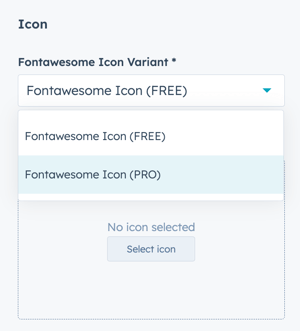
Icon > Icon > Fontawesome Icon (FREE)
Click Select icon to open the included library (v 5.0.10):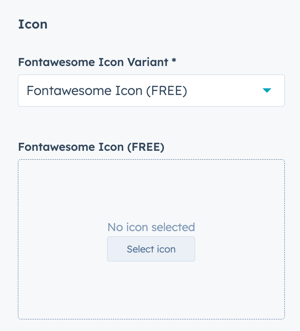
Once selected, you have the option to Replace or Remove the Icon:
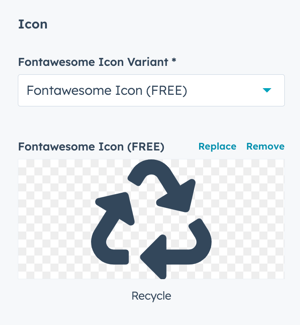
Icon > Icon > Fontawesome Icon (PRO)
Paste the icon class from your Font Awesome Pro library:
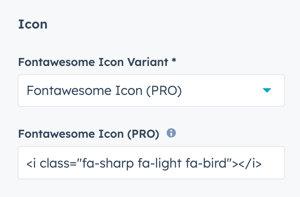
Make sure you've completed the initial configuration for FontAwesome Pro, if you limit the URL to your website will cause the icons to not display in the page editor.
Icon > Icon Image
Upload a custom image to use as an Icon.
Once uploaded, you have the option to Replace or Remove the Icon:
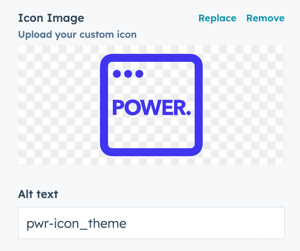
You can also modify the Alt Text for your image; the default will be the file name.
Icon > Lottie File
Configure the settings for the animation.
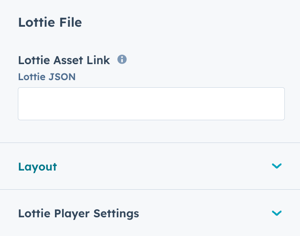
Icon > Lottie File > Lottie Asset Link
Add the JSON link from your Lottie Account (how to get the Lottie File link):
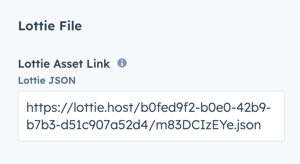
⚠️ When the Lottie File is added to the page, it will show a blank space. The animation is only visible on the preview page or live page.
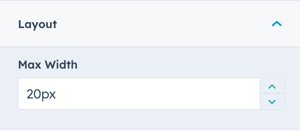
Icon > Lottie File > Layout > Max Width
The default Max Width is set to 20px, adjust this accordingly to work with your layout:
Icon > Lottie File > Lottie Player Settings
The animation is set to Autoplay and Loop by default.
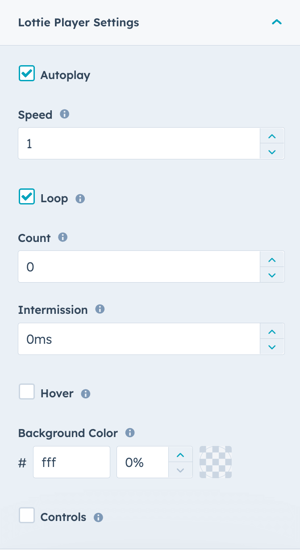
Autoplay: uncheck the box to require click interaction to start the animation.
Speed: the default is 1, setting speed to less than 1 will make it slower and greater than 1 will make it faster.
Loop: uncheck the box to play the animation only once, otherwise the animation will loop. The default is to loop indefinitely.
Count: defines the number of times to loop the animation. Setting the count property to 0 and keeping Loop checked, loops the animation indefinitely.
Intermission: the duration to pause before playing each cycle in a looped animation. Set this parameter to 0 (no pause) or any positive number.
Hover: check the box to play the animation when the user hovers the mouse over the icon.
Background Color: the default setting is set to transparent so the animation inherits the background from the module or section. Select a hex value to change the background color and set the transparency percentage to greater than 0% to make it visible.
Controls: displays player controls.
Layout
Layout > Icon Type
Choice of Icon, Image, or Lottie File, this must match what you've configured in the Icon setting to work properly.
To use FontAwesome or FontAwesome Pro icons, select Icon. If you want to upload a custom icon (preferably SVG) change to Image. For animated icons, set to Lottie File (requires account).
Layout > Alignment
Specify the alignment of the icon within the section and/or column. Choices are Left (default), Center, and Right.
Layout > Margin Top, Margin Bottom, Margin Right, Margin Left
Individual settings for margin can be set in pixels, the default is 0px. Refer to Settings that apply to all Mini Modules for more details about using margin and padding to style a section and/or column.
Style
Style > Icon Style
Choice of Circle (default), Square, or No Background. Only works for icons from the icon library, not custom images.
Style > Color Scheme
Choice of Light, Dark, or Primary.
Primary uses the primary color as defined in your theme settings.
Tip: If you change the background color for the module, the definition of Light Color scheme is a light background with dark text and Dark Color scheme is a dark background with light text.
Style > Background Color
Ability to define a custom background color using a Hex code or the Color Picker tool.
If you are using a custom background, Color Scheme must be set to Light or Dark, this option will not override Primary.
Style > Icon Size
Ability to set the size of the icon from 0 - 100 pixels.
Tip: It is generally not recommended to set this lower than 16 px to ensure the icon remains legible.
Style > Icon Color
Ability to define a custom icon color using a Hex code or the Color Picker tool. Can be used in combination with any Icon Style or Background Color.
Style > Padding Top/Bottom and Padding Left/Right
Ability to define padding in pixels equally to the top and bottom and/or left and right of the icon.
Animation
Checkbox to turn on/off Animate on Scroll. Turning off here will only apply to this module, to turn animation off globally refer to Theme Options for Animations.
Ability to change the Animation Type and Delay for the Icon.
How do I configure Tag settings?
Tag Configuration
Tags are text labels with optional icons used to highlight or categorize content.
Tag configuration options:
- Tag text
- Optional icon
- Layout settings
- Style controls
- Animation effects
Tag > Text
Where the text goes for your tag; can also include emojis.
Tag > Icon
To select an icon from the included icon library, set the Fontawesome Icon Variant to Fontawesome Icon (FREE).
If you have a Font Awesome Pro account and would like to use a custom icon library, select Fontawesome Icon (PRO).
Tag > Icon > Fontawesome Icon (FREE)
Click Select icon to open the included library (v 5.0.10):
Once selected, you have the option to Replace or Remove the Icon:
Tag > Icon > Fontawesome Icon (PRO)
Paste the icon class from your Font Awesome Pro library:
Make sure you've completed the initial configuration for FontAwesome Pro, if you limit the URL to your website will cause the icons to not display in the page editor.
Tag > Icon Image
Upload a custom image to use as an Icon.
Once uploaded, you have the option to Replace or Remove the Icon:
You can also modify the Alt Text for your image; the default will be the file name.
Tag > Lottie File
Configure the settings for the animation.
Tag > Lottie File > Lottie Asset Link
Add the JSON link from your Lottie Account (how to get the Lottie File link):
⚠️ When the Lottie File is added to the page, it will show a blank space. The animation is only visible on the preview page or live page.
Tag > Lottie File > Layout > Max Width
The default Max Width is set to 20px, adjust this accordingly to work with your layout:
Tag > Lottie File > Lottie Player Settings
The animation is set to Autoplay and Loop by default.
Autoplay: uncheck the box to require click interaction to start the animation.
Speed: the default is 1, setting speed to less than 1 will make it slower and greater than 1 will make it faster.
Loop: uncheck the box to play the animation only once, otherwise the animation will loop. The default is to loop indefinitely.
Count: defines the number of times to loop the animation. Setting the count property to 0 and keeping Loop checked, loops the animation indefinitely.
Intermission: the duration to pause before playing each cycle in a looped animation. Set this parameter to 0 (no pause) or any positive number.
Hover: check the box to play the animation when the user hovers the mouse over the icon.
Background Color: the default setting is set to transparent so the animation inherits the background from the module or section. Select a hex value to change the background color and set the transparency percentage to greater than 0% to make it visible.
Controls: displays player controls.
Layout
Layout > Icon Type
Choice of No Icon, Icon, Image, or Lottie File, this must match what you've configured in the Icon setting to work properly.
To use FontAwesome or FontAwesome Pro icons, select Icon. If you want to upload a custom icon (preferably SVG) change to Image. For animated icons, set to Lottie File (requires account).
Layout > Icon Position
Option to have the Icon on the Left or Right (default) of the Tag Text.
Layout > Full Width
Checkbox option to have the module span the full width of the section.
Layout > Alignment
Specify the alignment of the icon within the section and/or column. Choices are Left (default), Center, and Right.
Style
Style > Color Scheme
Choice of Light or Dark.
Tip: If you change the background color for the module, the definition of Light Color scheme is a light background with dark text and Dark Color scheme is a dark background with light text.
Style > Background Color
Ability to define a custom background color using a Hex code or the Color Picker tool for the background of the tag (including icon if used).
Style > Icon Size
Ability to set the size of the icon from 0 - 100 pixels.
Tip: It is generally not recommended to set this lower than 16 px to ensure the icon remains legible.
Style > Icon Color
Ability to define a custom icon color using a Hex code or the Color Picker tool.
Style > Padding Top/Bottom and Padding Left/Right
Ability to define padding in pixels equally to the top and bottom and/or left and right of the tag.
Animation
Checkbox to turn on/off Animate on Scroll. Turning off here will only apply to this module, to turn animation off globally refer to Theme Options for Animations.
Ability to change the Animation Type and Delay for the Tag.