
One of the key building blocks for your website, the header is the primary location where your site visitors will interact with your navigation menu.
What is the POWER Header Module?
The POWER Header is the global navigation module that appears at the top of your website pages, providing primary navigation and key interactive elements.
Header importance:
- Primary navigation location
- Brand identity (logo)
- Key conversion elements (CTAs)
- Contact information access
- Search functionality
- User interaction hub
Header capabilities:
- Multiple layout options
- Responsive design
- Sticky/fixed scrolling
- Mega menu support
- Mobile optimization
- Multi-language support
- Customizable per page type

Page Speed Impact

How does the Header module affect page speed?
-
Low impact: The header module has very little impact on page speed.
- Header efficiency: Well-optimized header with minimal performance cost.
-
Medium impact: Using image or video backgrounds can slightly affect performance.
-
Logo optimization importance: Improperly sized logos can slow page loading.
Performance Tips:
For the best quality, we recommend SVG for your logo sized at 120px wide.
Logo recommendations:
- SVG format: Best quality, scalable, small file size
- 120px width: Optimal size for header
- Compressed raster images: If not using SVG
Note: For more detailed performance advice, review the POWER Performance Guide!
How to Set Up Global Header?
Page Editor → POWER Header
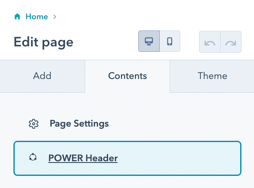
POWER Header → Global Content
Once you have accessed the global module, you will have the choice to set up 4 variations for the header.
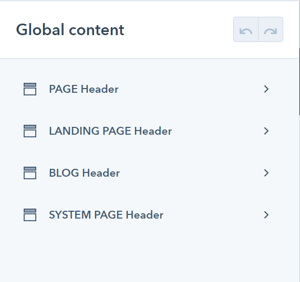
We recommend configuring the header for all page types at the beginning, even if you don't plan on using one of them (i.e. blog or landing pages) so that you have a consistent starting point if anything changes.
It is also possible to override the default header for an individual page, so an unused header type could be styled for this situation.
What are the header types?
Header Types for POWER Theme
Four header types:
PAGE header is the default for website pages
- Standard website pages
- Service pages
- About pages
- Contact pages
LANDING PAGE header is the default for landing pages
- Conversion-focused pages
- Campaign pages
- Lead capture pages
- Simplified navigation
BLOG header is the default for the Blog Listing and Blog Post templates
- Blog index pages
- Individual blog posts
- Blog-specific features
SYSTEM PAGE header is the default for the 404, 500, and Search templates
- Error pages
- Search results
- System-generated pages
Subscription page exception: While Subscription templates are system pages and they typically use the LANDING PAGE header, some accounts are using the PAGE header for these pages with no clear explanation from HubSpot.
Subscription pages: Behavior varies by account, typically Landing Page header.
How to add logo to HubSpot Website?
Settings → Website → Pages → Branding
The header uses the pre-configured global logo that you can add to the Website Images in the Branding for your Domain.
This is also where you can set the favicon for your website, which is visible in the tab of most browsers.
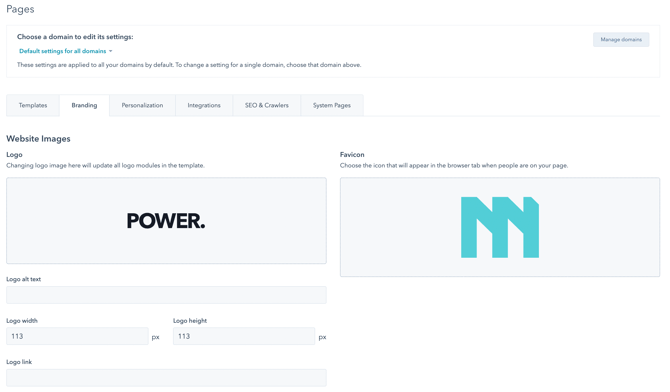
We recommend using an SVG-file logo for the best rendering across all devices and browsers. Additionally, you can adjust the default size of the logo here. A width of about 120 pixels works best in our theme.
Publishing the Global Header
When you're ready to publish the Global Header, you'll click the orange Publish to X Assets button in the upper right corner. The number of assets corresponds to the total number of assets using this specific child theme that contains any of the header types.
Publish button: "Publish to X Assets" where X = number of pages affected.
Critical publishing note: It is important to note that if you make a change to the BLOG Header, you'll have to publish the header to ALL assets, not just the blog assets. This is true for each Header Type, whether you are configuring every header or making a change to an individual setting - until you Publish to X Assets, your changes will not be visible on your preview pages and live site.
Publishing behavior:
- Changes to ANY header type require publishing to ALL assets
- Changes not visible until published
- Affects all pages using child theme
- Preview pages require publishing
- Live site requires publishing
Publishing workflow:
- Make header changes
- Click "Publish to X Assets"
- Confirm publication
- Verify changes on preview/live

There are some settings that are only visible based on previous choices, if you do not see the option available, it does not work with the layout or selections you've already made.
These settings are available for each Header Type (Page, Landing Page, Blog, System Page). We recommend opening a second browser window once you have the PAGE Header configured to make it easier to apply the same settings for the other header types and modify as needed.
POWER Header → Logo
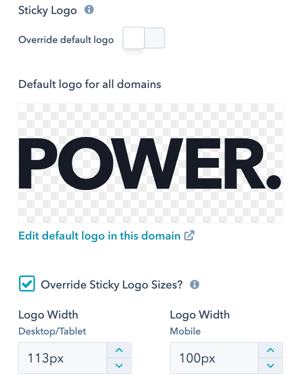
Option to Override default logo and Override Logo Sizes.
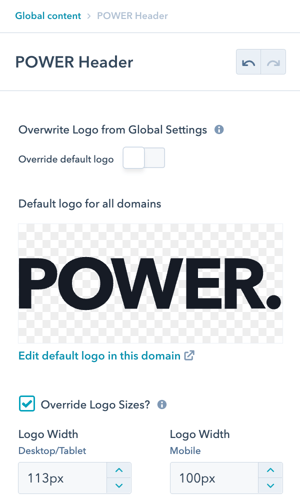
POWER Header → Sticky Logo
The Sticky Logo is the logo visible on scroll if you enable the setting for Fixed on Scroll in the Style settings. If you plan on changing the color scheme of the header from light to dark or dark to light on scroll, you'll want to override the default logo for the alternate color scheme to ensure the logo is visible.
Option to Override default logo and Override Logo Sizes.
What menu settings are available?
POWER Header → Menu
Menu configuration options:
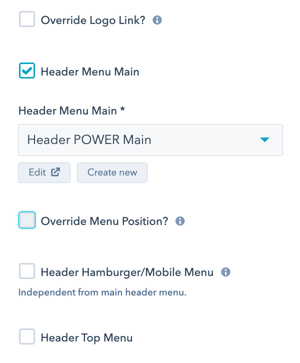
Override Logo Link: Option to Override Logo Link allows you to replace the preconfigured link from the global HubSpot settings.
Logo link customization: Change where clicking logo navigates (default: homepage).
Header Menu Main: Check Header Menu Main to select your primary navigation. Help with Navigation Menus.
Primary navigation: Select which HubSpot menu to use for main navigation.
Can I adjust menu positioning?
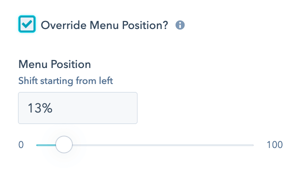
POWER Header → Menu → Override Menu Position?
Check Override Menu Position to shift the location of your menu from the left to remove any overlap with your logo.
Menu position adjustment: Move menu horizontally to prevent logo overlap.
Use case: Wide logo causing menu to overlap or crowd navigation.
What is the Hamburger/Mobile Menu?
POWER Header → Menu → Header Hamburger/Mobile Menu
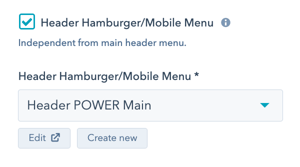
Check Header Hamburger/Mobile Menu to select an independent navigation which will be shown in the hamburger sidebar or on mobile.
Independent mobile menu: Different menu for mobile/hamburger than desktop.
Default behavior: If not active, the main menu will be used for the hamburger and mobile menu.
Requirements: Only works in combination with the active main header navigation and is designed to allow you to create a mobile-friendly version of your navigation if needed.
Mobile-friendly navigation: Simplified menu structure optimized for mobile devices.
Use cases:
- Shortened mobile menu
- Different navigation priority
- Simplified structure
- Touch-optimized options
What is the Top Menu?
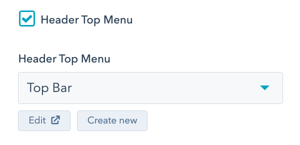
POWER Header → Menu → Header Top Menu
Check Header Top Menu to add a secondary menu bar above the header. This menu is not sticky on scroll and is often used for social icons and targeted menus.
Top menu characteristics:
- Secondary menu bar
- Above main header
- Not sticky (doesn't scroll)
- Utility navigation
- Social icons
Display requirements: The Top Menu does not display on desktop unless you check Top Header Desktop and on mobile unless you check Top Header Mobile in the checkbox under Layout → Choose Layout
Activation required: Must enable in both Menu AND Layout settings.
What kind of contact and login options are available?
POWER Header → Contact Information
Check Contact Information to include contact information in the header.
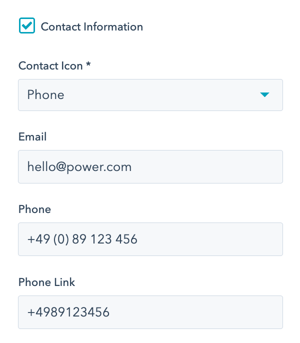
Phone Link must be configured with the "+" at the beginning with all other symbols and spaces removed.
POWER Header → Contact Information → Contact Icon
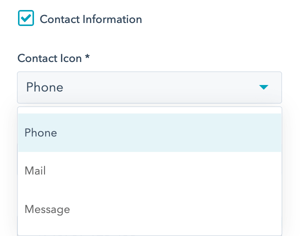
Choice of Phone, Mail, or Message icons for use in the header.
Preview of the Phone Icon

Preview of the Mail Icon

Preview of the Message Icon

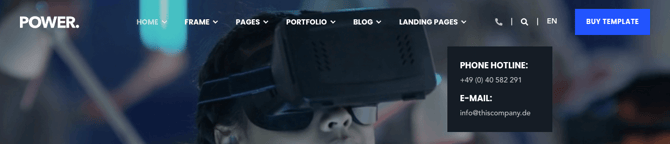
Hover over the Contact Icon in the header to reveal the Contact Information.
POWER Header → Login
Check Login to include the login icon in the header.
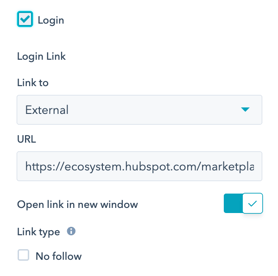
Click the Person Icon in the header to access the Membership page link configured in the settings.

How do I add buttons to the header?
POWER Header → Button Type of 1st Button
Button Options:
- Button: Theme-styled button with link
- CTA: HubSpot CTA module
- None: No first button
For Button, additional settings are included to configure the 1st Button Title and 1st Button Link.
For CTA, make sure the CTA chosen is configured as "Link (No Style)" to avoid style conflicts.

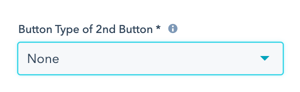
POWER Header → Button Type of 2nd Button
Choice of Button, CTA, or None. Same setting options are available as 1st Button.
Second button: Independent configuration from first button.
Buttons use cases:
- Primary CTA (first button)
- Secondary CTA (second button)
- Contact us
- Get started
- Request demo
- Free trial
How do I add search functionality?
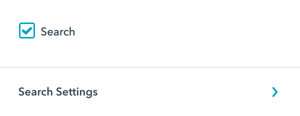
POWER Header → Search
Check Search to include search in the header.
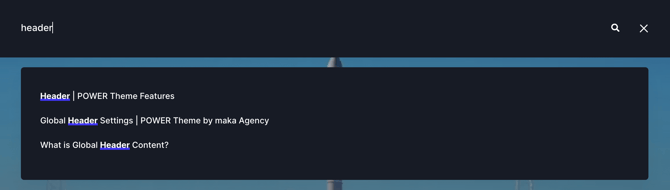
When the Search Icon is clicked, the search function expands from the Header (example is dark scheme).

POWER Header → Search
Check Search to include search in the header.
Search interaction: When the Search Icon is clicked, the search function expands from the Header (example is dark scheme).
Search expansion: Icon expands to search field inline in header.
Search template requirement: Make sure that your Search page has been configured to use the POWER template for your child theme in your HubSpot Settings.
Search page setup: Must use POWER theme template for consistent styling.
Example of search suggestions:
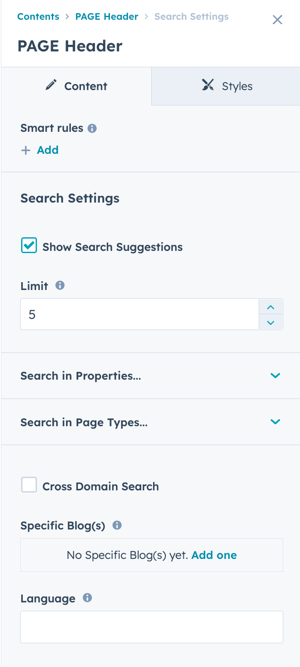
POWER Header → Search → Search Settings → Limit
Adjust Limit to determine how many results should display per search results page, the default value is 5 (five).
POWER Header → Search → Search Settings → Search in Properties
Check the property types that should be included in the search results. All properties are selected by default and can be modified independently per header type (Page, Landing Page, Blog, System Page).
Property filtering: Control which content properties are searchable.
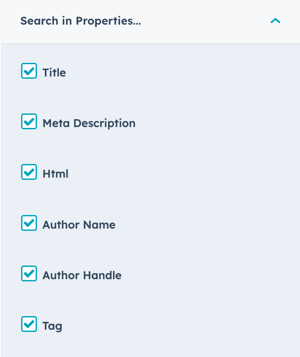
POWER Header → Search → Search Settings → Search in Page Types
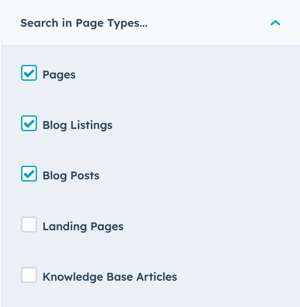
Check the page types that should be included in the search results. The default selection includes Pages, Blog Listings, and Blog Posts with the option to also include Landing Pages and Knowledge Base Articles.
Page type filtering:
- Pages (default)
- Blog Listings (default)
- Blog Posts (default)
- Landing Pages (optional)
- Knowledge Base Articles (optional)
Search scope customization: Different search scope per header type.
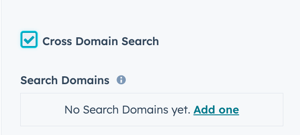
POWER Header → Search → Search Settings → Cross Domain Search
If you need Search to include multiple domains, you'll need to configure each domain in the Cross Domain Search settings.
Cross-domain requirement: Only needed if content spans multiple domains.
Single domain: If your website, blog, knowledge base, etc. are all on the same domain you don't need to configure your domain here.
Activation: Check the box to activate Cross Domain Search.
POWER Header → Search → Search Settings → Cross Domain Search → Search Domains
Click Add one to add the first domain, this should be your default/primary domain (it's not included automatically once you check the box).
Domain format: Each domain should be added using the format subdomain.domain.extension, e.g. www.maka-agency.com.
Domain examples:
- www.example.com
- blog.example.com
- help.example.com
Use cases:
- Blog on subdomain
- Knowledge base separate domain
- Multiple brand sites
- Regional domains
POWER Header → Search → Search Settings → Specific Blog(s)
If you only have one blog or you want to include all of the live blogs in your account, this setting will remain blank.
Default behavior: Searches all blogs if not specified.
Blog-specific search: Click Add one to add an individual blog if you want to limit the search to this blog only.
Use case: This setting is typically used for the Blog header variant when you want to limit the search to a specific blog (for example, if you have a blog for your blog/news, but also have a blog configured for another purpose to organize content on your website).
POWER Header → Search → Search Settings → Language
Specifies the language of content to be searched.
Language parameter: This parameter should obey the ISO639-1 format (e.g. es for Spanish).
ISO639-1 format: Two-letter language codes (en, es, fr, de, etc.).
Default behavior: The default is all languages, updating this setting is recommended when using multi-language content to limit the language per language variant in the header.
Multi-language recommendation: If you're building your website in multiple languages, we recommend fully configuring your header (including all four variants) before you create your multi-language variant to ensure the base settings are consistent across all languages.
Multi-language workflow:
- Configure base header (all variants)
- Create language variants
- Adjust language-specific settings
How do I add social icons?
POWER Header → Social Icons
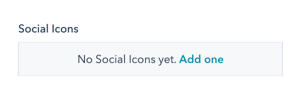
Click Add one to configure your first Social Icon for your header.
Social icon setup: Add multiple social media links with icons.
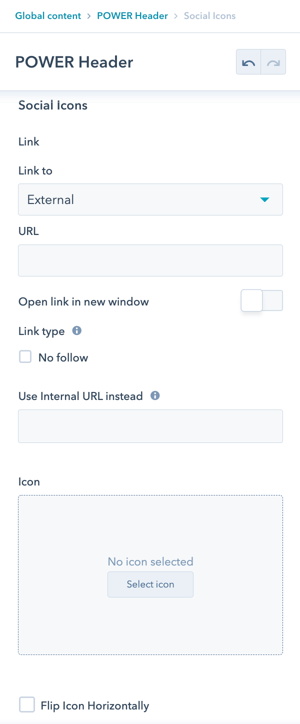
POWER Header → Social Icons → Icon Setup
Icon configuration per social network.
Where can social icons be displayed?
POWER Header → Social Icons → Use Social Icons in Header
Option to include the social icons in the desktop header.
Header display warning: You will have to be careful how many settings you enable in the header as the social icons won't fit if you have too many options selected.
Space limitation: Too many header elements cause layout issues.
Alternative placement: There is also an option under Layout to move them to the Top Header.
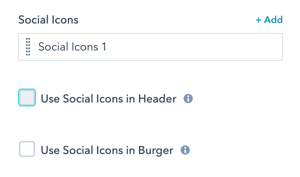
POWER Header → Social Icons → Use Social Icons in Burger
The social media accounts are shown in the header bar for the layouts "Landing Page", "Burger", and "Burger Only" as well as in the burger menu on mobile.
Burger menu display: Social icons in sidebar/mobile menu.
Example of Social Icons on Landing Page header: (Shows social icons in landing page layout)
Social icon placement options:
- Desktop header (space permitting)
- Top header
- Burger/mobile menu
- Landing page header
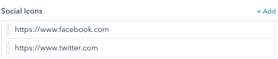
Example of Social Icons on Landing Page header:

What header layout options are available?
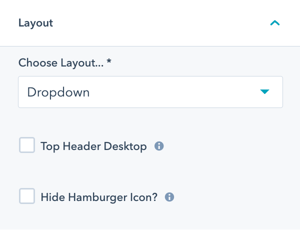
POWER Header → Layout → Choose Layout
This is where you'll choose the format your menu will be in.
Layout options:
Dropdown - classic dropdown menu where sub-menus fly out horizontally
- Traditional navigation
- Hover dropdowns
- Hierarchical menus
Mega Menu - as wide as the menu content width
- Large dropdown panels
- Multiple columns
- Rich content
- Flexible width
Mega Menu Content Width - as wide as the content container width
- Constrained to content area
- Consistent with page width
- Organized layout
Mega Menu Screen Width - stretches over the full width of the window/screen
- Full-screen mega menu
- Maximum space
- Dramatic effect
Burger - reduces the menu to a hamburger icon which reveals the full menu in a sidebar
- Hamburger icon
- Sidebar navigation
- All elements in sidebar
- Clean header
Burger Only - shows all header elements in the sidebar only
- Everything in sidebar
- Minimal header
- Mobile-style on desktop
Landing Page - reduced menu to improve conversions. This layout shows social icons, but a simple top-level menu can also be added.
- Simplified for conversion
- Minimal distractions
- Social icons prominent
- Optional simple menu
POWER Header → Advanced Mega Menu
Advanced Mega Menu for Desktop only, all other devices will use the existing menu as configured.

If you are using the Advanced Mega Menu the Layout needs to be set to Dropdown or one of the Mega Menu choices, it is not compatible with the Burger, Burger Only, or Landing Page.
Step-by-Step Instructions for the Advanced Mega Menu
POWER Header → Layout → Choose Layout
This is where you'll choose the format your menu will be in.
- Dropdown - classic dropdown menu where sub-menus fly out horizontally
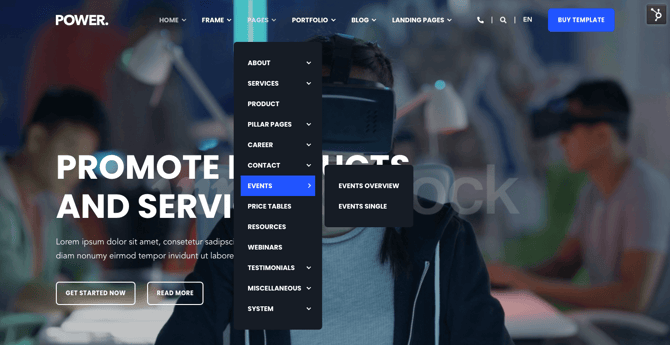
- Mega Menu - as wide as the menu content width
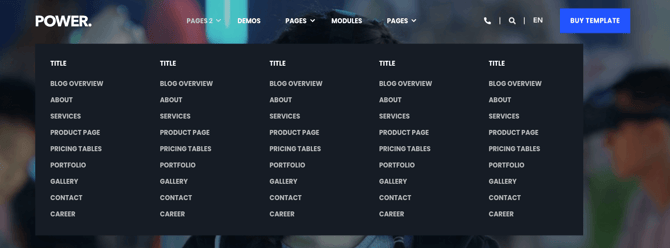
- Mega Menu Content Width - as wide as the content container width
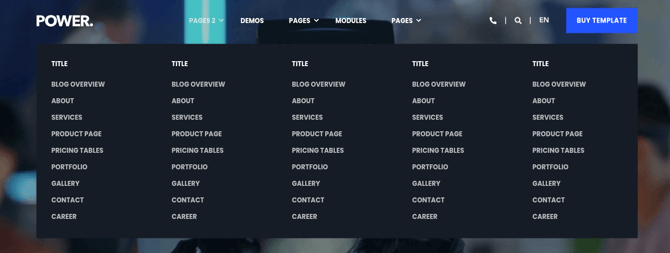
- Mega Menu Screen Width -stretches over the full width of the window/screen
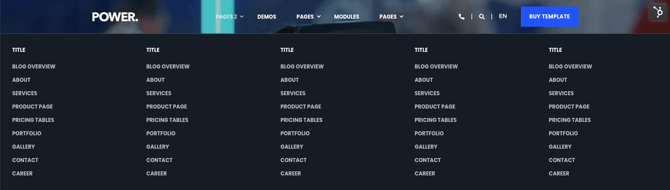
- Burger - reduces the menu to a hamburger icon which reveals the full menu in a sidebar

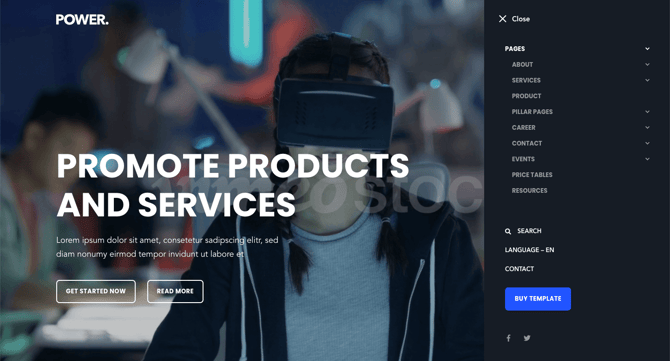
- Burger Only - shows all header elements in the sidebar only

- Landing Page - reduced menu to improve conversions. This layout shows social icons, but a simple top-level menu can also be added.

POWER Header → Layout → Top Header Desktop
Check Top Header Desktop to activate the top header bar above the main header. If you configured a menu under Menu → Top Header Menu, it will appear now.
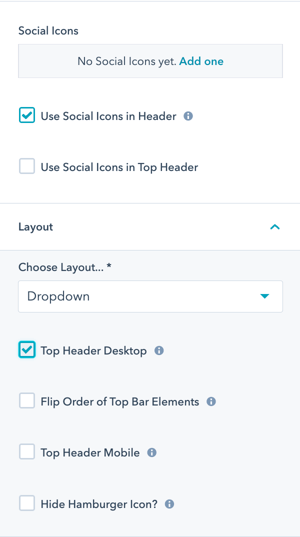

Once checked, you will also see additional options under Social Icons for Use Social Icons in Header and Use Social Icons in Top Header.
Check Flip Order of Top Bar Elements if you want to move the top bar elements from the left to the right.
Check Top Header Mobile if you would like to add a button next to the burger on mobile for the Top Header.
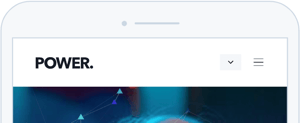
Check Hide Hamburger Icon? to hide the hamburger even if there is content in the sidebar menu.
What styling options are available?
POWER Header → Style
Set the Color Scheme for your Header elements.
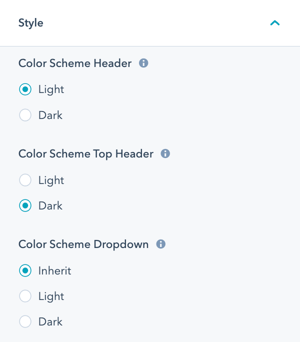
POWER Header → Style → Color Scheme Header
Choice of Light or Dark for the main header.
The light scheme shows a light background color and a dark font and the dark scheme shows a dark background color and a light font color as defined in the Theme Settings for your child theme.
Main header colors:
- Light: Light background, dark text
- Dark: Dark background, light text


POWER Header → Style → Color Scheme Top Bar
Choice of Light or Dark for the top header.
The light scheme shows a light background color and a dark font and the dark scheme shows a dark background color and a light font color as defined in the Theme Settings for your child theme.
Top bar colors: Independent from main header.


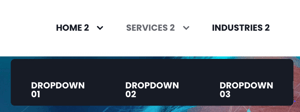
POWER Header → Style → Color Scheme Dropdown
Choice of Inherit, Light or Dark for the dropdown and mega menu(s).
Inherit will use the same color scheme as chosen for the main header.
The light scheme shows a light background color and a dark font and the dark scheme shows a dark background color and a light font color as defined in the Theme Settings for your child theme.
Dropdown colors:
- Inherit: Match main header
- Light: Light background
- Dark: Dark background
What additional style settings are available?
POWER Header → Style
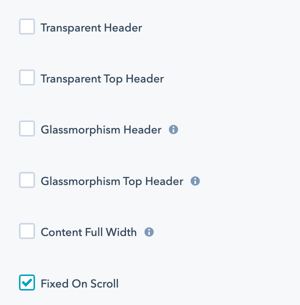
Transparent Header: Check Transparent Header to remove the background from your header to see the page content behind.
Use case: Header over hero images, allowing background to show through.

Transparent Top Header: Check Transparent Top Header to remove the background from your top header to see the page content behind.

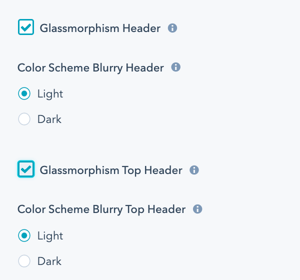
Glassmorphism Header: Check Glassmorphism Header to remove the background from your header to see the page content behind.
Glassmorphism effect:
Frosted glass appearance, modern aesthetic.
Additional settings are available to adjust the color scheme.
Social Icon color can be adjusted in Theme Settings → Color → POWER → Light Scheme → Other → Social

Glassmorphism Top Header: Check Glassmorphism Top Header to remove the background from your top header to see the page content behind.

Content Full Width: Check Content Full Width to stretch the header content to the window borders instead of the container width (not recommended).
Full width warning: Not recommended, breaks content alignment.

POWER Header → Style → Fixed on Scroll
Check Fixed on Scroll to make the main header sticky, so the header/navigation sticks to the top of the page as the user scrolls.
Sticky header: Header remains visible while scrolling, always accessible navigation.
Menu spacing: Option to change the Space between menu items to adjust how your menu fits in the header.
Choices are Normal (50px), Narrow (32px), and Narrow (24px).
Spacing options:
- Normal: 50px (default)
- Narrow: 32px (tighter)
- Narrower: 24px (very tight)
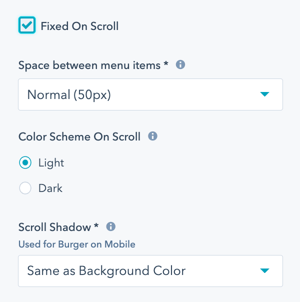
Option to set Scroll Shadow for use with Burger menu on mobile, if the container is filled with content, this provides an indicator to the user to scroll. Chocies are Same as Background Color or None.
How do I configure the language switcher?
POWER Header → Style → Language Switcher
Check Dropdown arrow for language selector to add an optional indicator to change the language for multi-language pages.
Language switcher: Automatic on multi-language sites.
Arrow indicator: Creating translated pages will automatically show the language switcher in the header bar.
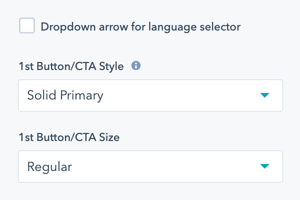
Without arrow (default - this displays automatically): (Shows language switcher without arrow)

With arrow indicator enabled: (Shows language switcher with dropdown arrow)

How do I style header buttons?
POWER Header → Style → Button/CTA
Option to configure the Button/CTA Style for each button.
Button styling: Independent style per button (1st and 2nd).
For a detailed explanation of options, refer to CTA settings.
Can I customize header text?
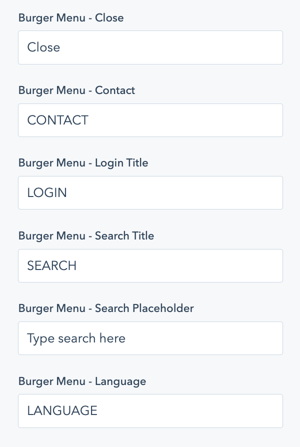
POWER Header → Standard Text/Translations
Option to change or translate the standard text used throughout the header.
Header text customization: Change default labels and text.
Option to change or translate the standard text used throughout the header.
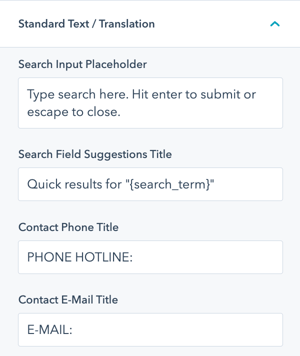
Burger menu text: Independent text for mobile/sidebar menu.
Use cases:
- Multi-language translation
- Brand-specific terminology
- Custom labels
- Localization
Can I add custom CSS to the header?
POWER Header → Custom Class
Here you can set a custom CSS class for your header. This allows you to target this specific element in any of your custom stylesheets.
Custom class purpose: Apply specific CSS styling to header.
Custom styling workflow:
- Add custom class name
- Add CSS to child.css
- Target with
.your-class-name - Apply custom styles