
What is the Bento Grid Module?
The Bento Grid Module is a flexible layout system that allows you to create custom content arrangements on your HubSpot CMS pages. Built on a 12-column grid structure, it enables you to design unique layouts with multiple content types and styling options.
Key feature: Mix different content types (text, images, buttons, forms) within a single, customizable grid layout.
TABLE OF CONTENTS
Page Speed Impact
Setup Instructions
Common Questions
Page Speed Impact

Module Performance Impact
Impact Level: Low to Medium
The Bento Grid Module itself has minimal impact on page speed. However, performance depends on the content you add inside it.
Low Impact:
- The module structure uses optimized code
- Minimal resources required for the grid framework
Medium Impact:
- Large images and videos increase load times
- CTAs and Menus require additional HubSpot scripts
- Forms add tracking code that affects performance
Warning: Using the module in or near the viewport may cause Content Layout Shift (CLS).
How Can I Optimize Performance?
Follow these best practices to maintain fast page speeds:
- Convert images to WebP format for next-gen image standards
- Compress images using TinyPNG for JPG, PNG, and WebP files
- Use SVG images for logos and icons to minimize file sizes
- Limit CTA usage as each CTA adds HubSpot tracking scripts
Performance Tip: Review the complete performance guide to optimize your POWER theme for speed.
Take a look at our performance guide to get your website running its best!
How Do I Set Up the Module Header?
What is the Intro to Title?
The Intro to Title is smaller text that appears above your main heading. This is optional and can be left blank to hide it from the page.
Example use: "Featured Content" or "Our Services"
How Do I Configure the Main Title?
Title field: Enter your main heading text. Leave blank to hide the title entirely.
Title - Header Type: Choose the semantic heading level:
- H1 (primary page heading)
- H2 (main section heading)
- H3 (subsection heading)
- H4 (minor heading)
Important: This setting controls how Google interprets your heading structure, not the visual appearance. Adjust the visual size separately under Style → Title Size.
Can I Add Description Text?
Yes, the Description field accepts any amount of body text. You can include multiple paragraphs or leave it blank to hide this section.
How Does the 12-Column Grid Work?
Understanding the Grid System
The Bento Grid Module uses a 12-column layout system for maximum flexibility.
Think of it like a spreadsheet: Imagine 12 vertical columns that you can divide and combine to create your desired layout.
How Do I Divide Columns?
You can split the 12 columns in multiple ways. Here are common two-column examples:
- 3 and 9: Narrow sidebar with wide content area
- 4 and 8: Standard sidebar layout
- 6 and 6: Equal split (50/50)
- 8 and 4: Wide content with narrow sidebar
- 9 and 3: Asymmetric layout with thin sidebar
Key concept: The numbers always add up to 12 or less.
How Do Columns Adjust to Screen Sizes?
The grid automatically adapts to different devices:
- Large desktops: 12 columns wide
- Smaller desktops: 9 columns wide
- Tablets: 6 columns wide
- Mobile: 3 columns wide (default)
Note: Final width depends on your settings and whether "Auto Fill Gaps" is enabled.
Bento Grid Module
What is the Bento Grid Module?
The Bento Grid Module is a flexible layout system that allows you to create custom content arrangements on your HubSpot CMS pages. Built on a 12-column grid structure, it enables you to design unique layouts with multiple content types and styling options.
Key feature: Mix different content types (text, images, buttons, forms) within a single, customizable grid layout.
How Does This Module Affect Page Speed?
Module Performance Impact
Impact Level: Low to Medium
The Bento Grid Module itself has minimal impact on page speed. However, performance depends on the content you add inside it.
Low Impact:
- The module structure uses optimized code
- Minimal resources required for the grid framework
Medium Impact:
- Large images and videos increase load times
- CTAs and Menus require additional HubSpot scripts
- Forms add tracking code that affects performance
Warning: Using the module in or near the viewport may cause Content Layout Shift (CLS).
How Can I Optimize Performance?
Follow these best practices to maintain fast page speeds:
- Convert images to WebP format for next-gen image standards
- Compress images using TinyPNG for JPG, PNG, and WebP files
- Use SVG images for logos and icons to minimize file sizes
- Limit CTA usage as each CTA adds HubSpot tracking scripts
Performance Tip: Review the complete performance guide to optimize your POWER theme for speed.
See also: Image optimization best practices
How Do I Set Up the Module Header?
What is the Intro to Title?
The Intro to Title is smaller text that appears above your main heading. This is optional and can be left blank to hide it from the page.
Example use: "Featured Content" or "Our Services"
How Do I Configure the Main Title?
Title field: Enter your main heading text. Leave blank to hide the title entirely.
Title - Header Type: Choose the semantic heading level:
- H1 (primary page heading)
- H2 (main section heading)
- H3 (subsection heading)
- H4 (minor heading)
Important: This setting controls how Google interprets your heading structure, not the visual appearance. Adjust the visual size separately under Style → Title Size.
Can I Add Description Text?
Yes, the Description field accepts any amount of body text. You can include multiple paragraphs or leave it blank to hide this section.
See also: Title styling options
How Does the 12-Column Grid Work?
Understanding the Grid System
The Bento Grid Module uses a 12-column layout system for maximum flexibility.
Think of it like a spreadsheet: Imagine 12 vertical columns that you can divide and combine to create your desired layout.
How Do I Divide Columns?
You can split the 12 columns in multiple ways. Here are common two-column examples:
- 3 and 9: Narrow sidebar with wide content area
- 4 and 8: Standard sidebar layout
- 6 and 6: Equal split (50/50)
- 8 and 4: Wide content with narrow sidebar
- 9 and 3: Asymmetric layout with thin sidebar
Key concept: The numbers always add up to 12 or less.
How Do Columns Adjust to Screen Sizes?
The grid automatically adapts to different devices:
- Large desktops: 12 columns wide
- Smaller desktops: 9 columns wide
- Tablets: 6 columns wide
- Mobile: 3 columns wide (default)
Note: Final width depends on your settings and whether "Auto Fill Gaps" is enabled.
See also: Column span settings
What Are the Module Components?
Understanding the Hierarchy
The Bento Grid Module has three main components that work together:
1. Bento Grid Module (Outer Container)
- The overall structure within HubSpot CMS
- Controls placement on your page
- Sets global styling and background
2. Wrapper(s) (Content Groups)
- Groups content within columns
- Determines how content splits across the module
- Applies unified styling to grouped items
- Contains one or more content pieces
3. Content(s) (Individual Items)
- Individual pieces like icons, images, text, buttons
- At least one required per wrapper
- Mix different content types in the same wrapper
Relationship: Module → Column(s) → Wrapper(s) → Content(s)
What Can I Put in Each Component?
Wrappers can contain:
- Multiple content items
- Different content types together
- Style and layout settings for the group
Columns can contain:
- Multiple wrappers
- Each wrapper creates a new row or continues the current row
See also: Wrapper configuration guide
How Do I Configure the Module Layout?
Setting Column Numbers
Control how many columns appear on different screen sizes:
- Go to Bento Grid Module → Layout → Columns
- Set specific columns for:
- Desktop
- Small Desktop
- Tablet
- Mobile
Example: Use 3 columns on desktop, 2 on tablet, 1 on mobile for a responsive design.
What Does Auto Fill Gaps Do?
Auto Fill Gaps option: When enabled, the last content item in a column or row expands to fill remaining blank space.
Use case: Prevent awkward white space in your layout by automatically stretching content to fit.
How Do I Control Spacing Between Elements?
Grid Gaps setting: Defines the horizontal spacing between content elements.
Tip: Increase gaps for breathing room, decrease for tighter layouts.
Should I Use Content Width or Full Width?
Content Width:
- Module spans only the content area width
- Maintains consistent margins with other page content
Full Width:
- Module spans the entire window width
- Creates edge-to-edge designs
How Do I Adjust Module Spacing?
Padding vs. Margin: What's the Difference?
Padding (Top & Bottom):
- Space inside the module
- Creates breathing room within the module boundaries
Margin (Top & Bottom):
- Space outside the module
- Controls distance from other page elements
Configure both in Bento Grid Module → Layout.
How Does the Show More Feature Work?
What is the Show More Button?
The Show More feature lets you hide content behind a collapsible button. This is useful for long sections that you want to keep compact initially.
Enable it: Check Show More in the Layout settings.
How Do I Configure Collapsed Height?
The collapsed height determines how much content displays before the Show More button appears.
Settings available:
- Set different collapsed heights for:
- Desktop
- Tablet
- Mobile
Example: Show 500px on desktop, 300px on tablet, 200px on mobile.
Can I Customize the Button Style?
Yes, choose from:
- Standard theme button styles
- Your custom button styles
Configure in Show More Options section.
How Do I Style the Bento Grid Module?
Choosing a Color Scheme
Select a color scheme defined in your theme settings:
Bento Grid Module → Style → Color Scheme
Important: Color schemes control text and element colors to maintain proper contrast with your background.
How Do I Style the Title?
Title Styles - Text:
- Default: Inherits theme settings
- Custom: Choose specific color or gradient
Title Style - Background:
- Add a background color or gradient behind your title
Title Styles/Sizes:
- Set style, background, and size (h1, h2, h3) for each title
- Control visual appearance separately from semantic heading level
How Do I Add Visual Effects?
What Does Section Box Shadow Do?
The Section Box Shadow adds a shadow around the entire module, creating visual depth and separation from the page.
Enable it: Configure in Bento Grid Module → Style → Section Box Shadow.
Can I Add Rounded Corners to Wrappers?
Yes, use the Wrapper Border Radius setting:
- Check the box to enable rounded corners
- Enter pixel value (higher = more curved)
Example: 8px for subtle rounding, 20px for pronounced curves.
Note: You can override this per individual wrapper.
How Do I Add Shadows to Wrappers?
The Wrapper Box Shadow setting adds shadows to individual wrapper sections.
Control levels:
- Module level (applies to all wrappers)
- Individual wrapper level (override per wrapper)
See also: Wrapper styling options
How Do I Set Module Backgrounds?
What Background Options Are Available?
Choose from four background types:
- Background Color: Solid color fill
- Background Image/Video: Visual media background
- Background Gradient: Color gradient effect
- Transparent: No background (shows underlying content)
Configure in Bento Grid Module → Style → Background.
How Do I Create and Configure Wrappers?
What is a Wrapper?
A wrapper groups content items within a column and allows you to apply styling to the entire group. Think of it as a container that holds related content together.
Requirements:
- At least one wrapper required per column
- Multiple wrappers allowed per column
Behavior: Wrappers sit next to each other until the row fills, then new rows automatically create.
How Do I Name Wrappers?
Internal Name field: Add a descriptive name for organization.
Default naming: If left blank, wrappers auto-name as "Wrapper(s) 1", "Wrapper(s) 2", etc.
Best practice: Use descriptive names like "Hero Content" or "CTA Section" for easier management.
Can I Link an Entire Wrapper?
Yes, the Wrapper Link setting makes the entire wrapper section clickable.
Link options:
- External URL
- HubSpot Content
- Files
- Email addresses
- Phone numbers
- HubSpot Pop-up CTA
- HubSpot Blog post
Critical: If you add a wrapper link, do NOT add individual content links inside. HTML doesn't allow nested links and will break your layout.
Anchor links: Enter anchor tags (e.g., #contact) in the "Use Internal URL instead" field to link to page sections.
How Do I Control Wrapper Layout?
What is Column Span?
Column Span determines how many columns your wrapper occupies horizontally.
Range: 2-12 columns
Examples for desktop (12 columns available):
- Span of 12 = Full width
- Span of 6 = Half width
- Span of 4 = One third width
- Span of 3 = One quarter width
Remember: Default column widths vary by device (12 desktop, 9 tablet, 3 mobile).
What is Row Span?
Row Span controls the vertical space your wrapper occupies.
How it works:
- Determined by your chosen grid and wrapper count
- Only affects layouts with multiple rows
- Allows wrappers to span multiple row heights
Use case: Create taller sections that span 2-3 rows while other content flows around them.
When Should I Use Custom Height?
Custom Height overrides automatic row height with a fixed pixel value.
Use cases:
- Background image wrappers without content
- Full-width decorative sections
- Maintaining specific proportions
Warning: Custom heights can create empty spaces in your layout. Use Row Span whenever possible and reserve Custom Height for special cases.
How Do I Align Content Within Wrappers?
Horizontal Alignment Options
Choose how content aligns horizontally within the wrapper:
- Left: Content aligns to the left edge
- Center: Content centers horizontally
- Right: Content aligns to the right edge
Vertical Alignment Options
Choose how content aligns vertically within the wrapper:
- Top: Content aligns to the top
- Middle: Content centers vertically
- Bottom: Content aligns to the bottom
Configure both in Wrapper → Layout → Alignment Horizontal/Vertical.
Tip: Combine vertical and horizontal alignment for precise content positioning (e.g., bottom-right).
How Do I Style Individual Wrappers?
Understanding Style Layers
Styles cascade in this order (back to front):
- Bento Grid Module Style (furthest back)
- Column styles (middle layer)
- Wrapper Style (top layer)
Key concept: Wrapper styles override module and column styles. Each wrapper can have independent styling.
Setting Wrapper Color Schemes
Options:
- Light: Light background with dark text
- Dark: Dark background with light text
- Inherit: Use the module's color scheme
Important: Select the appropriate scheme based on your background color to ensure text remains readable.
Configure in Wrapper → Style → Color Scheme.
How Do I Add Padding Inside Wrappers?
Add inner padding checkbox: Enables padding inside the wrapper without increasing its overall size.
When enabled, set:
- Padding top & bottom
- Padding left & right
Use case: Create space between wrapper edges and content for better visual balance.
Can I Override Module-Level Styling?
Border Radius Override
Three options:
- Inherit: Use module's border radius setting
- True: Set specific border radius for this wrapper
- False: Disable border radius on this wrapper only
Box Shadow Override
Three options:
- Inherit: Use module's box shadow setting
- True: Set specific box shadow for this wrapper
- False: Disable all box shadows on this wrapper only
Configure both in Wrapper → Style.
How Do I Set Wrapper Backgrounds?
What Background Types Are Available?
Choose from five background options:
- Background Color: Solid color fill
- Background Image: Image as background
- Background Gradient: Color gradient effect
- Glassmorphism/Blur: Frosted glass effect
- Transparent: No background (shows column behind)
How Do I Configure Background Colors?
Background Color settings:
- Enter hex code (e.g.,
#0066CC) - Use HubSpot's color picker
- Adjust opacity for transparency effects
Transparency tip: Lower opacity creates subtle overlay effects.
How Do I Set Background Images?
Image configuration steps:
- Select an image for the wrapper background
- Choose Background Position:
- Bottom
- Center
- Left
- Right
- Top
Focal point: Position determines which part of the image remains visible when cropped.
Can I Add Image Overlays?
Yes, use Background Image Overlay to add a color or gradient layer over your image.
Configuration:
- Choose single color or gradient overlay
- Set opacity to see image through overlay
- For gradients: Set opacity per color or overall
Use case: Darken images to improve text readability.
How Do I Create Background Gradients?
Setting Gradient Direction
Choose from four gradient directions:
- Horizontal: Left to Right
- Vertical: Top to Bottom
- Diagonal: Top Left to Bottom Right
- Diagonal: Bottom Left to Top Right
Configuring Gradient Colors
For each gradient color:
- Enter hex code or use HubSpot's color picker
- Set individual opacity per color
- Adjust color positions for custom effects
Tip: Use complementary colors for smooth, professional gradients.
What is Glassmorphism/Blur?
Understanding the Effect
Glassmorphism creates a frosted glass effect with background blur. This modern design technique is popular for overlay cards and panels.
Configuration:
- Choose background color using hex code or color picker
- Adjust opacity for desired transparency
- Blur intensity is automatic
Browser compatibility: Browsers without blur support display a non-blur version automatically.
Use case: Create modern, layered designs with depth.
When Should I Use Transparent Backgrounds?
Use Transparent backgrounds when you want the column's background to show through the wrapper.
Best for:
- Layered designs
- Content that should blend with surroundings
- Minimal visual separation
Can I Add Hover Effects to Wrappers?
What is Custom Hover Background?
The Custom Hover Background setting displays a different background when users hover over the wrapper with their cursor.
Configuration:
- Set in Wrapper → Style → Custom Hover Background
- Choose any background type (color, image, gradient)
- Smooth transition on hover
Use case: Create interactive cards that change appearance on hover to indicate clickability.
How Do I Add Custom CSS to Wrappers?
Using Custom Classes
Custom Class field: Add a CSS class name to target this specific wrapper with custom stylesheets.
Steps:
- Enter class name in Wrapper → Style → Custom Class
- Create custom CSS in your stylesheet
- Target the class with your styles
Use case: Apply unique styles beyond the module's built-in options.
Important: Requires CSS knowledge and access to custom stylesheets such as your child.css file.
What Content Types Can I Add?
Available Content Options
You can add these content types to any wrapper:
- Button/Link: Clickable buttons or text links
- CTA: Conversion tracking button
- Icon: Single icon graphic
- Icon with Text: Icon paired with text and optional button
- Image: Static image
- Intro Title: Small text above headings
- Line: Horizontal divider line
- Logo: Company or brand logo
- :
- Menu: Series of navigation links
- Rich Text Field: Formatted text content
- Social Icons: Social media links
- Spacer: Vertical spacing element
- Title: Heading text
- Form: HubSpot form integration
Flexibility: Mix multiple content types within the same wrapper.
How Do I Add Titles to Wrappers?
Using the Title Content Type
Title content: Adds a heading using your default theme style.
Limitation: Uses default styling only.
Alternative: Use the Rich Text Field content type for custom title styling and formatting options.
When to use Title vs. Rich Text:
- Title: Quick, consistently styled headings
- Rich Text: Custom formatting, colors, and styles needed
How Do I Add Menus to Wrappers?
What is the Menu Content Type?
The Menu content type adds a series of navigation links similar to a traditional website menu.
Setup:
- Select Menu content type
- Click Create new to configure
- Add links and customize appearance
Use case: Create vertical or horizontal navigation within your Bento Grid layout.
What's the difference Between a Simple Menu and a Menu?
Simple menu content types allow you to create a menu directly in your CMS page editor. This has improved this improves performance and accessibility compared to advanced navigation menus available in the global HubSpot settings.
For HubSpot global advanced menus you can choose the "menu" content type.
What's the Difference Between Button/Link and CTA?
Button/Link Content Type
Best for: General clickable elements without conversion tracking.
Features:
- Style using any CTA/Button Style
- Includes Link style option
- Minimal performance impact
Use case: Navigation buttons, download links, external site links.
CTA Content Type
Best for: Tracking conversions and marketing goals.
Features:
- Style using any CTA/Button Style
- HubSpot conversion tracking
- Detailed analytics
Warning: Multiple CTAs impact page speed due to additional HubSpot tracking code.
Recommendation: Use Button/Link when conversion tracking isn't needed to maintain optimal performance.
See also: Performance optimization tips
How Do I Add Forms to Wrappers?
Form Content Type
Add HubSpot forms directly into your Bento Grid layout.
Styling options:
- Form styles from theme settings
- Button styles from theme settings
- Configure in Bento Grid Module → Style → Form Style
What's the Performance Impact?
⚠️ Important: HubSpot forms significantly impact page speed.
Best practices:
- Avoid forms on SEO-sensitive pages
- Use forms sparingly
- Consider form placement carefully
Alternative: Link to a dedicated form page for important landing pages.
How Do I Work with Icons?
Icon Content Type
Add standalone icons to your wrapper.
Icon sources:
- Built-in icon library
- Upload custom image icons
Image requirements: Use 30x30px or 60x60px for retina displays.
Configuration options:
- Icon Size: Set size in pixels
- Icon Color: Choose color using hex code or color picker
Icon with Text Content Type
Combine icons with text and optional buttons for rich content blocks.
Icon options:
- Image upload
- Font Awesome Free icons
- Font Awesome Pro icons (if available)
Configuration settings:
- Icon/image size (pixels)
- Icon color
- Content title and text
- Optional button with title and link
- CTA/Button style from theme
- Button size (regular, long, small, large, full width)
- Icon style (square or circular)
- Icon position (left or right of text)
- Gap between icon and text (spacing)
- Vertical alignment within module
Use case: Feature blocks, service listings, benefit highlights.
How Do I Use the Line Content Type?
Adding Divider Lines
The Line content type creates horizontal divider lines to separate content sections.
Configuration options:
- Line color
- Opacity
- Height (thickness)
- Padding top and bottom
Use case: Visually separate content groups within wrappers or create subtle section breaks.
What is the Rich Text Field?
Most Flexible Content Option
The Rich Text Field is the most versatile content type in the Bento Grid Module.
Capabilities:
- Full text formatting options
- Custom styling
- Links and buttons
- Lists and tables
- Images within text
- HTML editing
When to use Rich Text:
- Complex content layouts
- Custom text styling needed
- Mixed content types in one field
- Long-form content
Tip: Rich Text Field provides maximum creative control but requires more configuration time.
How Do I Use the Spacer Content Type?
Adding Vertical Space
The Spacer content type adds vertical spacing to separate content or align elements.
Configuration:
- Set height in pixels
- Add anywhere within wrapper
Use cases:
- Create breathing room between content items
- Vertically align content with other columns
- Push content to specific positions
Alternative: Adjust wrapper padding for overall spacing.
How Do I Name Content Items?
Internal Name Organization
Each content item has an Internal Name field for organization.
Default naming: If left blank, items auto-name as "Content(s) 1", "Content(s) 2", etc.
Best practice: Add descriptive names like "Hero Button" or "Feature Icon" for easier content management, especially in complex layouts.
Tip: Clear naming helps when returning to edit the module later.
Common Questions
Why is my content layout shifting?
Content Layout Shift (CLS) can occur when the Bento Grid Module loads in or near the viewport. This happens as the browser calculates and renders the grid structure.
Solutions:
- Optimize image sizes and formats
- Set explicit dimensions on content
- Use lazy loading for below-fold content
How many wrappers should I use?
Use as many wrappers as needed to logically group your content. However, excessive wrappers can make the module harder to manage.
Guideline: Start with fewer wrappers and add more as your design requires.
Can I nest Bento Grid Modules?
No, you cannot nest Bento Grid Modules inside each other. Each module is independent.
Alternative: Use multiple wrappers and content types within a single module to create complex layouts.
What happens if my column spans exceed 12?
The grid system will automatically wrap excess columns to the next row. Design your spans to total 12 or less per row for predictable layouts.
Should I use wrapper links or content links?
Use wrapper links when:
- The entire card/section should be clickable
- You have one primary call-to-action
Use content links when:
- Multiple clickable elements needed in one wrapper
- Different links within the same section
Never: Mix wrapper links with content links (HTML doesn't allow nested links).
How do I optimize images in the Bento Grid?
Follow these optimization steps:
- Resize images to required dimensions
- Convert to WebP format
- Compress using TinyPNG
- Use SVG for logos and icons
- Set appropriate quality settings
Module Options
Bento Grid Module → Layout
The layout menu will allow you to configure the overall layout of your content module and how your wrappers will be displayed within the columns.
Bento Grid Module → Layout → Columns
This section will allow you to set how many columns your module will have within different screen sizes. You can set specific columns for Desktop, Small Desktop, Tablet, and Mobile. For more information about the column layout see the layout section.
Bento Grid Module → Layout → Auto Fill Gaps
If this is activated, the last piece of content in your column or row will fill the rest of the blank space within your module.
Bento Grid Module → Layout → Grid Gaps
This sets the horizontal spacing between each of your content elements.
Bento Grid Module → Layout → Width of Content
Choice of Content Width or Full Width.
If set to full width, the module spans the whole window width. If set to content width, the module spans only the content area width.
Bento Grid Module → Layout → Padding Top & Bottom
This will set the padding at the top and bottom of your module.
Bento Grid Module → Layout → Margin Top & Bottom
This will set the margin at the top and bottom of your module.
Bento Grid Module → Layout → Show More
Enabling this option will allow you to hide your content behind a "show more" button depending on the size of your content.
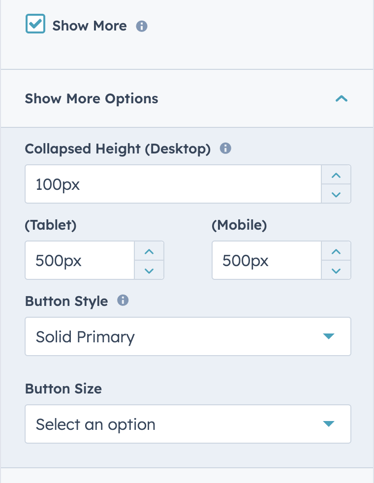
Bento Grid Module → Layout → Show More Options
Within these options the "collapsed height" is the height of your module that you wish to set as the initially displayed section of your content. Any content that is above this collapsed height will be hidden initially behind your "show more" button. Within here you can set the initial height for your content within Desktop, Tablet and Mobile screen widths.
You can also customise your button style based on the standard theme button styles, or use any of your custom button styles.
Module Style Settings
Bento Grid Module → Style
Here you can set the style settings for your Bento Grid Module.
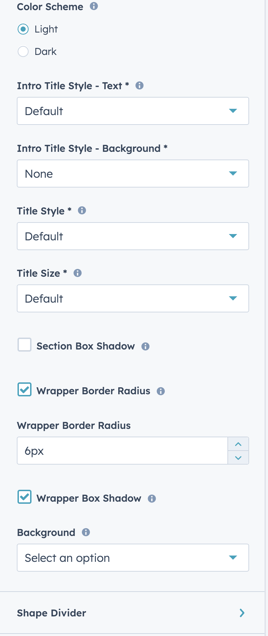
Bento Grid Module → Style → Color Scheme.
Here you can set the color scheme for your module. Color schemes are defined within your theme settings.
Bento Grid Module → Style → Title Styles - Text
If set to default your title style will inherit your theme settings default title styles. Here you can choose to also overwrite the default with a specific color or gradient.
Bento Grid Module → Style → Title Style - Background
Here you can set a specific color or gradient as the background of your module title.
Bento Grid Module → Style → Title Styles/Sizes
Within these options, you can set a style, background, and size (h1, h2, h3 etc) for each of your titles.
Bento Grid Module → Style → Section Box Shadow
Here you can set a box shadow around your module to create a sense of visual depth.
Bento Grid Module → Style → Wrapper Border Radius
Here you can set curved borders (border radius) on each of your wrappers. The checkbox will allow you to enable this and the field below this will allow you to set how curved this will be. The higher the pixel number the more curved these corners will be. Additionally, this can be controlled on the wrapper level per wrapper.
Bento Grid Module → Style → Wrapper Box Shadow
This will set a box shadow for your wrappers. Additionally, this can be controlled on the wrapper level per wrapper.
Bento Grid Module → Style → Background
Here you can set a background color, image, video, or gradient for your module.
Configuring a Wrapper
Bento Grid Module → Wrapper(s)
A wrapper is how you will group items within the column and allow you to apply additional styling. You can create multiple wrappers per column to separate content, but you will need at least one wrapper to add content to the column.
Wrappers will be placed next to each other until the row is filled respecting your column layout. New rows are created automatically.
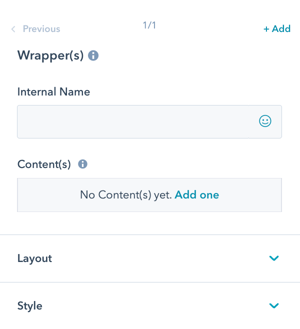
Bento Grid Module → Wrapper(s) → Internal Name
If left blank the Internal Name will default to "Wrapper(s) 1, and continue in sequential order for each wrapper in the column.
We recommend adding a name for your sanity.
Bento Grid Module → Wrapper(s) → Link
This will set a link covering the entire wrapper section of your module. Any content placed inside this wrapper will link to this content. IMPORTANT: If a link is placed in this section, individual content links will break the layout. Links inside of links are not allowed due to HTML specifications.
You can choose to link to an external URL, HubSpot Content, files, Email addresses, Phone numbers, a HubSpot Pop-up CTA, or a HubSpot Blog post. You can also set your link to open in a new window and include a no-follow tag if required for SEO.
If you wish to use an anchor link to link to a section on the same page, you can enter your anchor tag in the "Use Internal URL instead" section.
Bento Grid Module → Wrapper(s) → Layout
Here you can set your Column and Row sizing and alignment for your wrapper.
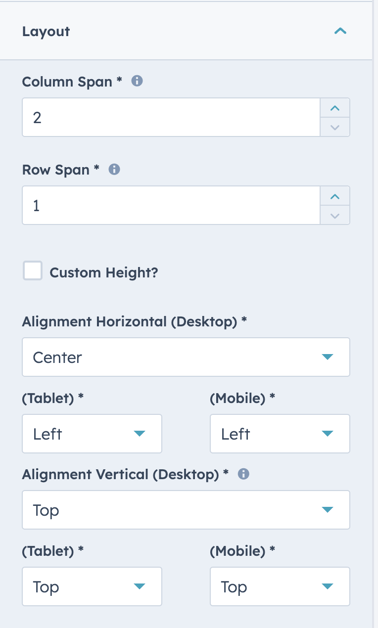
Bento Grid Module → Wrapper(s) → Layout → Column Span
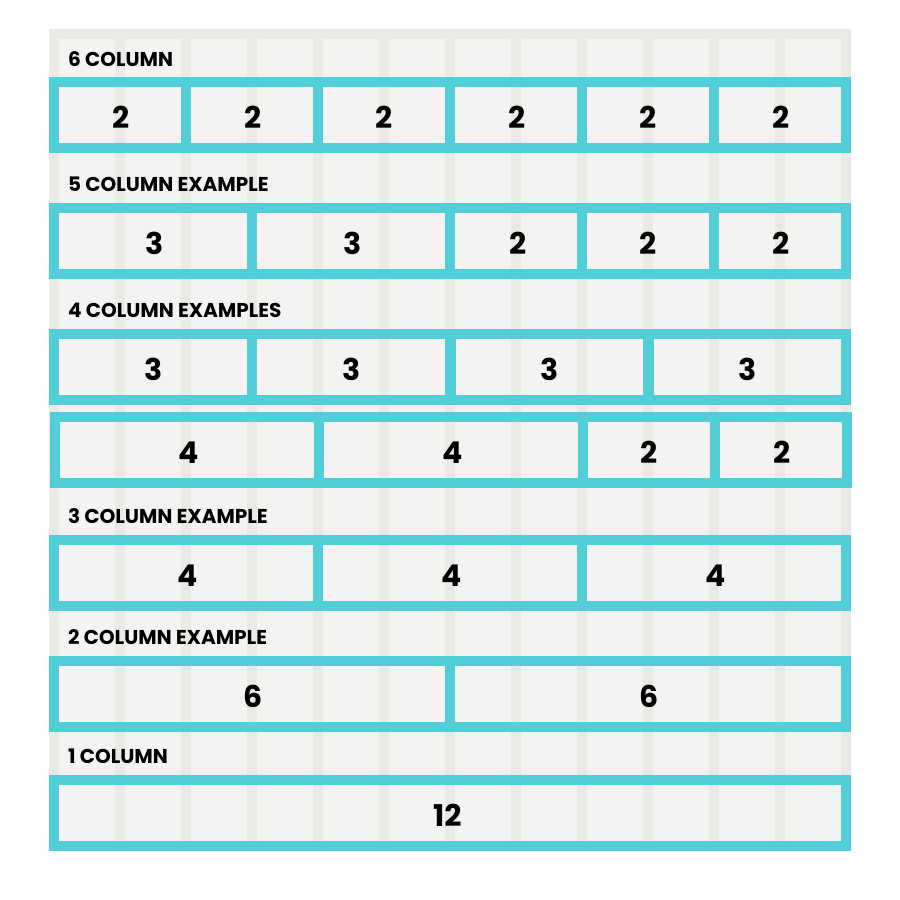
The Column Span will determine how many columns your wrapper will span. This can range from 2-12 columns. A desktop module will display up to 12 columns, Tablet will display 9 and a Mobile will display 3 columns in width by default. The column layout is based on a 12-column grid. Below you can see some examples of column configurations.
Bento Grid Module → Wrapper(s) → Layout → Row Span
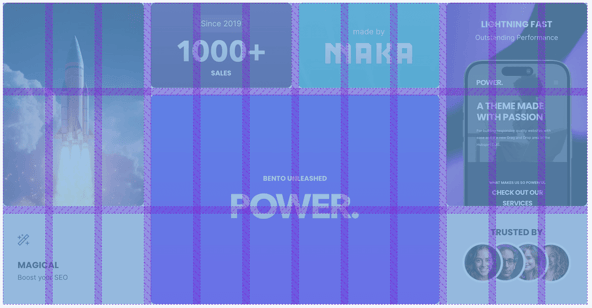
The row span will determine the vertical space this wrapper will take up within your layout. The number of rows is influenced by the chosen grid and the number of wrappers. This only takes effect in layouts with multiple rows.
Bento Grid Module → Wrapper(s) → Layout → Custom Height
Here you can override the Row height for this wrapper and set a custom height for this wrapper. Please be aware that this can create empty spaces in your layout. Try to use Row Span as much as possible and only set a static height where it is needed, e.g. for wrappers that have a background image without content and span the whole width.
Bento Grid Module → Wrapper(s) → Layout → Alignment Horizontal/Vertical
Choice of Left, Center, or Right for horizontal or Top, Middle or Bottom for vertical.
This is how you would like the content to align within the wrapper.
Wrapper Style Settings
Bento Grid Module → Wrapper(s) → Style
The style settings for the Wrapper apply to the entirety of the wrapper; each wrapper can be styled independently otherwise the style settings from the Column will be inherited.
Wrapper styles are layered on top of the Column styles, which are layered on top of Bento Grid Module Style.
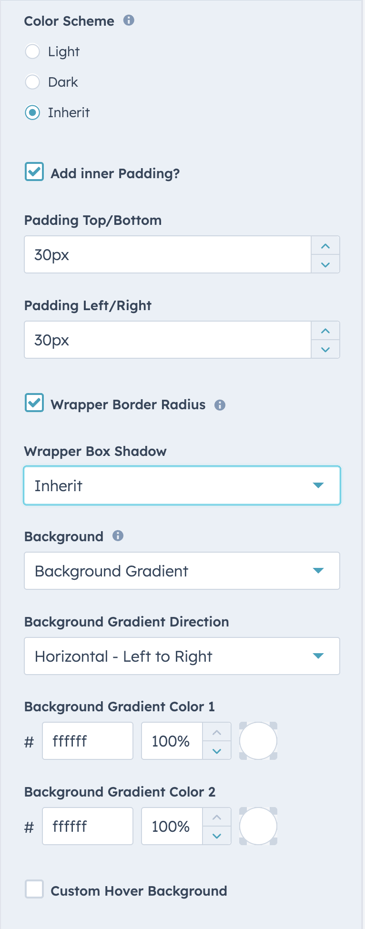
Bento Grid Module → Wrapper(s) → Style → Color Scheme
Choice of Light, Dark, or Inherit.
Tip: If you change the background color for the module, the definition of Light Color scheme is a light background with dark text and Dark Color scheme is a dark background with light text. Based on your background color, you would need to toggle the color scheme to ensure the text color displays properly and is legible.
Bento Grid Module → Wrapper(s) → Style → Add inner padding?
This will add padding inside of the wrapper, this will not cause your wrapper to take up more space in your module but will add padding inside of the wrapper. If this is checked you will see 2 fields to set your padding top & bottom and left & right.
Bento Grid Module → Wrapper(s) → Style → Wrapper Border Radius
Choice of inherit, true or false. If set to inherit this will inherit your border radius from the main module's settings. If set to true you can set a specific border radius for this wrapper. You can use false to disable the border radius on this specific wrapper.
Bento Grid Module → Wrapper(s) → Style → Wrapper Box Shadow
Choice of inherit, true or false. If set to inherit this will inherit the box shadow from the main module's settings. If set to true you can set a specific box shadow for this wrapper. You can use false to disable all box shadows on this specific wrapper.
Bento Grid Module → Wrapper(s) → Style → Background
Choice of Background Color, Background Image, Background Gradient, Glassmorphism/Blur, Transparent.
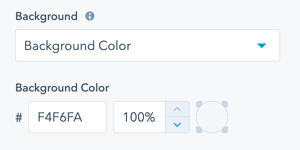
Bento Grid Module → Wrapper(s) → Style → Background → Background Color
Define the background color by the color hex code or use HubSpot’s color picker. Additionally, the opacity of the background color can be configured.
Bento Grid Module → Wrapper(s) → Style → Background → Background Image
Select an Image for the Wrapper background.
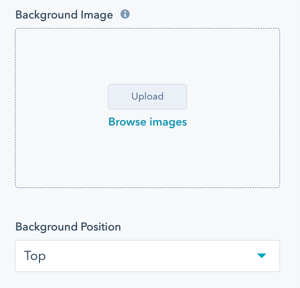
Bento Grid Module → Wrapper(s) → Style → Background → Background Image → Background Position
Choice of Bottom, Center, Left, Right, or Top.
For the Image, you can choose where the focal point is within the content area.
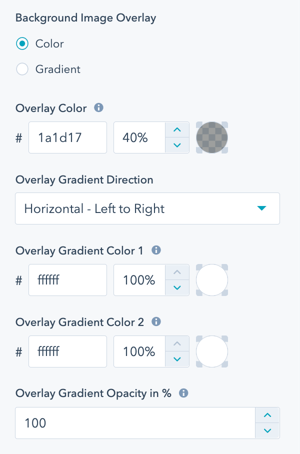
Bento Grid Module → Wrapper(s) → Style → Background → Background Image → Background Image Overlay
Option to add an overlay to the background image, as a single color or gradient.
Setting the opacity for the color or gradient is required to see the image through the overlay.
For the gradient option, you can either set an opacity per gradient color or an overall opacity for the entire gradient.
Bento Grid Module → Wrapper(s) → Style → Background → Background Gradient → Background Gradient Direction
Choice of Horizontal - Left to Right, Vertical - Top to Bottom, Diagonal - Top Left to Bottom Right, or Diagonal - Bottom Left to Top Right.
Define each of the background gradient colors by the color hex code or use HubSpot’s color picker. Additionally, the opacity of each color can be set.
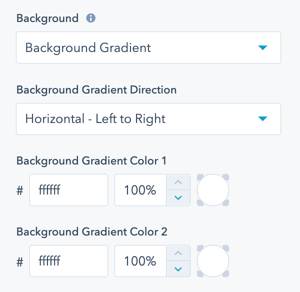
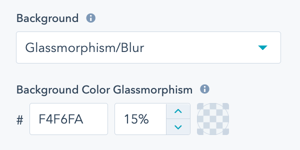
Bento Grid Module → Wrapper(s) → Style → Background → Glassmorphism/Blur
Define the background color by the color hex code or use HubSpot’s color picker to be used to create the Glassmorphism/Blur effect. Additionally, the opacity of the background color can be configured.
For browsers that do not support this effect, a non-blur version will be set.
Bento Grid Module → Wrapper(s) → Style → Background → Transparent
If set to transparent, the background of the Column behind the Wrapper will be visible.
Bento Grid Module → Wrapper(s) → Style → Background → Custom Hover Background
Here you can set a specific background to display on your wrapper when a cursor hovers over this wrapper.
Bento Grid Module → Wrapper(s) → Style → Custom Class
Here you can set a custom css class to target your wrapper specifically to use CSS in a custom stylesheet.
Adding Content to a Wrapper
Bento Grid Module → Wrapper(s) → Content(s)
Adding Content is how you will add content items to your Module.
Choice of Button/Link, CTA, Icon, Icon with Text, Image, Intro Title, Line, Logo, Menu, Rich Text Field, Social Icons Spacer or Title.
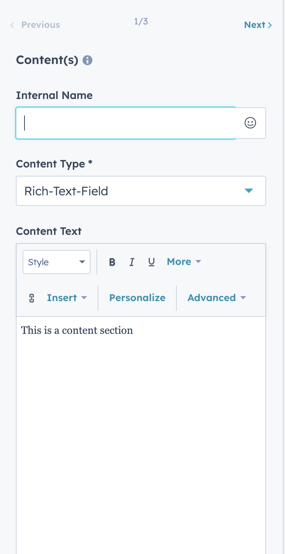
Bento Grid Module → Wrapper(s) → Content(s) → Internal Name
If left blank the Internal Name will default to "Content(s) 1, and continue in sequential order for each content in the wrapper.
We recommend adding a name for your sanity.
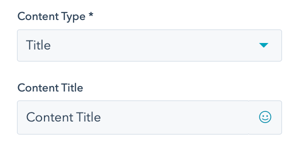
Bento Grid Module → Wrapper(s) → Content(s) → Title
Add a Title to your Wrapper using the default style. To customize the style of the Title in your Module, use the Rich Text Field content type.
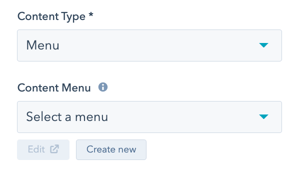
Bento Grid Module → Wrapper(s) → Content(s) → Menu
Add a Menu to your Wrapper to add a series of links as you would have in a typical menu.
Click Create new to configure an advanced menu for the links needed for this column wrapper.
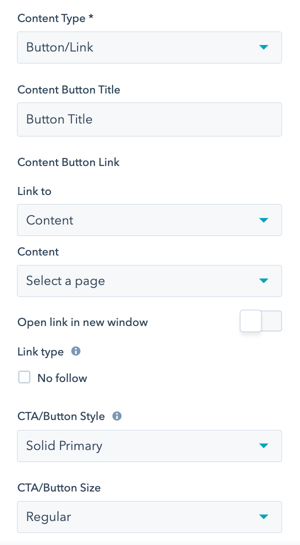
Bento Grid Module → Wrapper(s) → Content(s) → Button/Link
Add a Button or individual Link to your Wrapper that can be styled using any of the CTA/Button Styles, including the Link style.
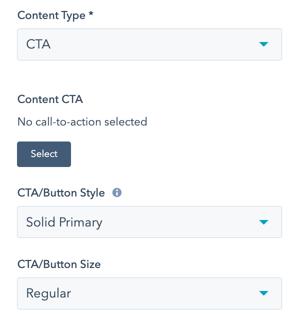
Bento Grid Module → Wrapper(s) → Content(s) → CTA
Add a CTA to your Wrapper that can be styled using any of the CTA/Button Styles, including the Link style.
We recommend using the Button/Link content type if you do not need to track conversions. Adding multiple CTAs can cause an impact on your page speed due to the amount of code needed for the HubSpot tracking code.
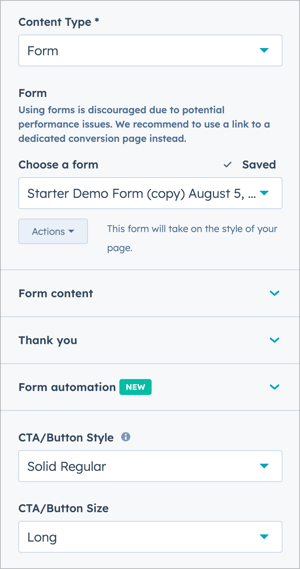
Bento Grid Module → Wrapper(s) → Content(s) → Form
Add a Form to your Wrapper that can be styled using any of the Form and Button styles.
The Form style can be changed under Bento Grid Module → Style → Form Style
⚠️ Please note that incorporating HubSpot forms may have an impact on page speed, so it's advisable to use them on pages that are not SEO-sensitive.
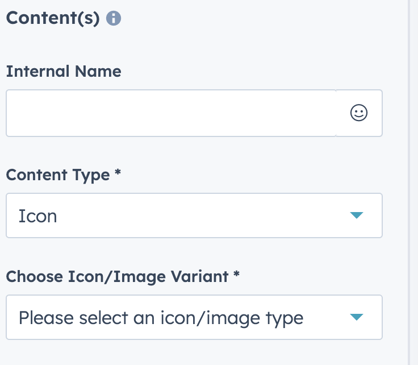
Bento Grid Module → Wrapper(s) → Content(s) → Icon
Add an Icon to your Wrapper with the option to use the icon library or load your own image icon.
Please use an image with dimensions 30x30 px or 60x60 px for retina displays
Bento Grid Module → Wrapper(s) → Content(s) → Icon → Icon Size
Set the size of the icon in pixels.
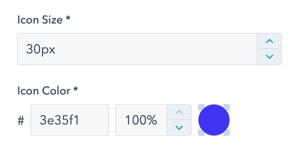
Bento Grid Module → Wrapper(s) → Content(s) → Icon → Icon Color
Define the icon color by the color hex code or use HubSpot’s color picker.
Bento Grid Module → Wrapper(s) → Content(s) → Icon With Text
Choice between an image, font awesome free or font awesome pro.
Bento Grid Module → Wrapper(s) → Content(s) → Icon With Text → Icon/Image Size
Set the size in pixels for your icon or image.
Bento Grid Module → Wrapper(s) → Content(s) → Icon With Text → Icon Color
Set the color of your icon.
Bento Grid Module → Wrapper(s) → Content(s) → Content Title/Text
Title and text within your module section
Bento Grid Module → Wrapper(s) → Content(s) → Icon With Text → Content Button Title
Text displayed within your button.
Bento Grid Module → Wrapper(s) → Content(s) → Icon With Text → Link
Set a link for your button.
Bento Grid Module → Wrapper(s) → Content(s) → Icon With Text → CTA/Button Style
Choose a style defined in your theme settings for your CTA or button.
Bento Grid Module → Wrapper(s) → Content(s) → Icon With Text → CTA/Button Size
Choice between regular, long, small, large or full width.
Bento Grid Module → Wrapper(s) → Content(s) → Icon With Text →Icon Style
Choice between a square or circular icon,
Bento Grid Module → Wrapper(s) → Content(s) → Icon With Text → Icon Position
Choice to position your icon to the left or right of your content.
Bento Grid Module → Wrapper(s) → Content(s) → Icon With Text → Gap Between Icon and Text
Set spacing between your icon and text.
Bento Grid Module → Wrapper(s) → Content(s) → Icon With Text → Vertical Alignment
Align your content vertically within your module.
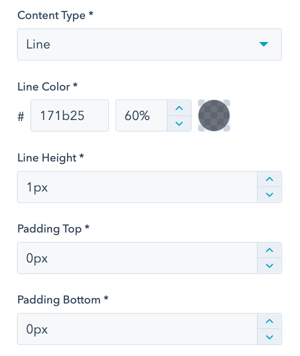
Bento Grid Module → Wrapper(s) → Content(s) → Line
Define the line color, opacity, height, and padding for the top and bottom of the line.
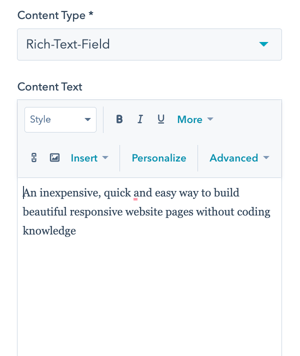
Bento Grid Module → Wrapper(s) → Content(s) → Rich Text Field
The Rich Text Field is the most flexible option for adding content to your Bento Grid Module. There is so much you can do!
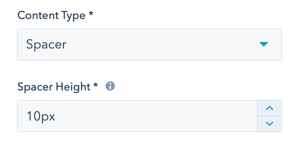
Bento Grid Module → Wrapper(s) → Content(s) → Spacer
Set the height of the Spacer in pixels.
Add a spacer to the wrapper to separate content or align with content in other columns.
Learn more about this setting as it relates to Page Speed and Core Vitals.