
What is the Sticky Sub-Menu Module?
The Sticky Sub-Menu module creates on-page navigation for individual pages. It helps users quickly jump to different sections within the same page using anchor links.
Best Practice: Place the Sticky Sub-Menu directly below your Hero module for optimal user experience.
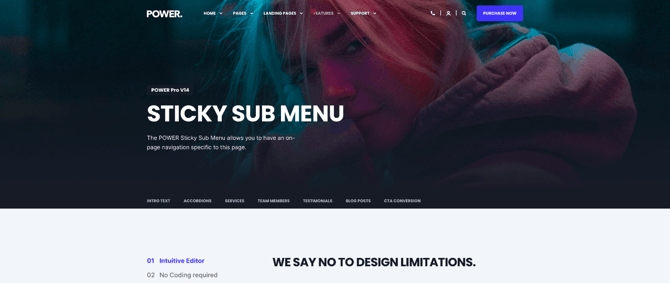
TABLE OF CONTENTS
Page Speed Impact
Module Options
Page Speed Impact

How Does This Module Affect Page Speed?
Impact Level: Low
The Sticky Sub-Menu has minimal impact on page load speed. The code is optimized to use minimal resources during page load.
Take a look at our performance guide to get your website running its best!
How Do I Add Links to the Sub-Menu?
Adding Your First Links
- One link is added by default when you insert the module
- Hover over the existing link item and click the Edit icon
- Add more links by:
- Cloning the existing link item, OR
- Clicking the +Add button
What Link Text Should I Use?
Enter clear, descriptive text for each link. This text appears in your navigation menu and tells users what content they'll jump to.
Example: "Our Services" or "Contact Information"
What Link Types Are Available?
You can choose between two link types:
- Local Anchor Link: Jumps users to a specific section on the same page
- External Link: Takes users to a different page or website
How Do I Set Up Anchor Links?
What is a Local Anchor Link?
A Local Anchor Link scrolls the user down the current page to a specific section. This is ideal for long-form content pages.
How Do I Configure an Anchor Link?
- Create an anchor ID in your target section (the section you want to link to)
- In the Sticky Sub-Menu link settings, enter the anchor text
- Important: Always include the hashtag (#) at the beginning
Example: #target or #services-section
How Do I Set Up External Links?
Adding an External URL
- Select External Link as your link type
- Enter the full URL in the URL field
- Choose your additional options:
- Open link in new window: Opens the link in a new browser tab
- Set as "No follow": Adds a nofollow attribute for SEO purposes
Example URL: https://www.example.com/page
How Do I Customize the Layout?
Should I Use Full Width Content?
Content Full Width Option:
- Checked: Menu links span the entire screen width
- Unchecked: Links stay within the content width (default)
Note: You can make the background full-width while keeping links at content width. Configure this in Section Alignment and Spacing settings.
How Do I Center the Links?
Check the Centered option to center all links within the module. Leave unchecked for left-aligned links.
What is the Scroll Indicator?
The Scroll Indicator shows users how far they've scrolled down the page.
How it works:
- Displays a visual indicator below the active link
- Calculates position based on scroll depth, not section position
- May not perfectly align with sections on very long pages
Enable it: Check the Show Scroll Indicator box
How Does the Mobile Menu Work?
Where Does the Mobile Trigger Button Appear?
On mobile devices, the Sticky Sub-Menu converts to a floating button at the bottom of the screen.
Position Options:
- Bottom Right (default)
- Bottom Left
How Do I Adjust the Button Position?
Use the Bottom Offset setting to control the distance from the bottom of the screen.
Default: 10px
Example: Set to 20px to add more space between the button and screen edge.
How Do I Hide the Module on Mobile?
If you want the Sticky Sub-Menu on desktop only:
- Scroll to the Visibility section
- Select which screen sizes should hide the module
- Save your changes
See the doc on how to hide modules on mobile here.
How Do I Adjust Spacing?
Padding and Margin Options
Control the vertical spacing above and below the module:
- None: No spacing
- Small: Minimal spacing
- Standard: Default theme spacing
- Medium: Moderate spacing
- Large: Maximum spacing
- First Section with Header: Special spacing for pages with headers
How Do I Style the Module?
Choosing a Color Scheme
Available Options:
- Light: Light background with dark text
- Dark: Dark background with light text
Important: If you customize the background color, ensure you select the appropriate color scheme for proper text contrast and readability.
Can I Change the Link Colors?
Yes, you have three color customization options:
Link Color:
- Leave blank to use your theme's default link color
- Enter a hex code (e.g.,
#0066CC) - Use HubSpot's color picker tool
Link Hover/Active Color:
- Leave blank to use theme defaults
- Customize to highlight the active or hovered link
Scroll Indicator Color:
- Leave blank to use theme defaults
- Customize to match your brand colors
See also: Theme style settings
How Do I Adjust Typography?
Font Size Settings
Desktop Font Size: Set the font size for desktop displays. Choose a size that's readable but doesn't overpower other content.
Mobile Font Size: Set a separate font size optimized for mobile screens. Typically smaller than desktop size.
Font Weight Options
Select from available font weights (e.g., Normal, Medium, Bold).
Important: Only use font weights included in your theme settings. If you select an unavailable weight, the module will fall back to the closest available option.
Can I Adjust Letter Spacing?
Yes, use the Letter Spacing option to increase or decrease space between letters for better readability.
How Do I Control Link Spacing?
The Horizontal Spacing between Links setting defines the left and right margin around each link.
Default: 30px
Tip: Reduce spacing if you have many links to fit more across the width.
How Do I Add Visual Effects?
What Does Box Shadow Do?
The Show Box Shadow option adds a subtle shadow at the bottom of the sticky bar. This creates visual depth and makes the navigation appear to float above the content.
What is Scroll Shadow?
When you have more links than fit across the page, the Scroll Shadow indicates users can scroll horizontally.
Options:
- None: No shadow indicator
- Same as Background Color: Shadow matches your background
How Do I Set the Background?
Background Options
Choose from four background types:
- Background Color: Solid color behind the module
- Background Image/Video: Visual media background
- Background Gradient: Color gradient effect
- Transparent: No background (content shows through)
How Do I Control Visibility?
Hiding the Module on Specific Devices
You can hide the Sticky Sub-Menu on specific screen sizes:
- Go to the Visibility section
- Select which devices should hide the module:
- Desktop
- Tablet
- Mobile
Use case: Show the module only on desktop for cleaner mobile layouts.
How Do I Ensure Accessibility?
Setting ARIA Labels
ARIA labels help screen readers interpret your module for users with visual impairments.
When to add ARIA labels:
- Required for accessibility compliance
- Important for users with screen readers
- Ensures all users can navigate your content
Configure ARIA labels in the Accessibility section of the module settings.
See also: Web accessibility best practices
Common Questions
Why isn't my scroll indicator aligning with sections?
The scroll indicator calculates position based on overall page scroll depth, not individual section positions. On very long pages, it may not perfectly align with each section.
What happens if I use too many links?
If links exceed the available width, users can scroll horizontally. Enable the Scroll Shadow to indicate this functionality.
Can I use both anchor and external links in the same menu?
Yes, you can mix Local Anchor Links and External Links within the same Sticky Sub-Menu module.