
This module is very versatile and can be used in many different ways – gallery, portfolio overview and many more.
What is the POWER Image Box Module?
The POWER Image Box Module displays images in a grid or masonry layout with optional text overlays and interactive features.
Module versatility:
- Image galleries
- Portfolio showcases
- Product grids
- Team member displays
- Service overviews
- Case study galleries
- Project portfolios
Key features:
- Multiple layout options
- Grid and masonry layouts
- Overlay effects
- Lightbox gallery mode
- Category filtering
- Customizable styling
- Responsive design
What layout options are available?
Layout Options
6 different layout options are possible:
Grid layouts:
- 3 Column Grid
- 3 Column Grid Smaller Height
- 4 Column Grid
Masonry layouts:
- 3 Column Masonry
- 3 Column Masonry Smaller Height
- 4 Column Masonry
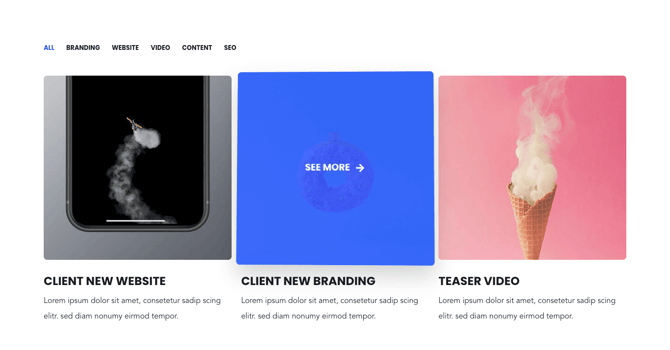
3 Column Grid
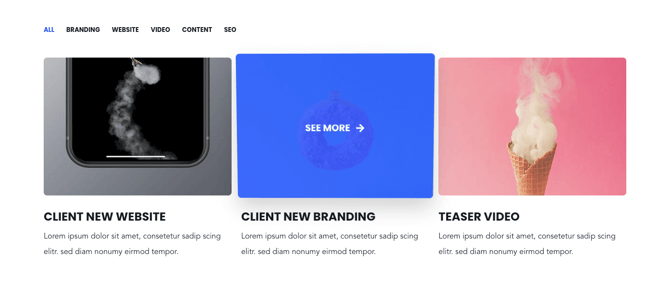
3 Column Grid Smaller Height
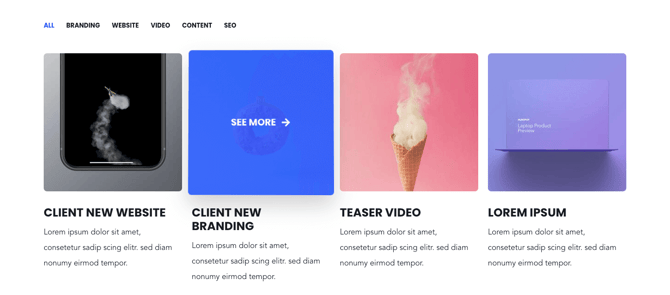
4 Column Grid
3 Column Masonry
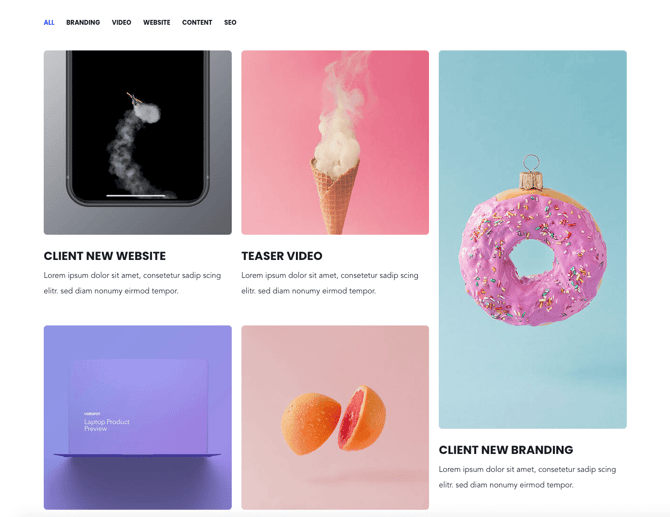
3 Column Masonry Smaller Height
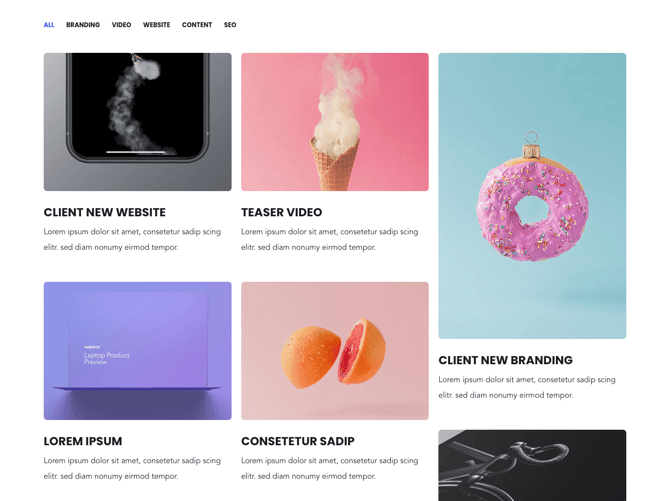
4 Column Masonry
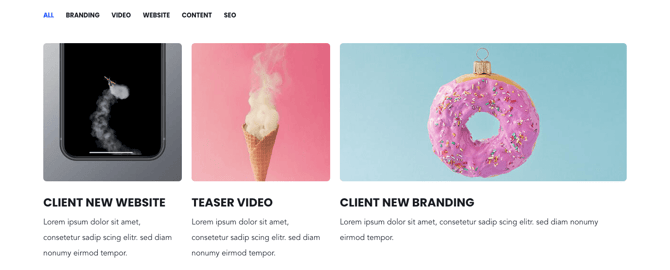
No Gutter: This option removes the spacing between the columns and rows.

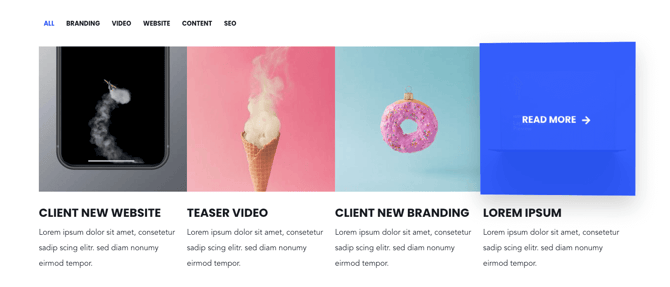
Box Style: Puts the text content above or below the box.

Box Style – Content Below
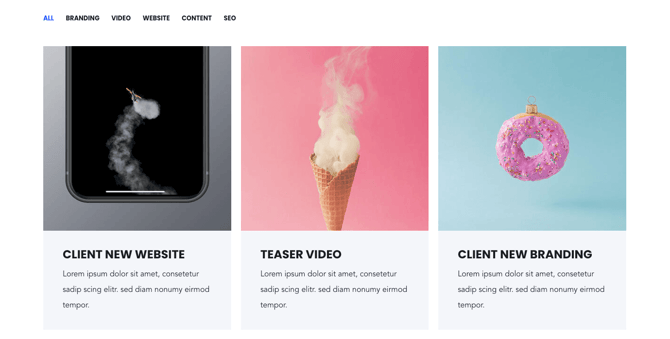
Box Style – Content Overlay
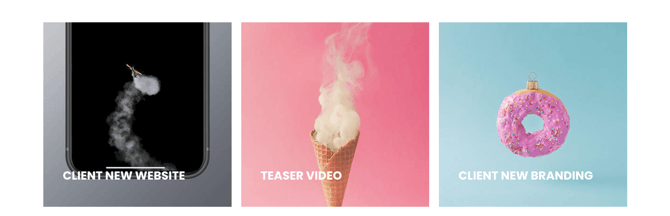
Smaller Font Size and Padding: reduces the padding and font size of the text content.


Use Overlay on Box Front: adds a transparent overlay on the boxes to make the text content above more readable.

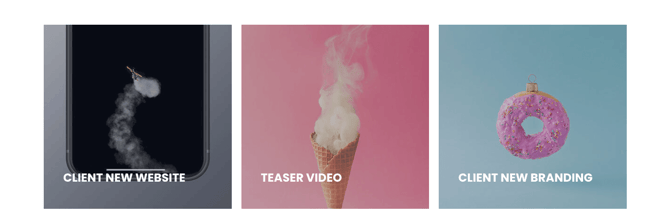
Hide Info on Box Front: Removes all text content in the front page. Text will only be shown on hover.


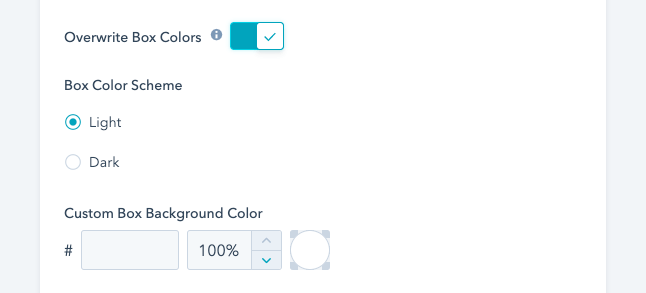
Overwrite Box Colors: This enables you to change the background color and font color of the box style: “Content Below” with box style variant “with Background”
Use as gallery?
With this option, the images are shown in a lightbox popup, when the user clicks on them.
What is the filtering feature?
Filtering
Comma separated categories can be configured for each image box. If image boxes shall be grouped in the same category, make sure to specify the same category names. You can choose to show the category "All" and which category should be active on page load in the module settings.
Filtering configuration:
Category setup:
- Add categories to each image box
- Use comma-separated values
- Consistent naming across boxes
- Group related items
What is the Show More feature?
Show More Feature
Enabling the option "show more" under your layout options for this module will allow you to hide your content behind a "show more" button depending on the size of your content.
Show More functionality:
- Initially displays portion of content
- "Show More" button reveals rest
- Progressive disclosure
- Reduces initial page height
When to use Show More:
- Many image boxes (15+)
- Long page concerns
- Improve perceived performance
- Mobile optimization
- Highlight top items first
You can also customise your button style based on the standard theme button styles, or use any of your custom button styles.