
TABLE OF CONTENTS
Page Speed Impact
Setup Instructions
Page Speed Impact

High impact: The usage of HubSpot forms has a high impact on the website performance.
Form performance consideration: Forms load additional JavaScript and tracking code, significantly affecting page load speed.
Recommendation: If you are using forms on SEO-sensitive pages, replace them with buttons, which lead to dedicated pages/landing pages containing the form.
Performance strategy:
- SEO pages: Use CTA buttons → dedicated form pages
- Landing pages: Forms acceptable
- High-traffic pages: Minimize form usage
- Conversion pages: Forms appropriate
Note: For more detailed performance advice, review the POWER Performance Guide!
Setup Instructions
When creating forms for POWER theme, the styles will be applied automatically by the theme or module settings, so you won't need to create the style in the Form Editor.
How do I create a HubSpot form?
Create Forms for Your HubSpot Website Pages
Marketing → Forms
Form creation workflow: To create a new form, click Create Form and complete the steps.
Form creation steps:
- Navigate to Marketing → Forms
- Click "Create Form"
- Choose form type
- Add fields
- Configure settings
- Publish form
Multi-language forms: Once you have created the form, you can create translations of the form to other languages.

Once you have created the form, you can create translations of the form to other languages.
 HubSpot Knowledge Base create forms in HubSpot
Helpful Links: Settings for Theme Styles and Settings for the Sec Form Module.
Form Styles for POWER Theme
Theme Settings → Styling → Forms
The global form style can be configured in the Theme Settings, which will then be applied to all pages with the POWER Sec Forms module.
Global form styling:
- Applies to all Sec Form modules
- Consistent styling site-wide
- Override-able per module
- Theme Settings location
Form style configuration: Controls form appearance, field styles, button design, spacing, colors.
Theme Settings → Colors → HubSpot Default → HubSpot Forms Module
You also have the option to set the colors for the default HubSpot Forms module globally in Theme Settings.
Form color settings:
- Field background colors
- Field border colors
- Text colors
- Focus states
- Error states
Theme Settings → Colors → HubSpot Default → Submit Button
Option to configure the colors globally for the Submit Button used for HubSpot Forms.
Submit button colors:
- Background color
- Text color
- Hover state
- Active state
- Border color
Global color benefits:
- Consistent branding
- Easy maintenance
- Site-wide updates
- Brand compliance
Form Style Override
Marketing → Website → Website Pages
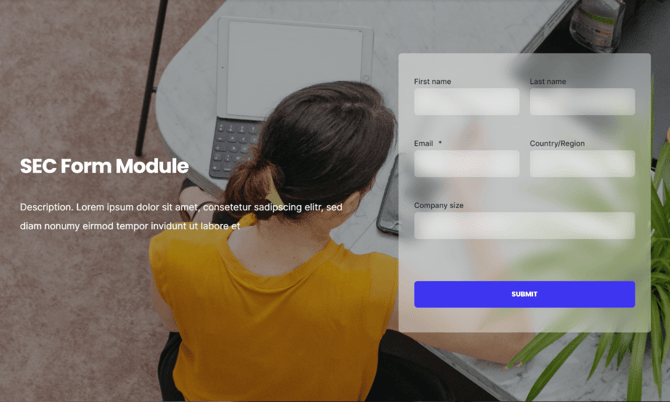
Within the POWER Sec Forms module, you also have the option to override the global settings and change the style and layout of the form.
Per-module override:
- Override global form styles
- Custom layout per instance
- Page-specific styling
- Module-level control
Override use cases:
- Landing page variations
- Campaign-specific styling
- A/B testing
- Special promotions
- Brand variations
Can I add a form to the footer?
POWER Footer → Subscription Form
Option to add a Subscription Form to your website footer.
Footer form capability: Email subscription form in global footer.
How to set up the Subscription Form in the Footer.
Critical restriction: Email field only. Additional fields break footer layout.
Multi-field form alternative: If you need a form with more fields, we recommend creating a section above the footer using the POWER Sec Form module to style a form that will capture the information you need.
Multi-field solution: Use Sec Form module in page section (not footer) for forms with multiple fields.
Reusable form sections: Once set up, you can use the Save Section feature to easily add this to the pages where you need the form to appear or create a Global Module that can be added to multiple pages and edited in one location (similar to the header and footer).
Form section distribution:
- Save Section: Copy to multiple pages
- Global Module: Edit once, update everywhere
The Footer is designed to work with a form that has just one field for Email Address, adding additional fields will break the styling and you will see the button in the wrong spot.