
Add emphasis to your text with your choice of two customizable styles that you can configure to match your brand guidelines. Text Highlights allow you to create visual emphasis without custom CSS.

Helpful Links: Settings for Theme Styles
How do I configure Text Highlight styles?
Text Highlights Styles for POWER Theme
Navigate to Text Highlights settings:
Theme Settings → Styling → Text Highlights
What you can configure:
Two Text Highlight styles can be configured in the Theme Settings, which will then be applied to any text you have added the corresponding HTML tag to.
Available customization options:
- Font properties (weight, size, family)
- Text colors
- Underline or highlight effects
- Background colors
- Border radius for highlights
- Custom styling options
Within the Styling Theme Settings, you can modify the font properties and choose how the highlight will look.
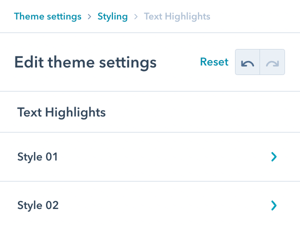
Theme Settings → Styling → Text Highlights → Style 01
To apply highlights using the "mark" HTML tag, check Activate Style.
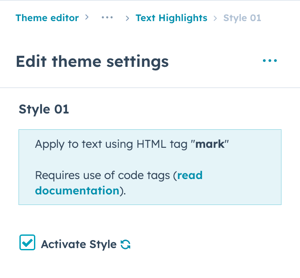
Style 01 uses the "mark" HTML tag.
Step 1: Activate the style
To apply highlights using the "mark" HTML tag, check Activate Style.
Important: This setting is not activated by default.
Warning: Adding the HTML tag before the style is activated will cause any predefined CSS to apply instead of your custom settings.
Step 2: Configure appearance
Once activated, customize:
- Font weight (normal, bold, etc.)
- Font size
- Text color
- Underline/Mark style
- Background color
- Additional styling options
Best practice: Configure all settings before activating to ensure consistent appearance.
Theme Settings → Styling → Text Highlights → Style 02
To apply highlights using the "em" HTML tag, check Activate Style.
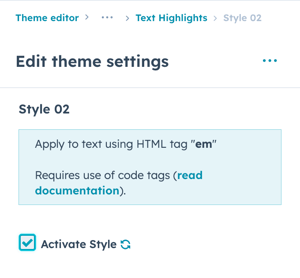
Theme Settings → Styling → Text Highlights → Style 02
Style 02 uses the "em" HTML tag.
Step 1: Activate the style
To apply highlights using the "em" HTML tag, check Activate Style.
Important: This setting is not activated by default.
Warning: Adding the HTML tag before the style is activated will cause any predefined CSS to apply (most commonly Italics if not overwritten with custom CSS).
Step 2: Configure appearance
Once activated, customize:
- Font weight
- Font size
- Text color
- Underline/Mark style
- Background color
- Additional styling options
Best practice: Activate Style 02 before using em tags in your content to avoid default italic styling.
How do I create two-tone colored text?
Two-tone Colored Text
To create a color change within your text, you can configure a Color for the Text Style.
Underline or Highlight Text
To create a highlight effect or underline text, you can configure the Underline/Mark Style.
Add Text Highlights to Your Website Text
Each style that you set up in the Theme Settings has a corresponding HTML tag that you can use in text fields and rich text editors throughout the modules.
Page Editor → Module → Text Box
For Title, Intro Title, and other text elements in POWER modules, you can add the code directly to the text box.
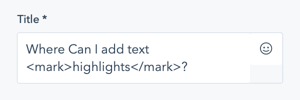
Page Editor → Module → Rich Text Editor → Advanced → Source Code
For Descriptions and other text elements using the Rich Text Editor, you will need to add the tag via the Source Code.

Code for Style 01: HTML mark Tag
To add Style 01 to your text, you will need to add the mark Tag around your text:
Code for Style 02: HTML em Tag
To add Style 02 to your text, you will need to add the em Tag around your text:
| <em>Your Text Here</em> |