Showcase your projects, photography, products, and more with professionally designed layouts, cool features, and interactive elements to really wow your potential customers.
What is a Portfolio in POWER Pro?
A portfolio is a curated collection of work, projects, or products displayed in an organized, visually appealing format.
Portfolio uses:
- Project showcases
- Photography galleries
- Product collections
- Case studies
- Design work
- Creative portfolios
- Service examples
Portfolio features:
- Multiple layout options
- Image-focused design
- Interactive elements
- Lightbox galleries
- Filtering capabilities
- Navigation between items
- Professional presentation
Can I add a portfolio to other templates?
Portfolio Module Availability
The portfolio template uses the Sec Image Boxes module that can be added to any page with the drag-and-drop editor or saved sections.
Module flexibility:
- Not limited to portfolio template
- Add to any page
- Use in custom sections
- Combine with other modules
- Saved sections feature
Setup Instructions
Create a stunning, organized, interactive portfolio by leveraging one of our most powerful modules, POWER Sec Image Boxes, and then tie the pages together seamlessly with the POWER Previous Next Navigation module.
How do I create a portfolio?
Creating a Portfolio
Create a stunning, organized, interactive portfolio by leveraging one of our most powerful modules, POWER Sec Image Boxes, and then tie the pages together seamlessly with the POWER Previous Next Navigation module.
Portfolio components:
- Portfolio Overview page (index/grid)
- Individual portfolio item pages (optional)
- Navigation between items (optional)
Key modules:
- POWER Sec Image Boxes: Portfolio grid/overview
- POWER Previous Next Navigation: Item-to-item navigation
How do I create a Portfolio Overview page?
Create a Portfolio for your Website
Content → Website Pages
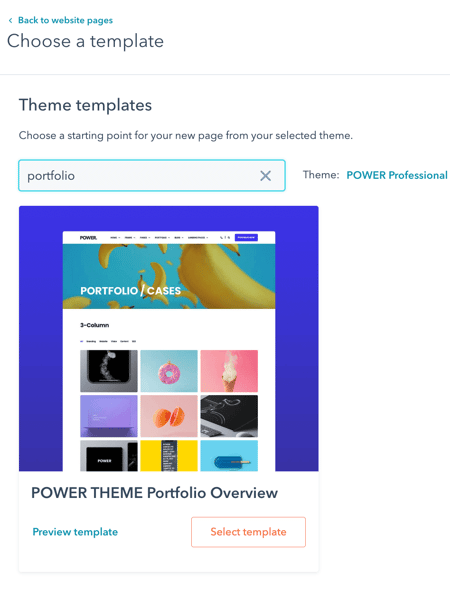
To get started, first Create a Website Page using the Portfolio Overview template from your child theme.
Hint: search portfolio in the box ;)
Template location:
- Navigate to Content → Website Pages
- Create new Website Page
- Select template from child theme
- Search for "portfolio"
- Choose "Portfolio Overview"
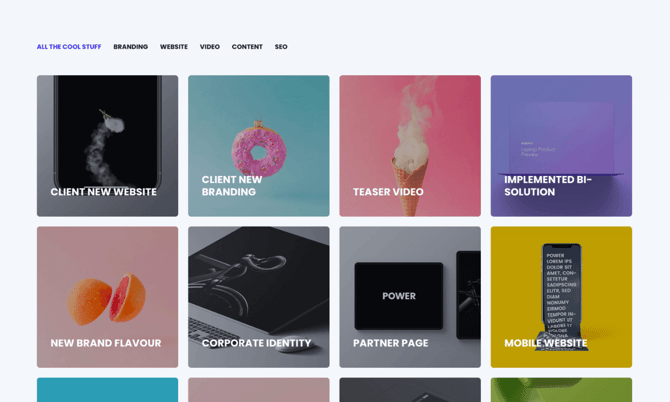
Portfolio Overview template benefits: The best part about this template - it already includes all 3 pre-configured layouts that you can use as a starting point. So whether you want a 3-column grid, 4-column layout, or even a masonry design, all you have to do is start swapping out the content and adjusting the settings.
Pre-configured layouts:
- 3-column grid: Balanced layout, most common
- 4-column layout: Compact grid, many items
- Masonry design: Dynamic, varied heights
Template workflow: Unless you're keeping the settings exactly as they are configured for your chosen layout, we recommend keeping the other two modules on the page so you can refer to the module settings if you have questions while making changes.
Best practice: Keep unused layout modules on page as reference until you finalize your configuration.
How do I customize portfolio layouts?
Easily Update Portfolio Layouts
In just a few clicks, you can customize the default layouts included to the configuration you like best.
Customization example:
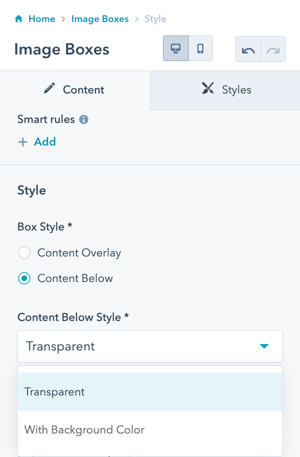
3 Column with text below the box: For example, you can modify the 3 Column layout to include the text description below the box with this setting:
Layout modification: Change Box Style from "Content Overlay" to "Content Below"
Compare the Content Overlay and Content Below settings:
Content Overlay:
- Text overlays image
- Compact presentation
- Modern design
- Requires overlay for readability
Content Below:
- Text appears below image
- Image fully visible
- Traditional card layout
- Clear content separation
Customization tips:
- Start with pre-configured layout
- Adjust one setting at a time
- Preview changes
- Test on mobile
- Keep reference layouts until finalized
How do I create portfolio content pages?
Create Content Pages for your Portfolio
Content → Website Pages
If you aren't linking your portfolio to external pages/links, there are two options to explore.
Portfolio content options:
- Gallery / Lightbox
- Individual Content Pages
What is the Gallery/Lightbox option?
Gallery / Lightbox
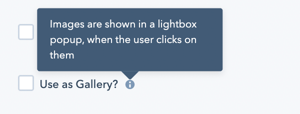
The first option is to convert your portfolio into a Gallery. With this setting, your images will open in a lightbox after the user clicks on the image box.
Gallery/Lightbox behavior:
- Click image to open lightbox
- View full-size images
- Navigate between images
- No separate pages needed
- Simple implementation
What are Content Pages?
Content Pages
The second option is to create individual pages for your portfolio to showcase your work. The Case Study template is a great option to use as a starting point for your portfolio pages.
Content pages benefits:
- Detailed project information
- Multiple images per project
- Rich content (text, video, etc.)
- Better SEO
- Professional presentation
- Full storytelling capability
When to use Content Pages:
- Detailed project showcases
- Case studies
- Complex portfolios
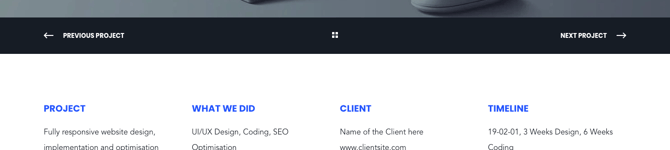
One of the nice features of this template is that it already includes the POWER Previous Next Navigation module, which allows you to configure links between the pages of your portfolio.
Content page structure:
- Project title and description
- Multiple images
- Project details
- Client information
- Results/outcomes
- Navigation to other items
Review documentation for Previous Next Navigation.