
Why do I need a child theme?
Child Theme Benefits
In HubSpot, it is not possible to edit files for themes purchased from the asset marketplace. While it is possible to build your website using the original parent theme, using a child theme is a future-proof way of building your website in CMS Hub.
Child theme advantages:
- Preserve customizations during updates
- Safe theme customization
- Maintain update capability
- Professional development workflow
- Separate custom code from core theme
Parent theme limitations:
- Cannot edit marketplace theme files
- Direct changes not possible
- Customizations would be lost on updates
- Not recommended for production sites
Future-proof approach: Child theme inherits parent functionality while allowing safe customizations.
Setup Instructions
In HubSpot, it is not possible to edit files for themes purchased from the asset marketplace. While it is possible to build your website using the original parent theme, using a child theme is a future-proof way of building your website in CMS Hub.
Creating a child theme requires access to Design Tools (formerly Design Manager), don't worry, no code skills are required! Just follow these steps to create a child theme in your HubSpot account.
Create a child theme in HubSpot Design Tools
How do I create a child theme?
Create a Child Theme in HubSpot Design Tools
Step-by-step process:
Marketing → Files and Templates → Design Tools
1. Navigate to Design Tools from HubSpot main navigation.
2. Locate POWER theme, in the theme directory on the left sidebar, navigate to @marketplace → maka_Agency → POWER THEME
Theme location:
- @marketplace folder
- maka_Agency subfolder
- POWER THEME
3. Create child theme, right-click on POWER THEME and click Create child theme
4. Enter child theme name, enter a name for your child theme we suggest replacing "POWER CHILD THEME" with "POWER x YOURCOMPANY"
Naming convention: Use format: "POWER x YOURCOMPANY"
- Replace YOURCOMPANY with your company name
- Examples: "POWER x JohnC", "POWER x Smith Agency"
Important: Make sure that each childi theme has a unique name that you can search by (i.e. for system pages)
5. Choose theme location, the default location is in the root folder, we don't recommend changing thisLocation recommendation: Keep default root folder location for simplicity.
6. Create the child theme, click Create Child Theme
Advanced options (optional): If you expand the advanced options, you can also customize the name of the child.CSS and child.JS files that are created with your child theme (the defaults are preferred for simplicity)
Advanced customization:
- Custom CSS file name
- Custom JS file name
- Default names recommended
7. Confirm creation once your child theme is created, a success message will appear telling your child theme is ready to go. You can now Click Close.
8. Verify child theme created, you should now see a child theme folder and its contents in the left sidebar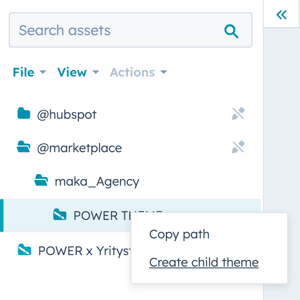
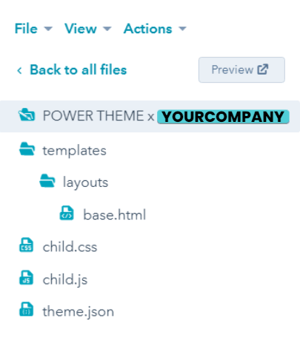
These are the ONLY files needed in the child theme to build your website, all of the templates and modules are inherited from the marketplace theme. PLEASE DON'T CLONE ALL THE FOLDERS!
What happens after creating a child theme?
Success and Next Steps
Congratulations, you have a future-proof theme structure now and are ready to create a stunning website with the child theme you just created 🎉
What you've achieved:
- Future-proof theme structure
- Safe customization capability
- Update-safe architecture
- Professional development setup
Customization location: For any customization requests our team helps with, the child theme folders are where we'll add those changes to be available for your theme.
Custom code location: All customizations go in child theme, never in parent theme.
How do I use my child theme?
Using Your Child Theme
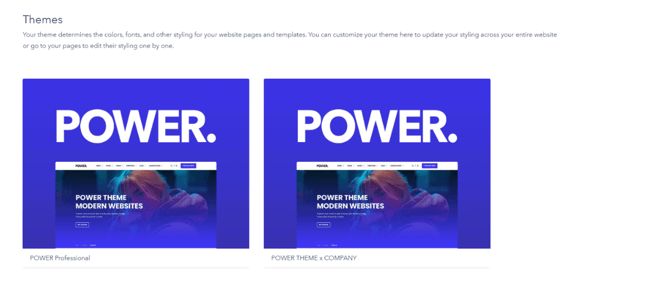
When you create a new page, you'll have to choose your child theme and from then on it will be the default for all pages you create.
Page creation workflow:
- Create new page
- Select template
- Choose child theme (first time)
- Child theme becomes default
- All future pages use child theme
Initial configuration required: You will need to configure the theme settings for each child theme you create, as well as the global header and footer.
Configuration tasks:
- Theme Settings (colors, fonts, styling)
- Global Header
- Global Footer
Each child theme maintains separate configuration.
Child Themes for Developers
If you would like to add your own CSS styles of JS code you can now do that within your newly created child theme folder by editing the child.css or child.js files that were created during the setup.
Any class overwrites should be done in the child.css file so that any overwrites to the child theme have the highest priority.
When a child theme is created by HubSpot, this priority is not set automatically.
Here is an example of the base.html file when the child theme is initially created (see highlighted line 21):
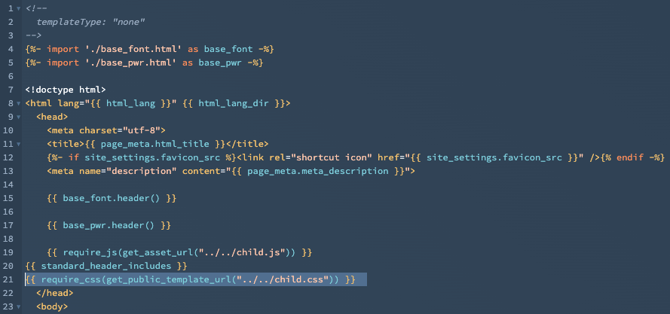
The code in the base.html on line 21 needs to be replaced with the following:
It is not necessary and it will break your ability to receive updates if you clone any of the theme CSS or JS files to the child. If you need to overwrite anything from the theme CSS or JS files, copy the code from the @marketplace file, paste it into the corresponding child.css or child.js file, and modify it there.
If you plan on creating a custom version of an existing theme module, we recommend only cloning the necessary module to the child theme. Once it is cloned to the child theme, this module will no longer receive updates from the marketplace if it retains the same file name. If you want to create a variation and retain the existing module, simply rename your custom module and it will not overwrite the parent module, both will then be available in the child theme.
If you want to create a custom template using a theme template as a starting point, you can do so by using the clone to child option and then renaming the file and label so it doesn't replace the default template. You can also build the module on a page and use HubSpot's Developer Mode to copy the HubL needed for the template.
POWER is one of the most comprehensive HubSpot Website Themes and includes 49 templates and 49 custom modules that are coded to the highest standards making it easier than ever to further customize your child theme.