
One of the key building blocks for your website, the footer is at the very bottom of the page and provides your site visitor with helpful links.
What is the POWER Footer Module?
The POWER Footer is the global footer module that appears at the bottom of your website pages, providing navigation, contact information, and legal links.
Footer importance:
- Site-wide navigation
- Legal information
- Contact details
- Social media links
- Newsletter subscription
- Brand presence
Footer capabilities:
- Multiple layout options
- Responsive design
- Customizable per page type
- Navigation menus
- Subscription forms
- Social icons
- Copyright information

How does the Footer module affect page speed?
-
Low impact: The footer module has very little impact on page speed.
-
Footer efficiency: Well-optimized footer with minimal performance cost.
-
Medium impact: Logo size and file format can impact your page speed if not sized appropriately.
-
Logo and form consideration: Improperly sized logos and subscription forms can affect loading.
Optimization Tips
For the best quality, we recommend SVG for your logo sized at 120px wide.
The subscription form in the footer will add a slight increase in load time (limited to the email field only for this reason).
Consider creating a section containing your newsletter subscription outside of the footer and only placing it on key conversion pages.
Performance strategy:
- SVG logo: 120px width
- Usage of buttons instead of forms
- Newsletter section on conversion pages: Alternative approach
- Optimized images: Compress all assets
Note: For more detailed performance advice, review the POWER Performance Guide!
How do I access the Global Footer?
Page Editor → POWER Footer
To access the global footer module, the easiest way is to create a website test page, select your child theme and a template, then click the Contents tab and choose "POWER Footer" to open the Global Content Editor.
Access workflow:
- Create test website page
- Select child theme
- Choose any template
- Click Contents tab
- Select "POWER Footer" from module list
- Opens Global Content Editor
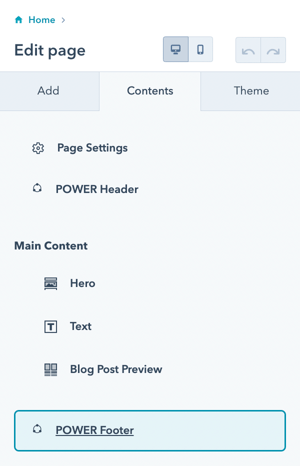
POWER Footer → Global Content
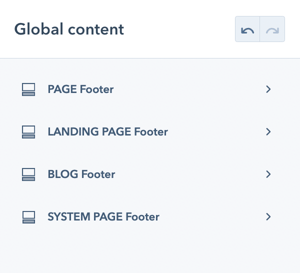
Once you have accessed the global module, you will have the choice to set up 4 variations for the footer.
Footer variations: Four separate footer configurations for different page types.
Configuration recommendation: We recommend configuring the footer for all page types at the beginning, even if you don't plan on using one of them (i.e. blog or landing pages) so that you have a consistent starting point if anything changes.
Setup best practice: Configure all four footer types initially for consistency.
Override capability: It is also possible to override the default footer for an individual page, so an unused footer type could be styled for this situation.
⚠️ There is also Footer Mapping available: it can be managed through Theme Settings, where you create a single main footer and map all other footer variations to it so they reuse and display the same footer layout.
What are the footer types?
Footer Types for POWER Theme
Four footer types:
PAGE Footer is the default for website pages
- Standard website pages
- Service pages
- About pages
- Contact pages
LANDING PAGE Footer is the default for landing pages
- Conversion-focused pages
- Campaign pages
- Lead capture pages
- Simplified footer
BLOG Footer is the default for the Blog Listing and Blog Post templates
- Blog index pages
- Individual blog posts
- Blog-specific features
SYSTEM PAGE Footer is the default for the 404, 500, and Search templates
- Error pages
- Search results
- System-generated pages
Subscription page exception: While Subscription templates are system pages and they typically use the LANDING PAGE Footer, some accounts are using the PAGE Footer for these pages with no clear explanation from HubSpot.
Legal Information
Settings → Account Defaults → Branding → Company Info
A Legal Notice is included in the Footer and consists of your legal menu (Terms of Use, Privacy Policy, etc.), the Year and Company Name.
Legal notice components:
- Legal menu (Terms, Privacy, etc.)
- Current year (automatic)
- Company name (from settings)
HubSpot settings: Company information configured in account settings.

How do I publish footer changes?
Publishing the Global Footer
When you're ready to publish the Global Footer, you'll click the orange Publish to X Assets button in the upper right corner. The number of assets corresponds to the total number of assets using this specific child theme that contains any of the footer types.
Publish button: "Publish to X Assets" where X = number of pages affected.
Critical publishing note: It is important to note that if you make a change to the BLOG Footer, you'll have to publish the footer to ALL assets, not just the blog assets. This is true for each footer Type, whether you are configuring every footer or making a change to an individual setting - until you Publish to X Assets, your changes will not be visible on your preview pages and live site.
Publishing behavior:
- Changes to ANY footer type require publishing to ALL assets
- Changes not visible until published
- Affects all pages using child theme
- Preview pages require publishing
- Live site requires publishing
Publishing workflow:
- Make footer changes
- Click "Publish to X Assets"
- Confirm publication
- Verify changes on preview/live

There are some settings that are only visible based on previous choices, if you do not see the option available, it does not work with the layout or selections you've already made.
These settings are available for each Footer Type. We recommend opening a second browser window once you have the PAGE Footer configured to make it easier to apply the same settings for the other footer types and modify as needed.
POWER Footer → Logo
The footer uses the same pre-configured global logo that you added when setting up the header.
Shared logo: Uses same logo from header configuration.
Logo customization:
- Option to Override default logo
- Option to Override Logo Sizes
Logo override: Replace global logo with custom logo for specific footer type.
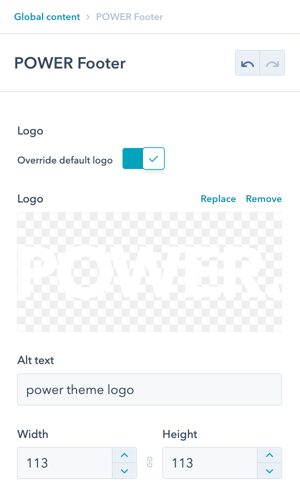
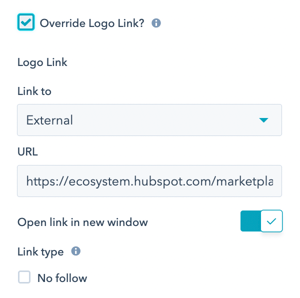
Logo link: Option to Override Logo Link allows you to replace the preconfigured link from the global HubSpot settings.
Logo link customization: Change where clicking logo navigates (default: homepage).
POWER Footer → Link Type
Configure the Link Text and Link To if using Layout → Footer Simple (this setting won't be visible until you change the layout).
Simple footer link: Prominent link in Simple Link footer layout.
Link options: Options for Link To are: External, Content, File, Email Address, and Blog.
Link types:
- External: URL to external site
- Content: Internal page
- File: Downloadable file
- Email Address: Mailto link
- Blog: Blog post
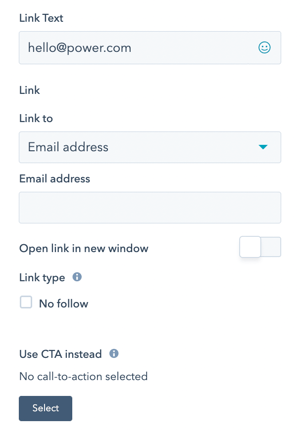
Option to Use CTA instead if you would like to use a CTA, you'll need to add the class "pwr-link" in the CTA settings, learn more about setting up CTAs for POWER theme.
POWER Footer → Statement
The Statement allows you to include a company description in the Footer when using the Footer Full layout.
Company statement:
- About text
- Company description
- Mission statement
- Brief overview
- Brand message
How do I configure social icons?
POWER Footer → Social Icons
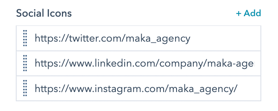
The footer includes 3 pre-configured social icons for Twitter, LinkedIn, and Instagram.
Default social icons: Three icons pre-configured as examples.
Important note: Make sure you update the URL to your social accounts or remove ours. :)
Social icon configuration:
- Replace example URLs
- Add your social accounts
- Remove unused icons
- Add additional icons
- Configure display
How do I set up footer navigation?
POWER Footer → Menu
Choose your navigation menu from the Menu dropdown to select your footer navigation. Help with Navigation Menus.
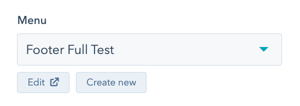
The number of columns in your navigation will affect the layout of the footer module.
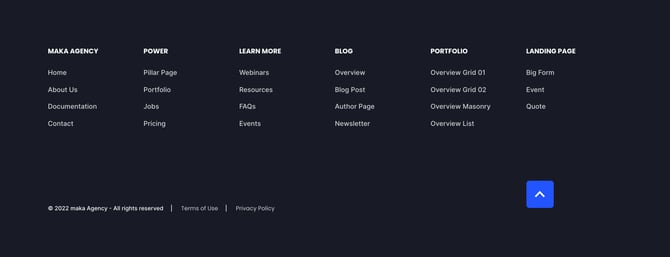
To create a footer with full navigation (Layout → Footer Full), we recommend a menu with 6 columns:
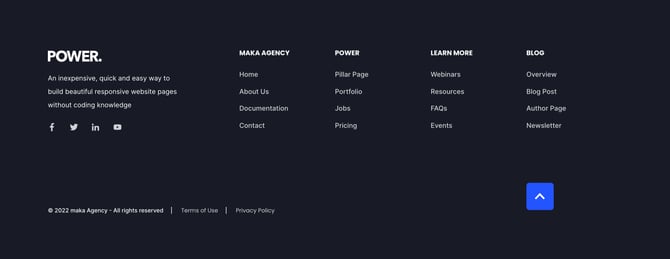
To create a footer with logo/company info/social icons (Layout → Footer Full), we recommend 4 columns:
POWER Footer → Menu Right
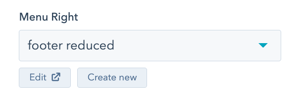
Choose your navigation menu from the Menu Right dropdown to select your footer navigation if using Layout → Footer Reduced (this setting won't be visible until you change the layout). Help with Navigation Menus.
How do I add a subscription form to the footer?
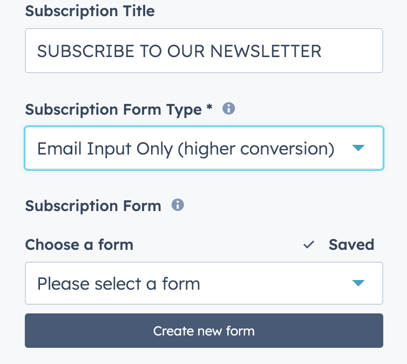
POWER Footer → Subscription Form
Edit Subscription Title to include a title for your Subscription Form in the Footer.
Choose your Subscription Form or create a new form.
The number of navigation columns should be limited to 2 when using the Subscription Form.
If you have chosen the Footer Full layout type. The Subscription Form Type allows you to set the layout type for your subscription form. The options here are for an email-only input, which has a higher conversion type for subscription forms, or a full form.
POWER Footer → Subscription Form → Form Content
Set the field titles, Placeholders and help text that will display on your form. For more advanced form editing along with drag and drop on your fields the HubSpot form editor should be used.
A custom button text and Data privacy options can be customised in this section.
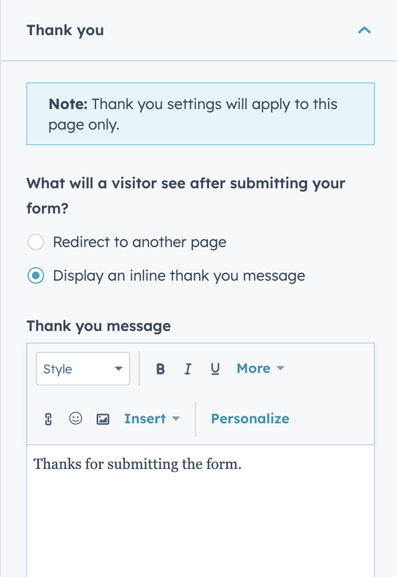
POWER Footer → Subscription Form → Thank You
Choose to have your form redirect to another page or display a thank you message when submit.
POWER Footer → Subscription Form → Form Automation
Choose to always create new contacts for a new email address. This will ensure cookies do not overwrite contact records if the email is new. There may be some considerations to enabling this.
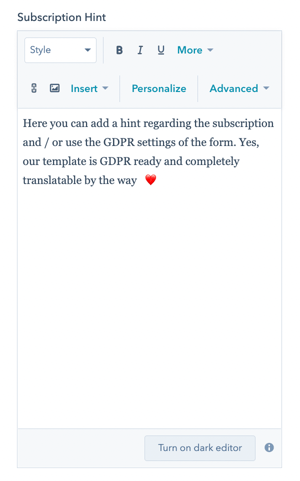
Edit Subscription Hint to include any relevant information regarding your Subscription.
How do I configure legal menu?
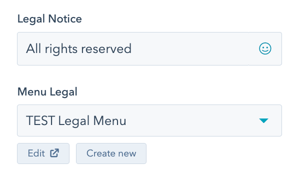
POWER Footer → Legal Menu
Edit Legal Notice to include your copyright or other legal information that will be separated with a "|" (vertical pipe) from the Menu Legal.
Legal notice customization:
- Copyright text
- Legal information
- Company details
- Separated by pipe
Legal menu: Choose your legal menu from the Menu dropdown to select your legal menu for the website footer. Help with Navigation Menus.
Legal menu structure suggestion:
- Terms of Use
- Privacy Policy
- Cookie Policy
- Legal notices
- Accessibility
What footer layout options are available?
POWER Footer → Layout → Select Footer Type
This is where you will choose the layout of the footer.
Footer layout choices:
Footer Full: Comprehensive footer with full navigation
Footer Full Advanced: Custom footer layout builder
Footer Reduced: Compact footer with statement and menu
Footer Simple Link: Minimal footer with prominent link
Footer Copyright Bar: Most minimal, copyright bar only
Footer Layout
POWER Footer → Layout → Footer Full Advanced
The Advanced Footer allows you to create a custom footer layout.
Step-by-Step Instructions for setting up the Advanced Footer.
POWER Footer → Layout → Footer Full
This is where you'll choose the layout of your footer.
The Footer Full layout provides a modern, ready-to-use footer that requires minimal setup, while Footer Full Advanced offers far more flexibility and power but takes significantly more effort to configure and comes with a steeper learning curve.
Check Hide Company Info to omit the Statement from the Footer Full layout.
Check Hide Subscription Form to omit the Subscription Form from the Footer Full layout.
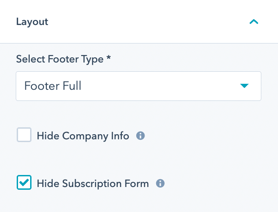
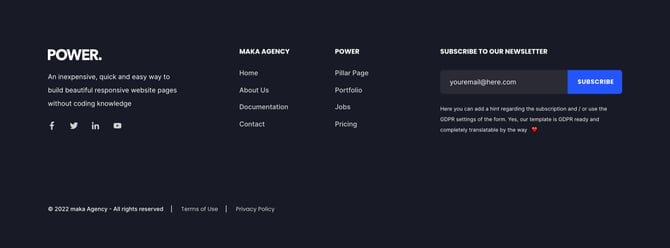
- Footer Full - recommended for showing a lot of information
- Footer Full - with Subscription Form
POWER Footer → Layout → Footer Reduced
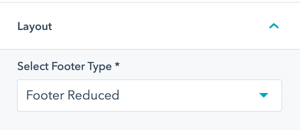
Footer Reduced - a more compact way of presenting a short about text and a simple menu.
Reduced footer characteristics:
- Company statement/about text
- Simple right-side menu
- Social icons
- Copyright bar
- Compact design
Use cases:
-
Simpler site
-
Landing pages
-
Minimal footer preference
-
Focus on conversion

POWER Footer → Layout → Footer Simple Link
Simple Link characteristics:
- Prominent link or email
- Copyright bar
- Social icons
- Very minimal
- Clean design
Use cases:
- Landing pages
- Single purpose pages
- Conversion focus
- Maximum simplicity
Check Centered to center the link in the layout, otherwise left-aligned.
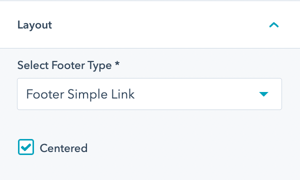

POWER Footer → Layout → Footer Copyright Bar
Check Centered to center the link in the layout, otherwise left-aligned.
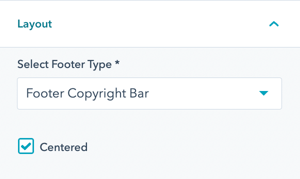
- Copyright Bar - the most reduced, showing only the copyright bar with an additional simple menu next to it
POWER Footer → Style
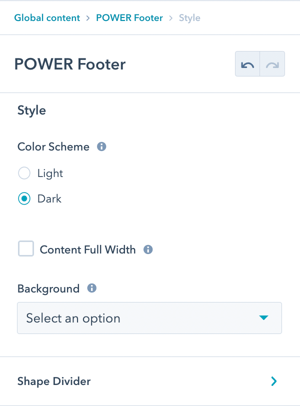
POWER Footer → Style → Color Scheme
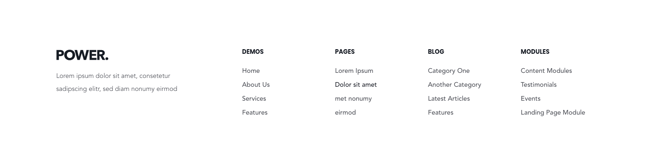
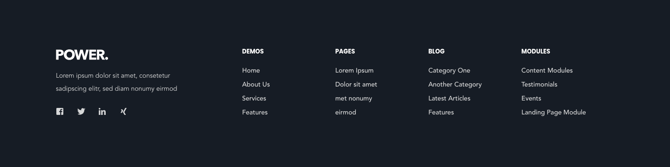
Choice of Light or Dark for the main Footer.
The light scheme shows a light background color and a dark font and the dark scheme shows a dark background color and a light font color as defined in the Theme Settings for your child theme.
POWER Footer → Style → Content Full Width
Check Content Full Width to stretch the Footer content to the window borders instead of the container width (not recommended).
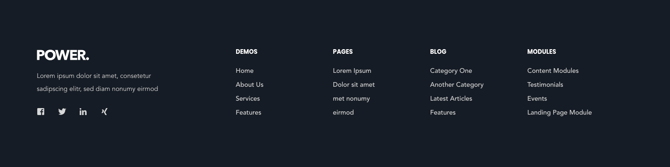
POWER Footer → Style → Background
Choice of Background Color, Background Image/Video, Background Gradient, or Transparent. Refer to Settings that apply to all Section Modules for more details about these choices.
POWER Footer → Style → Background Image/Video
Choice to add a primary background image or placeholder image for your video. Additional background images can be set for mobile and tablet specifically. If these are empty the primary image will be used across all screen sizes.
A background video for your footer can be uploaded or a youtube/vimeo link can be used.
Options to add a colour or gradient overlay and it's opacity can be set here.
POWER Footer → Style → Shape Divider
Optional Shape Divider(s) can be added to the top or bottom of this module. Refer to Settings for configuring Shape Dividers for more details about these choices.