
Theme Settings
What are Layout Settings?
Layout Settings control the structural foundation and spacing of your website.
These settings help you:
- Set global content width
- Position header menu alignment
- Map headers and footers across content types
- Configure section padding and margin presets
- Maintain consistent spacing site-wide
- Create visual rhythm and hierarchy
Benefits:
- Consistent layout across all pages
- Easy global spacing adjustments
- Professional, polished appearance
- No custom CSS required
- Quick design refinements
There are 2 sections in Theme Settings for Layouts: Layout and Section Paddings
Layout
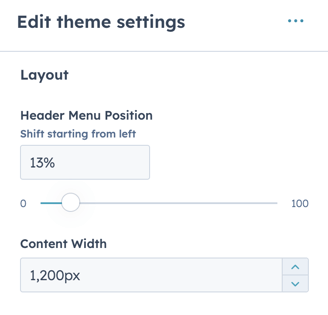
How do I adjust Header Menu Position?
Layout → Header Menu Position
Depending on your logo size and the number of items in the header navigation, you may need to adjust the position of the menu which can be done here using a percentage of the page width.
How it works: The shift value is a percentage value and controls the padding starting from the left of the logo.
Use cases:
Large logo:
- Logo takes up significant space
- Menu needs to shift right
- Increase percentage to move menu right
- Maintain balanced header appearance
Many menu items:
- Menu is wide and needs more space
- May need to shift left for balance
- Adjust percentage to find optimal position
- Test with actual menu content
How do I set Content Width?
Layout → Content Width
The default Content Width is set to 1200 px for desktop devices.
What Content Width controls:
- Maximum width of page content
- Left and right page margins
- Consistent content container size
- Desktop display width
The default Content Width is set to 1200 px for desktop devices.
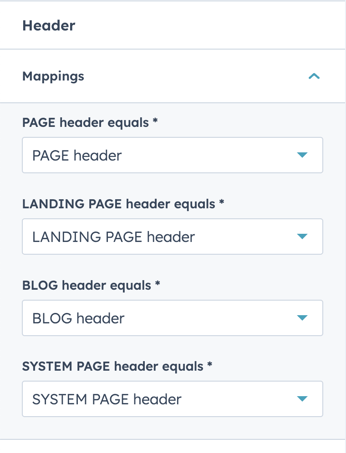
How do I map Headers and Footers?
Layout → Header/Footer
Choose to map your global headers for one content type to another. This will set the default header used on the page type when a new page is created.
Header/Footer mapping:
- Map blog header to specific header template like web page header or landing page header
- Maintain consistency across content types
- When you need a single global header and footer, you can build them once on the website pages and reuse them across landing pages, blogs, and system pages.
Important note: Please note this can also be overwritten within the individual page settings.
What are Section Paddings and Margins?
Layout → Section Paddings/Margins
Within Section Modules, you have a choice to adjust the padding or margins for the top and bottom of the section.
Padding vs. Margin
Padding:
- Space inside section
- Between section edge and content
- Creates breathing room
- Part of section background
Margin:
- Space outside section
- Between sections
- Creates separation
- Not part of section background
Visual consistency: All POWER section modules have a standard top and bottom padding and margins that are optimized to have the same height and visual consistency across all section modules.
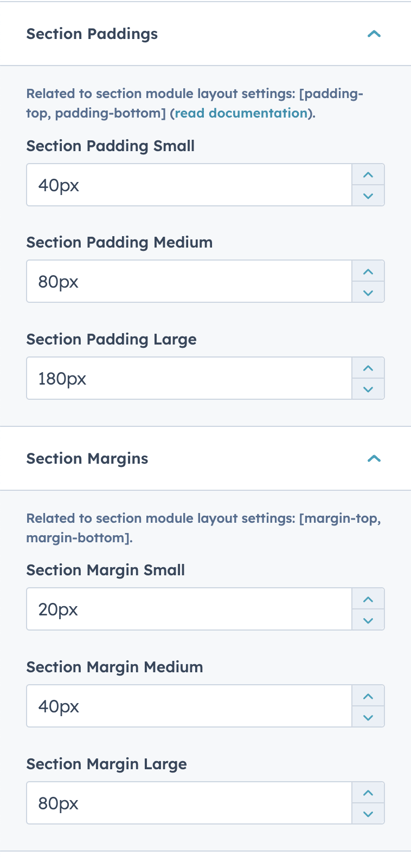
In addition to Standard (theme default) and None, you can configure a Small, Medium, and Large padding or margins based on your design guidelines to easily adjust the padding from module to module and page to page and maintain consistency.
This global setting also lets you easily adjust the settings across all section modules and pages in one location.