
Theme Settings
Theme Settings Structure
There are 2 sections in Theme Settings for Fonts:
Fonts
The theme is designed to use two font families, a base font and an accent font. These fonts can be configured under Basic Setup. More granular settings can be configured under Formatting.
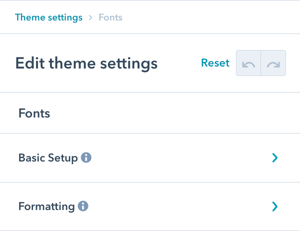
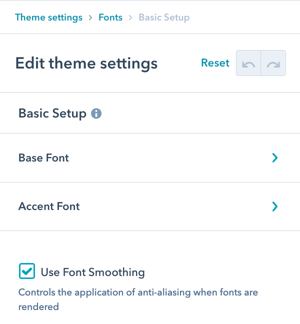
Fonts → Basic Setup
In addition to setting the base and accent fonts and weights, this is where you can set font-smoothing.
Font smoothing: Font smoothing allows you to activate anti-aliasing which makes the font appear more eye-pleasing and softer. Try out what you like more with your selected font.
What anti-aliasing does:
- Smooths font edges
- Makes text appear softer
- Improves readability on some screens
- Creates more polished appearance
Configuration options:
- Base Font family and weights
- Accent Font family and weights
- Font smoothing (anti-aliasing)
Fonts → Basic Setup → Base Font → Font Family
The Base Font is used as the primary font across all modules in the theme.
Font selection options:
-
Google Fonts: Options for Font Family can be selected from Google Fonts via the dropdown.
-
Custom Fonts: If your brand font is not available via Google Fonts, we have provided detailed instructions to add Custom Fonts to your theme designed for someone with code experience.
Need help with custom fonts? If that's not you or someone on your team, we recommend submitting a ticket and we will happily complete the setup for you.
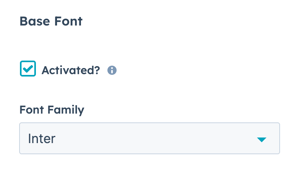
Fonts → Basic Setup → Base Font → Activated?
This setting should be checked unless you have configured a custom font.
Fonts → Basic Setup → Base Font → Font Weights
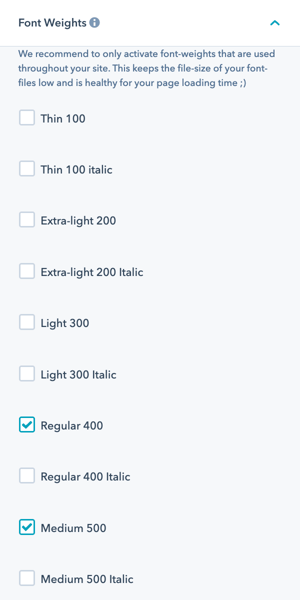
There are a few considerations you need to make when selecting Font Weights to include in your theme:
- Verify the font weight you have selected is available for the font family chosen, if the font library does not have the weight, it will default to the backup font weight of Regular 400.
- Don't activate more font weights than you plan on using, each font weight will add to the file size of your website which impacts the speed that your pages load.
- Review the Fonts → Formatting settings to modify which font weights are used where, and return here to deactivate any you don't plan on using.
Fonts → Basic Setup → Accent Font → Font Family
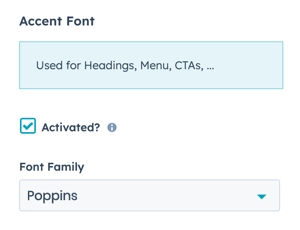
The Accent Font is used for Headings, Menu, CTAs, and other accent design elements across all modules in the theme.
Fonts → Basic Setup → Accent Font → Activated?
This setting should be checked unless you have configured a custom font.
Fonts → Basic Setup → Accent Font → Font Weights
The same font weight options for Base Font are available for Accent font.
How do I configure Font Formatting?
Fonts → Formatting
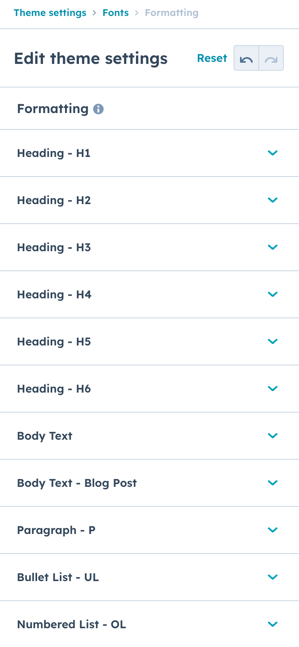
This is where you can refine the font styling to align with your brand guidelines. If you made changes to font weights, we recommend going through these settings to verify only the fonts you intend to use are selected.
Formatting scope: Fine-tune typography for specific elements throughout your site.
Available formatting sections:
- Headings (H1-H6)
- Body text and paragraphs
- Lists (bullet and numbered)
- Section modules
- Buttons
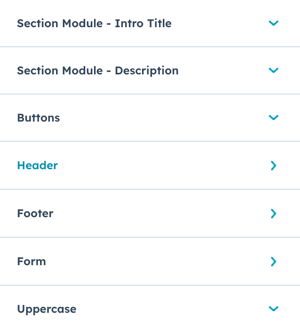
- Header elements
- Footer elements
- Form elements
Purpose: Align typography with brand guidelines and ensure optimal readability.
Fonts → Formatting → Heading - H1 (and subsequent sections)
Fonts can be further defined using individual settings for:
- Heading H1
- Heading H2
- Heading H3
- Heading H4
- Heading H5
- Heading H6
Configuration options for each heading:
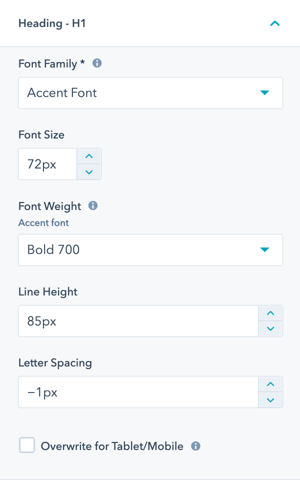
Font Family: Switch between Accent and Base font.
Font Size: Set size in pixels or relative units.
Font Weight: Choose from activated weights.
Line Height: Control spacing between lines.
Letter Spacing: Adjust space between characters.
Heading hierarchy best practices:
- H1: Largest, most prominent (48-72px)
- H2: Major sections (36-48px)
- H3: Subsections (28-36px)
- H4: Minor sections (24-28px)
- H5: Small headings (20-24px)
- H6: Smallest headings (16-20px)
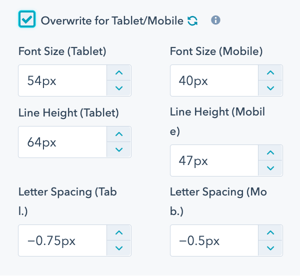
Fonts → Formatting → Heading - H1 (and subsequent sections) → Overwrite for Tablet/Mobile
Additional options are provided to overwrite the default scaling of fonts for Tablet and Mobile.
Fonts → Formatting → Bullet List - UL (and Numbered List - OL)
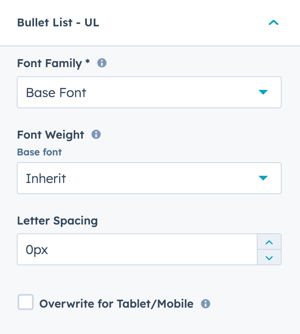
Fonts can be further defined using individual settings for:
- Bullet List - UL
- Numbered List - OL
Configuration options for lists:
Font Family: Switch between Base and Accent font.
Font Weight: Choose from activated weights.
Letter Spacing: Adjust space between characters.
Font Size: The Font Size will be inherited from the paragraph or module settings for where the list is contained.
Line Height: There is not a Line Height setting, rather you can configure the Item Spacing under Styling → Lists → UL - Bullet List (or OL - Numbered List).
List formatting tips:
- Use Base font for most lists
- Match paragraph weight for consistency
- Adjust letter spacing for readability
- Configure item spacing in Styling settings
Fonts → Formatting → Header
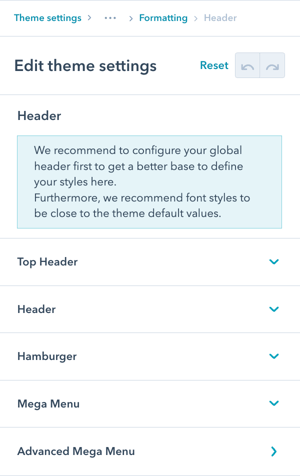
The same options to overwrite the font styles are available for the Header elements, including:
- Top Header
- Header
- Hamburger (mobile menu)
- Mega Menu
- Advanced Mega Menu
Best practice: It is best to modify these settings after the Header has been configured.
Configuration sequence:
- Set up header structure and navigation
- Configure global fonts (Base and Accent)
- Fine-tune header-specific typography
- Test on all devices
Header typography tips:
- Keep navigation readable (14-16px typical)
- Use medium weight for menu items (500-600)
- Ensure adequate contrast
- Test on mobile menu
- Verify mega menu readability
Fonts → Formatting → Header → Advanced Mega Menu
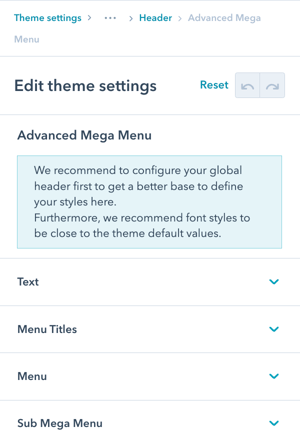
The same options to overwrite the font styles are available for the Advanced Mega Menu elements, including Text, Menu Titles, Menu, and Sub Mega Menu.
It is best to modify these settings after the Advanced Mega Menu has been configured.
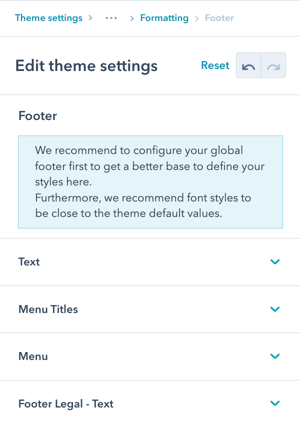
Fonts → Formatting → Footer
The same options to overwrite the font styles are available for the Footer elements, including:
- Text
- Menu Titles
- Menu
- Footer Legal - Text
Best practice: It is best to modify these settings after the Footer has been configured.
Footer typography considerations:
- Text: Standard body size or slightly smaller
- Menu Titles: Bold or uppercase for sections
- Menu items: Comfortable reading size
- Legal text: Smaller, but still readable (12-14px minimum)
Footer configuration sequence:
- Set up footer structure and content
- Apply global font settings
- Fine-tune footer-specific typography
- Ensure legal text is readable
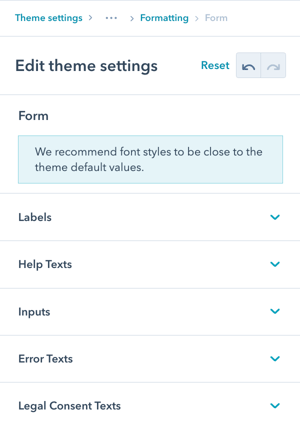
Fonts → Formatting → Form
The same options to overwrite the font styles are available for Forms, including:
- Labels
- Help Texts
- Inputs
- Error Texts
- Legal Consent Texts
Form typography best practices:
Labels:
- Clear, readable size (14-16px)
- Medium weight for emphasis
- Adequate contrast
Help Texts:
- Slightly smaller than labels (13-14px)
- Lighter weight or muted color
- Supportive, not distracting
Inputs:
- Match body text size (16px minimum for mobile)
- Regular weight
- Comfortable reading
Error Texts:
- Same or slightly larger than help text
- Bold or colored for visibility
- Clear and noticeable
Legal Consent Texts:
- Readable but can be smaller (12-14px)
- Regular weight
- Adequate line height
Fonts → Formatting → Uppercase
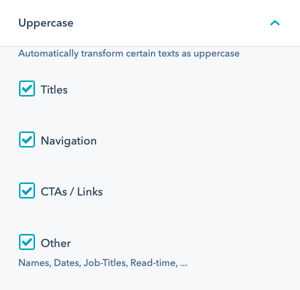
The default design for POWER theme incorporates Uppercase elements. This gives you the option to add/remove the text transformation, allowing you the flexibility to use UPPERCASE, lowercase, or Title Case by manually typing the text in the formatting desired.
Uppercase controls:
- Enable/disable automatic uppercase transformation
- Affects intro titles, menu items, buttons, etc.
- Override for specific elements
Use cases:
Keep uppercase transformation for:
- Modern, bold designs
- Professional corporate sites
- Clear visual hierarchy
- Navigation emphasis
Remove uppercase transformation for:
- Casual, friendly brands
- Traditional typography
- International content (not all languages work well uppercase)
- Custom text styling
Manual control: When transformation is disabled, manually type text in desired case (UPPERCASE, lowercase, Title Case).
Video Tutorial