
What is Animation on Scroll?
Animation
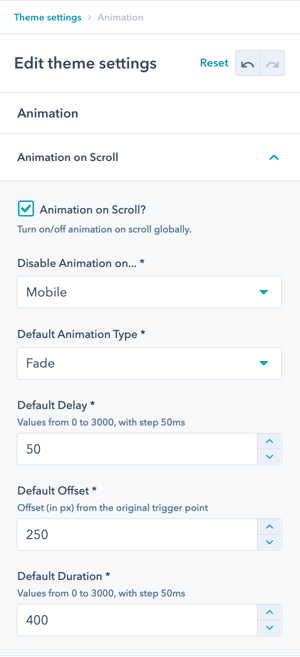
Modify the global settings for Animation on Scroll, including the option to disable globally or based on device type.
Animation on Scroll (AOS) is an effect on a website where the elements of the page animate as the user scrolls down the page.
How it works:
- Elements start hidden or in initial state
- User scrolls down the page
- Elements animate into view when they enter viewport
- Creates dynamic, engaging experience
Technology:
For the animation on scroll effect used in the POWER theme, we used the amazing javascript library of michalsnik.
Check out the demo page of aos to see all animation types in action.
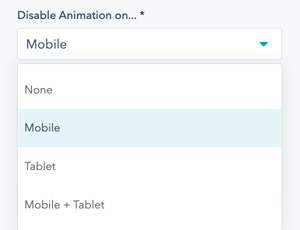
How do I disable Animation on Scroll?
Animation → Disable Animation on...
Control where animations are disabled with device-specific options.
Disable options:
Disable on All Devices:
- Completely turns off Animation on Scroll
- Best for performance-critical sites
- Simplest option
Disable on Mobile Only:
- Keeps animations on desktop and tablet
- Improves mobile performance
- Simplifies mobile experience
Disable on Tablet Only:
- Specific tablet optimization
- Less common option
- Use if tablet performance is concern
Disable on Desktop Only:
- Unusual configuration
- Keeps animations on mobile/tablet only
- Rarely used
When to disable animations:
Performance concerns:
- Slow mobile devices
- Performance-critical pages
- High-traffic sites
User experience:
- Accessibility requirements
- Motion sensitivity concerns
- Prefer static design
Brand preference:
- Minimalist aesthetic
- Traditional design approach
- Professional/conservative sites
What animation types are available?
Animation → Default Animation Type
- Fade
- Fade Up
- Fade Down
- Fade Left
- Fade Right
- Fade Up Right
- Fade Up Left
- Fade Down Right
- Fade Down Left
- Flip Up
- Flip Down
- Flip Left
- Flip Right
- Slide Up
- Slide Down
- Slide Left
- Slide Right
- Zoom In
- Zoom In Up
- Zoom In Down
- Zoom In Left
- Zoom In Right
- Zoom Out
- Zoom Out Up
- Zoom Out Down
- Zoom Out Left
- Zoom Out Right
Additional Animation settings:
- Default Delay: The animation delay in ms. Choose a value between 0 and 3000 (3 seconds)
- Default Offset: Animations are triggered sooner or later. The unit for the offset in pixels.
- Default Duration: The duration of the animation in ms.
Animation type selection guide:
Fade: Subtle, professional, versatile
- Best for: Most use cases, professional sites
- Effect: Elements gradually appear
Slide: Directional, dynamic
- Best for: Side-by-side content, sequential elements
- Effect: Elements slide in from direction
Flip: Bold, attention-grabbing
- Best for: Cards, testimonials, special content
- Effect: Elements flip into view
Zoom: Dramatic, impactful
- Best for: Hero sections, important content, CTAs
- Effect: Elements scale into view
Can I customize animations per module?
After configuring the global animation settings, you will have the option to set the animation parameters for the modules and elements within the modules individually from the module settings.
Helpful Link: How to incorporate animation on your website with POWER