TABLE OF CONTENTS
Page Speed Impact
Setup Instructions
Page Speed Impact

How does the filtering affect page speed?
-
Low impact:
- Adding filters to your page adds a minimal amount of code
- Does not have a significant impact on page speed
- Lightweight JavaScript for filtering functionality
- No server requests needed for filtering
Note: For more detailed performance advice, review the POWER Performance Guide!
Setup Instructions
Filtering Availability
Filtering is available with these POWER modules:
- POWER Sec Image Boxes
- Sec Video
- Sec Testimonials
- Sec Simple Listing
Use cases for each module:
Image Boxes: Portfolio filtering, product galleries, case study categories
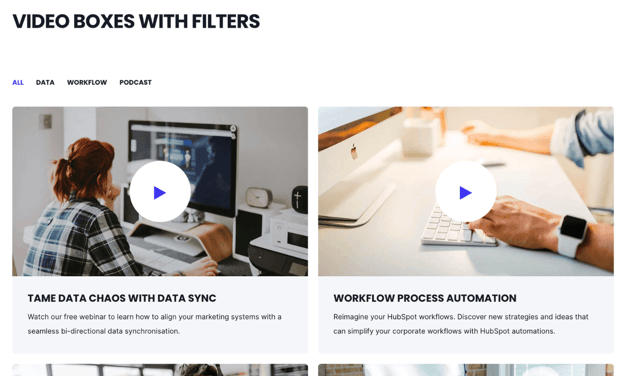
Video: Video library by topic, tutorial categories, product demo filtering
Testimonials: Customer testimonials by industry, use case, or product
Simple Listing: Job postings by department, resources by topic, events by type
Filtering can be used for a variety of page layouts to organize content so that it can be filtered by the user without refreshing the page.
How do I add filters to my content?
Content→ Website Pages → [module with filtering]
First, you can decide whether to include a base category that includes all content.
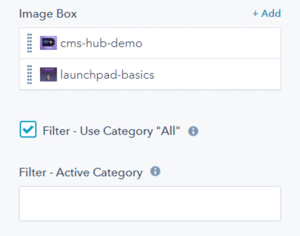
Check the box next to Filter - Use Category "ALL" to turn on this feature.
Once you check the box, you'll see ALL available as an option on the page: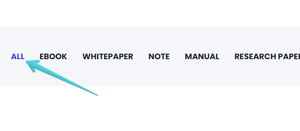
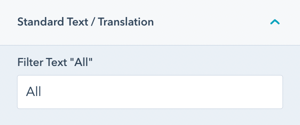
If you would like to change the word ALL to something else, you can scroll down to the Standard Text/Translation module settings and update to whatever makes the most sense for your content or translate to your desired language.
Another option available is to set one of your categories to display as the default category instead of ALL.
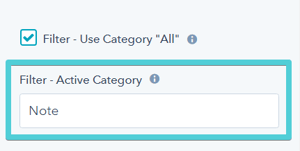
If you do not have ALL selected, the first category on the list is the default. If you would like to pre-filter the list on page load, you can set one of your categories to be the default using the text box called Filter - Active Category shown here:
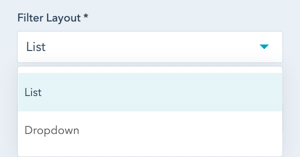
The last setting to control the filter function is to choose a Filter Layout, whether you want the categories in a list (horizontally) or a dropdown:
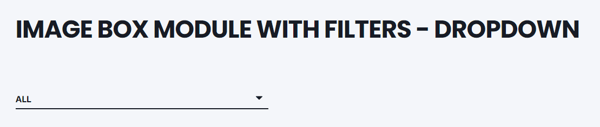
Here is an example showing the Dropdown layout for Filters:
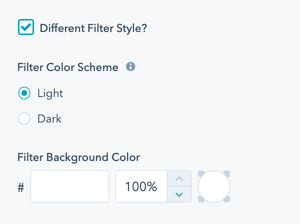
Filter Style Settings
In addition to the other style settings for the module, you will see filter-specific styling options.
Adding Categories
How do I add categories to content?
There is not a centralized list of categories to set up or choose from. When you create content, you'll just add the appropriate categories (tags) to the content and those categories will be added to the list of available filters.
Category configuration:
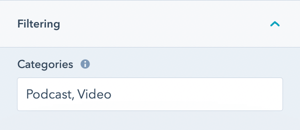
For each content item, you'll see a setting called "Filtering" with a text box for "Categories".
How to format categories:
This list should be comma separated, which means that you will need a comma and a space following each tag.
Format: Category 1, Category 2, Category 3
Multiple categories per item: You can add multiple tags for a single content item, or use a single tag.
Important: Make sure you are consistent across all content and that the wording is the same.
Examples:
Single category:
Web DesignMultiple categories:
Web Design, Featured, TechnologyCase study with multiple tags:
Healthcare, Enterprise, Success Story