
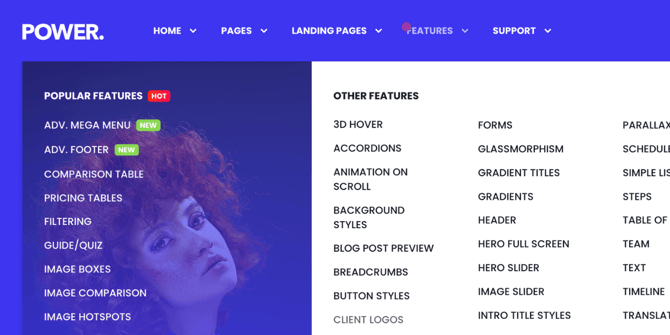
Page Speed Impact

Low - Menu tags have little to no impact on page speed.
Exceptions - Menu Tags add a minimal amount of code to your navigation, if you were to go overboard and tag hundreds of items it might have an impact on your page speed, but you shouldn't do this for other reasons not because you're worried about page speed.
Tips - Keep your menu tags and pulsing dots to a minimum, you wouldn't want your page to look like it has chicken pox.
Take a look at our performance guide to get your website running its best!
Can I change the text for Menu Tags?
The default text included in the code provided can be changed to whatever you'd like
What Are Menu Tags and How Do They Work?
Menu Tags allow you to visually highlight specific navigation items.
They are configured in two steps:
-
Define the menu tag style (what it looks like)
-
Add the menu tag to a menu item (where it appears)
See also: Advanced Navigation Menus • Theme Style Settings

How Do You Configure Menu Tag Styles?
Where do I style Menu Tags?
Theme Settings → Styling → Menu Tags
What can I customize?
You can configure:
-
Four Menu Tag styles
-
One Pulsing Dot indicator
-
Text color
-
Background color
-
Dot (pulse) color
The text label itself is set within the navigation menu, not in Theme Settings.
How Do You Add Menu Tags to Your Navigation?
Where do I edit my navigation menu?
Settings → Website → Navigation
If you haven't created a menu yet, follow the navigation setup documentation.
How do I apply a Menu Tag to a menu item?
Each Menu Tag style has a corresponding CSS class.
Use this structure inside your menu item:
<span class="pwr-menu-tag--01">NEW</span>
-
Replace NEW with any label you want
-
Replace 01 with 02, 03, or 04 depending on the tag style you configured
Where should I place the tag?
-
You can place it before or after the menu text
-
For child menus (dropdown items), adding the tag after the text keeps alignment consistent
How Do You Add a Menu Dot Indicator?
What is a Menu Dot?
A visual dot indicator that can be used to draw attention to a menu item.
Its color is configured in Theme Settings.
How do I add a Menu Dot?
Use this structure:
<span class="pwr-menu-dot"></span>Your Menu Text Here
Replace Your Menu Text Here with your actual menu label.
How is the dot positioned?
The Menu Dot automatically appears in the upper-left corner of the menu text.
Code for Menu Dot
To add a menu dot to your navigation, you will need to use a span class like this:
| <span class="pwr-menu-dot"></span>Your Menu Text Here |
The text between the tags needs to be your menu link text, the span tags should wrap the text. In this example, "Your Menu Text Here" is the menu link that you would replace with your menu item.
The Menu Dot is automatically positioned in the upper left of the menu text.