
What animation options are available in POWER Pro?
The POWER Pro theme includes multiple animation types to bring your website to life and improve user engagement.
Available animation options:
- Animation on Scroll (AOS)
- Hover Effects
- Parallax
- Lottie Animations
Animation capabilities:
- Global theme settings
- Module-level customization
- Device-specific control
- Performance optimization
- Interactive elements
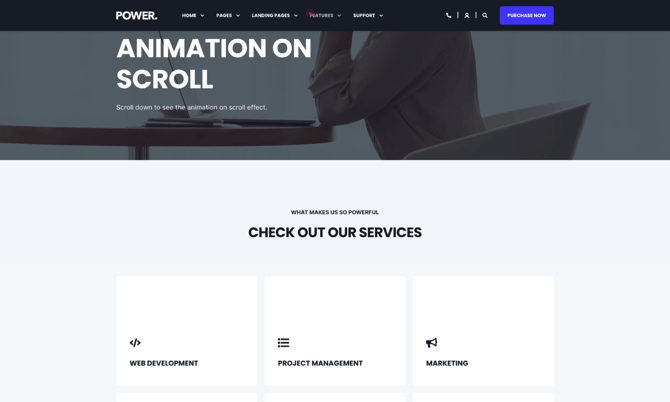
TABLE OF CONTENTS
Page Speed Impact
Setup Instructions
How do animations affect page speed?
Page Speed Impact

Low impact: Scroll on Animation defers loading content until the user scrolls, which helps decrease page load times. Hover effects, parallax, and other animations require additional code and can have a slight impact.
Animation efficiency:
- Deferred loading improves speed
- Content loads as user scrolls
- Reduces initial page load
- Minimal code overhead
Exceptions: Images, Background Images and Videos, and Lottie files can increase the time it takes for the page to load.
Performance considerations:
- Large images affect speed
- Video backgrounds impact loading
- Lottie files add file size
- Optimize media files
Note: For more detailed performance advice, review the POWER Performance Guide!
Setup Instructions
Helpful Links: Step-by-step instructions for configuring animation in the Theme Settings.
Available animation options in POWER Pro theme: Animation on Scroll↓, Hover Effects↓, Parallax↓, and Lottie Animations↓
You can define a global animation style for all of your pages in Theme Settings and also modify individual modules to customize the animation for your content and page layouts.
Many Custom Modules included with POWER theme include interactive elements, such as the 3D Hover Effect for image boxes.
Add Animation to Website Pages in HubSpot
Adding animation to your website pages defers the content from loading until the user starts scrolling down the page (known as animation on scroll or AOS), which can help improve your overall page speed by reducing the files that are needed on the initial page load.
How do I configure global animation settings?
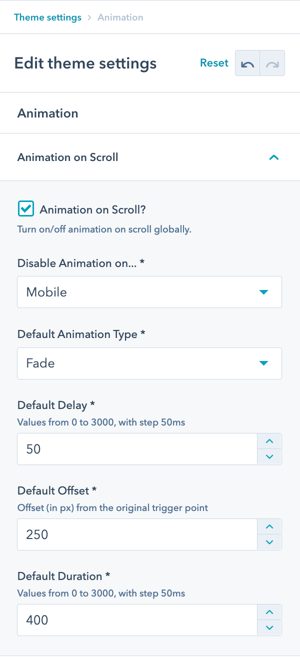
Theme Settings → Animation
Modify the global settings for Animation on Scroll, including the option to disable globally or based on device type.
Global animation controls:
- Enable/disable site-wide
- Device-specific settings
- Default animation style
- Animation duration
- Animation delay
Device control:
- Desktop animation settings
- Mobile animation settings
- Tablet animation settings
- Responsive behavior
What animation styles are available?
Types of Animation Styles Available
The POWER Pro theme includes 32 animation styles across multiple categories.
Fade animations:
- Fade: Simple fade in
- Fade Up: Fade in from bottom
- Fade Down: Fade in from top
- Fade Left: Fade in from right
- Fade Right: Fade in from left
- Fade Up Right: Diagonal fade (bottom-left)
- Fade Up Left: Diagonal fade (bottom-right)
- Fade Down Right: Diagonal fade (top-left)
- Fade Down Left: Diagonal fade (top-right)
Flip animations:
- Flip Up: Flip rotation upward
- Flip Down: Flip rotation downward
- Flip Left: Flip rotation left
- Flip Right: Flip rotation right
Slide animations:
- Slide Up: Slide in from bottom
- Slide Down: Slide in from top
- Slide Left: Slide in from right
- Slide Right: Slide in from left
Zoom In animations:
- Zoom In: Scale up from center
- Zoom In Up: Scale up from bottom
- Zoom In Down: Scale up from top
- Zoom In Left: Scale up from right
- Zoom In Right: Scale up from left
Zoom Out animations:
- Zoom Out: Scale down from center
- Zoom Out Up: Scale down moving up
- Zoom Out Down: Scale down moving down
- Zoom Out Left: Scale down moving left
- Zoom Out Right: Scale down moving right
Is it possible to change animations at the module level?
Module-Level Animation Control
Most POWER Pro modules include animation settings that override global theme settings.
Module animation settings:
-
Open module settings
-
Find "Animation" section
-
Enable/disable animation
-
Select animation type
-
Set animation delay
-
Configure per element (if available)
Per-element animation:
-
Many modules allow different animations for different elements within the same module.
Element-specific examples:
-
Title: Fade Up
-
Description: Fade Up (delayed)
-
Image: Zoom In
-
Button: Fade Up (delayed further)
What is Parallax?
Parallax Animation
Parallax creates depth by moving background and foreground elements at different speeds during scrolling.
Parallax effect:
- Background moves slower than foreground
- Creates depth illusion
- Engaging scroll experience
- Modern aesthetic
Parallax use cases:
- Hero sections
- Feature sections
- Background images
- Visual storytelling
- Immersive experiences
What are animation best practices?
Animation Best Practices
Performance:
- Don't animate above-the-fold content
- Limit animations per page
- Optimize images and media
- Test on slow connections
- Monitor Core Web Vitals
User experience:
- Subtle, purposeful animations
- Consistent animation style
- Appropriate duration (not too slow)
- Respect motion preferences
- Don't overdo it
Accessibility:
- Respect prefers-reduced-motion
- Provide static alternatives
- Avoid flashing/strobing
- Test with screen readers
- Clear without animation
Design:
- Match brand personality
- Consistent direction
- Logical sequence
- Visual hierarchy
- Professional polish
Mobile considerations:
- Simpler animations on mobile
- Consider performance impact
- Test on actual devices
- Battery usage awareness
- Touch-friendly interactions