
What are System Pages in HubSpot?
System Page Templates provide necessary pages for your website to function properly. These are special pages that HubSpot uses automatically when certain conditions occur. Common system pages include:
- 404 Error Page: Alerts visitors that a page is missing or no longer available
- 500 Error Page: Displays when a server error occurs
- Search Results Page: Shows results from site search
- Password Prompt Page: Appears when content is password protected
- Email Subscription Pages: Manage email preferences and subscriptions
- Backup Unsubscribe Page: Fallback page for email unsubscribes
Important: System pages are essential for proper website functionality and user experience.
Why does the search results page have the wrong header and footer?
The search results page uses the System Page Header and System Page Footer which need to be configured in the global content editor.
System Page Templates provide necessary pages for your website to function properly, for example, the 404 Error Page alerts visitors that a page is missing or no longer available.
⚠️ If your website is currently live with another theme or template in HubSpot, completing these steps will immediately change the appearance of your System Pages. ⚠️
Set up System Page Templates in HubSpot
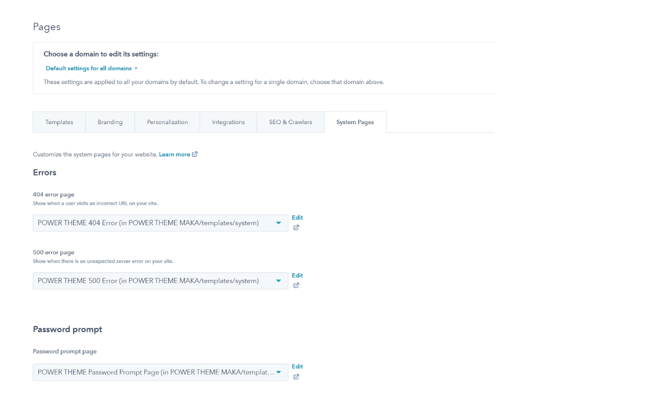
Settings → Content → System Pages
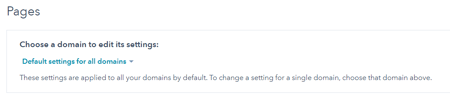
System Page templates are global and can be set for all domains, or individually by domain.
Step 1: Navigate to System Pages settings
- Go to Settings in your HubSpot portal
- Navigate to Content → Pages -> System Pages
- View the list of system page templates
Step 2: Understand template scope
System Page templates are global and can be set:
- For all domains (applies to entire portal)
- Individually by domain (different templates per domain)
Step 3: Select POWER templates
In the dropdown for each template, select the corresponding template from POWER theme for your child theme.
This swaps HubSpot system templates from:
- Default HubSpot templates
- Previous theme templates
- To your POWER theme templates
How do I identify my child theme templates?
Understanding template listings
You will see multiple instances of each template:
- One for the parent/marketplace theme
- One for each child theme in your portal
Example: If you have one child theme, you'll see two templates listed.
Using the search feature
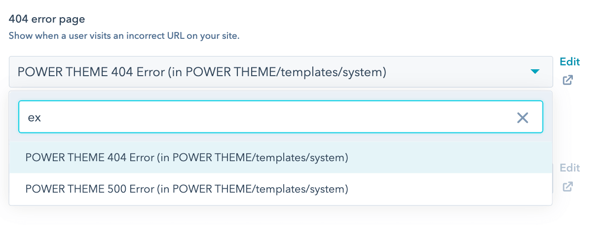
When you click in the template selection box, a search bar appears:
- Search for your child theme by name
- Use a unique keyword from your child theme name
- Narrow down results quickly
Search examples:
- Child theme name: "POWER x Example" → Search: "ex"
- Child theme name: "POWER x MyBrand" → Search: "MyBrand"
- Child theme name: "Power Theme Child" → Search: "child"
Tip: Type a distinctive part of your child theme name that isn't in "POWER Theme" to quickly find the right template.
What should I know about system page previews?
⚠️ Important: HubSpot Preview Limitations
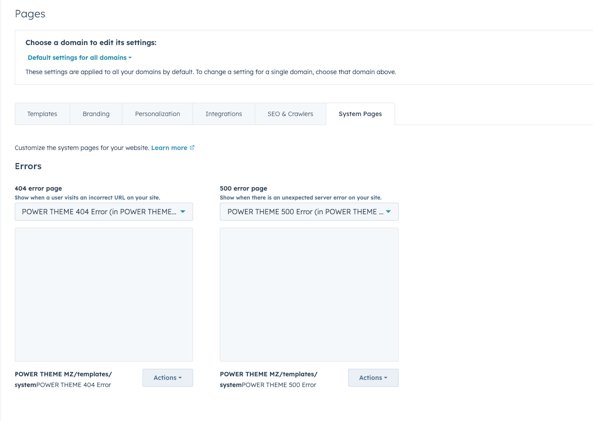
The preview option in HubSpot Settings for these pages shows different content than the live page:
- 404 Error Page preview
- 500 Error Page preview
- Search Results Page preview
Preview behavior:
- Shows Landing Page header/footer (HubSpot default)
- Does NOT show the actual System Page header/footer
Live page behavior:
- Shows System Page header/footer (theme override)
- Provides more flexibility for system pages
- Landing pages typically don't have full menus
- System pages need complete navigation
Why this matters: The theme overwrites HubSpot's default to allow you to configure system page settings without customizing templates.
Best practice: Test system pages on your live site or staging environment to see actual appearance.
Refer to the header documentation for the steps to configure the system page variant.
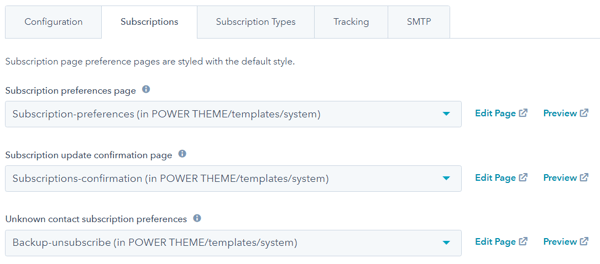
How do I set up Email Subscription templates?
Settings → Marketing → Email → Subscriptions
Step 1: Navigate to Email Subscriptions
- Go to Settings in your HubSpot portal
- Navigate to Marketing → Email → Subscriptions
- View subscription page template options
Step 2: Select POWER templates
In the dropdown for each template, select the corresponding template from POWER theme for your child theme.
Step 3: Use search to find your child theme
The dropdown shows marketplace templates multiple times.
Easiest selection method:
- Type the exact name or keyword from your child theme name
- Exclude words that appear in "Power Theme"
- Search works even if dropdown doesn't appear
- Just start typing once dropdown is activated
Search examples:
- Child theme: "Power Theme Child" → Type: "child"
- Child theme: "Power x MyBrand" → Type: "MyBrand"
- Child theme: "POWER x Example" → Type: "example"
Tip: You can start typing immediately after clicking the dropdown, even before the search box appears.
The email subscription templates use the landing page header/footer. The hero background color uses the Primary Color defined in your theme settings under Brand Colors, the default text color is white. You can overwrite the hero background color in the color theme settings.
Can I customize System Pages?
Current limitations
At this time, HubSpot has not provided drag-and-drop capability to edit system pages.
Available customization options
Default images:
- The default image for 404 Error Page can be changed in system page theme settings
- The default image for 500 Error Page can be changed in system page theme settings
Theme settings:
- Adjust colors through theme settings
- Configure header/footer variants
- Update brand colors and fonts
Developer customization: Any further customization for system page templates included in the theme would need to be done by a developer.
Working with developers: If you're interested in custom system page templates, request a quote to work with the POWER theme development team.
At this time, HubSpot has not provided the drag-and-drop capability to edit system pages.
The default image for the 404 and 500 error pages can be changed in the system page theme settings.