
TABLE OF CONTENTS
Page Speed Impact
Setup Instructions
Module Options
Page Speed Impact

Medium - The marquee module itself will not have a significant impact on page speed.
Exceptions - Additional impact if images, videos, CTAs and other content are added to the marquee module.
Take a look at our performance guide to get your website running its best!
How Do You Set Up and Customize the POWER Marquee Module?
What Is the POWER Marquee Module?
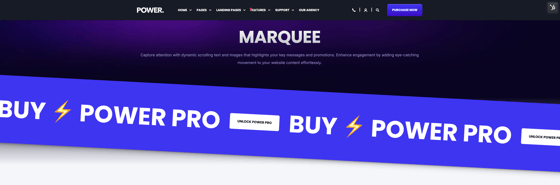
The POWER Marquee Module creates an animated scrolling banner designed to highlight key messages and draw attention immediately.
Where do I access it?
Content → PWR Sec Marquee
How Do You Add and Configure Marquee Items?
How do I add marquee items?
Add each item you want displayed in the horizontal scrolling marquee.
Items repeat automatically to create an infinite scroll effect.
What item variants can I choose?
You can choose:
-
Text
-
Icon
-
Image
-
Button
-
CTA
How do I set the content for each item?
Depending on the chosen variant:
-
Text: Enter your text
-
Icon: Choose from HubSpot’s Font Awesome library (free or Pro)
-
Image: Upload/select an image
-
Button/CTA: Select a HubSpot button or CTA
Can marquee items be links?
Yes. Enable Link? and choose:
-
External URL
-
HubSpot pages
-
Files
-
Email / Phone
-
Pop-up CTA
-
Payment link
-
Blog post
How do I ensure accessibility?
Use Aria Label to describe each item for screen readers.
How Do You Configure Marquee Behavior?
What settings control scrolling behavior?
You can configure:
-
Scroll direction (left or right)
-
Pause on hover
-
Scroll speed
-
Initial duplicate count (used to create infinite looping)
Important:
The module automatically optimizes duplicate counts after page load, but you can set how many load initially.
How do I set spacing between items?
Layout → Space Between Items (pixels)
How do I make the marquee full width?
Enable Layout → Content Full Width.
What does “Boxed Section” do?
Applies a boxed layout option that affects:
-
Horizontal margins
-
Inner spacing
See the boxed sections article for details.
How do I adjust margins and padding?
Use Layout → Margin & Padding Top/Bottom to add vertical spacing.
Horizontal spacing depends on boxed section settings and your theme spacing values.
See also: Boxed Layout examples.
How Do You Style the POWER Marquee Module?
How do I choose a color scheme?
Style → Color Scheme
Choose between your theme’s Light and Dark schemes.
How do I add a section shadow?
Enable Style → Section Shadow for a subtle 3D effect.
How do I change the background?
Under Style → Background, set:
-
Background color
-
Background image
-
Background video
What is Horizontal Content Fade?
A left/right fade mask applied to the marquee edges to create smooth transitions.
How do I add a shape divider?
Use Style → Shape Divider to add decorative transitions between modules.
How Do You Configure Animations and Transformations?
How do I control module animation?
Use the Animation settings.
For full animation details, see the website animation article.
What transformations can I apply?
Transformations allow you to offset, rotate, resize, or adjust stacking behavior.
Available settings include:
Rotate
Set rotation in degrees.
Scale
Scale the entire module:
-
100%: Default size
-
50%: Half-width (useful for asymmetrical layouts)
Translate (X/Y)
Shift the module horizontally (X) or vertically (Y).
Width
Manually increase or decrease module width to maintain layout alignment.
Overwrite Z-Index
Control layer stacking:
-
Higher value → appears above other modules
-
Lower value → appears behind
Overwrite Container Height
Sets a specific marquee container height.
Note: Only use for advanced customization of active marquees.
How Do You Use Anchor Links and Custom Classes?
How do I set an anchor link?
Enter a custom Anchor Link ID to allow deep linking to this module.
Can I use custom classes?
Yes. Add a Custom Class to your module through the "custom class" input at the bottom of your module to target the module in your child.css stylesheet.