
The Power Plus list framework is a modular, no-code system for building dynamic, data-driven pages on HubSpot CMS. Whether you need a product catalog, a job board, a content library, a partner locator, or an interactive chart — this framework lets you connect any data source, display it in flexible layouts, and add filtering, sorting, and search — all configured directly in the HubSpot page editor without writing a single line of code.
The framework is built as a child theme extension for the POWER THEME by maka Agency. It is designed for marketing teams who are comfortable working with structured data (JSON, XML, CRM or HubDB) but don’t want to write custom code for every new listing page.
How It Works
Every list page is built from three building blocks that you wire together by name:
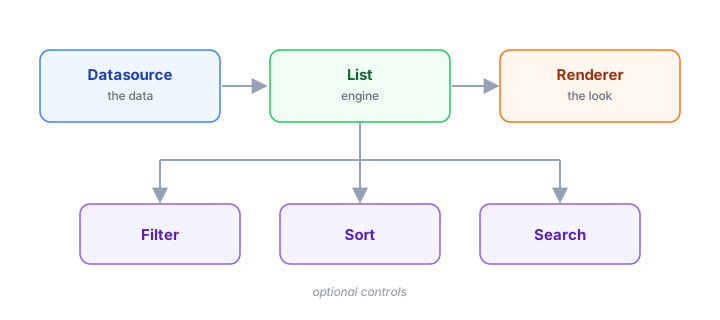
Architecture
-
Datasource — Defines where the data comes from. This can be a JSON API, an XML feed, a HubDB table, or the HubSpot CRM. You configure the URL or table, and optionally transform the response using JSONata expressions. The datasource fetches and caches the data so the rest of the framework can work with it.
-
Renderer — Defines how each item looks. You choose a layout type (cards, grid, table, slider, or chart) and map data fields to visual elements using JSONata expressions. For example, you tell the renderer “show
object.values.nameas a heading” and “showobject.values.image.urlas the card image”. The renderer takes care of generating the HTML, applying styles, handling hover effects, and adapting to different screen sizes. -
List — The engine that ties everything together. It discovers the datasource and renderer by their names, coordinates loading and paging, manages the application state (which filters are active, what sort is selected, what search term was entered), and handles browser history so the back button works correctly.
-
Controls (optional) — Filters, sort options, and search fields that let visitors interactively narrow and reorder results. Each control is a separate module that targets a specific list by name. You can add as many controls as you need, and they all work together automatically.
All modules are connected by a shared name field. For example, if your datasource is named product_datasource and your renderer is named product_renderer, you set those exact names in the List module’s configuration. The modules can be placed anywhere on the page — they don’t need to be nested inside each other or placed in any specific order. The framework discovers and connects them automatically at runtime.
Quick Start Example
Here is the simplest possible list: a JSON datasource rendered as cards.
Step 1 — Add a JSON Datasource module to your page and configure it:
|
Field |
Value |
|---|---|
|
Name |
|
|
URL |
|
|
JSON Query |
|
The JSON Query tells the datasource how to extract the array of items from the API response. If your API returns { "total": 42, "results":
[...] }, the query results extracts just the array.
Step 2 — Add a Block Renderer module to your page:
|
Field |
Value |
|---|---|
|
Name |
|
|
Fields → Name |
|
|
Fields → Display |
|
|
Fields → Content |
|
The [[ object.name
]] syntax is a JSONata expression that inserts the name field from each data object. You can add more fields (images, descriptions, prices) the same way.
Step 3 — Add the List module to your page:
|
Field |
Value |
|---|---|
|
Name |
|
|
Datasource Name |
|
|
Renderer Name |
|
|
Paging |
|
That’s it. The page will fetch data from the URL, render each item as a card, and show a “Load More” button at the bottom. The visitor sees a polished, paginated listing without any custom code.
Step 4 (optional) — Add controls. Want visitors to filter results? Add a List Filter module with List
Name: my_list. Want a search bar? Add a List Search module with List Name: my_list. Each control automatically connects to the list by name.
Modules Reference
Core
|
Module |
Purpose |
Documentation |
|---|---|---|
|
List |
The engine — connects datasource and renderer, handles paging, state management, and browser history |
|
|
List State Button |
Reset or set filter/sort state with one click (e.g. “Clear Filters”) |
Datasources (where the data comes from)
|
Module |
Best For |
Documentation |
|---|---|---|
|
Datasource JSON |
REST APIs, public datasets, hosted JSON files — the most versatile option |
|
|
Datasource XML |
RSS feeds, Atom feeds, legacy XML APIs, SOAP services |
|
|
Datasource HubDB |
HubDB tables managed directly in HubSpot — ideal for marketing-managed content |
|
|
Datasource CRM |
HubSpot CRM objects (Products, Contacts, etc.) via secure serverless API |
Renderers (how items look)
|
Module |
Best For |
Documentation |
|---|---|---|
|
Renderer Block |
Content cards, product tiles, team member profiles, blog listings — supports masonry, hover effects, 3D animations |
|
|
Renderer Grid |
Structured data grids, shopping carts, comparison tables, dashboards |
|
|
Renderer Table |
Classic data tables with header rows — best for tabular data with good accessibility |
|
|
Renderer Slider |
Carousels, logo sliders, testimonial rotators, product showcases |
|
|
Renderer Chart |
Bar charts, line charts, pie/doughnut charts, scatter plots — powered by Chart.js |
Controls (visitor interaction)
|
Module |
Best For |
Documentation |
|---|---|---|
|
List Filter |
Category filters, tag filters, date range filters — supports dropdown, radio, checkbox, multiselect, and tab styles |
|
|
List Sort |
Sort-by controls (price, name, date, etc.) — supports dropdown, radio, and tab styles |
|
|
List Search |
Real-time text search with debounced input |
Serverless Functions
|
Function |
Purpose |
Documentation |
|---|---|---|
|
CRM List Functions |
Server-side API for securely listing, fetching, and querying CRM objects |
Additional Topics
|
Topic |
Documentation |
Documentation |
|---|---|---|
|
JSONata Expressions |
The data transformation and templating language used throughout the framework for field mapping, data queries, and dynamic content |
Architecture
The framework uses a plugin system to keep modules decoupled and flexible. When a page loads, each module registers itself with a unique name:
-
Datasources register via
registerListDatasource("name", datasourceInstance) -
Renderers register via
registerListRenderer("name", rendererInstance) -
Renderer classes register via
registerListRendererClass("name", rendererClass) -
The List module calls
getPlugin()to discover its datasource and renderer by name
This architecture means: - Modules can be placed anywhere on the page — they don’t need to be inside a specific container or in a particular order. - Multiple lists can coexist on the same page, each with its own datasource, renderer, and controls (the Wishlist page uses this for both the cart list and the recommended products list). - Custom renderer classes can extend built-in ones — for example, the Wishlist’s ProductListRenderer extends BlockListRenderer to add heart/wishlist buttons, and CartRenderer extends GridRenderer to add quantity inputs and a total price footer.
Real-World Examples
The framework powers several production use cases, each demonstrating a different combination of datasource, renderer, and controls:
-
Product Catalog with Wishlist — Uses the CRM datasource to load HubSpot Products, the Block renderer with a custom
ProductListRendererclass that adds wishlist heart buttons, and a combination of search, category filter (auto-generated from CRM schema), and sort controls. Includes infinite scroll paging and a product detail page with related products. (Seewishlist/) -
Job Board (Greenhouse) — Uses the JSON datasource pointed at the Greenhouse API (
boards-api.greenhouse.io). A JSONata query in the datasource transforms the nested metadata (department, employment type) into flat properties. Three data-schema filters auto-generate options from the data for location, department, and employment type. (Seeservices/greenhouse/) -
Content Library — Uses the HubDB datasource to load resources from a HubDB table. Two data-schema filters auto-detect content types and industries from the data. A search field with
Search Fields: [values.name]limits search to title only. Block renderer with a customcontent_libraryCSS style. (Seeusecases/content-library/) -
Press Releases (Cision) — Uses a custom Cision datasource (extends
ServerDatasource) that connects to the Cision PR API. The Block renderer displays press release cards, and a search field lets visitors find releases by keyword. Includes a separate blog view module that renders individual press releases. (Seeservices/cision/) -
Weather Charts — Uses the JSON datasource to fetch hourly weather data from the Open-Meteo API. A JSONata query reshapes parallel arrays into per-hour objects. The Chart renderer displays temperature and wind speed as a dual-line chart. A manual filter lets visitors toggle between “Forecast” and “History” views using the
$millis()function. (See section templatechart-json-filter-1.html) -
Link Cards with Multiple Filters — Uses the HubDB datasource with four data-schema dropdown filters (Industry, Product, Business Size, Agency) that auto-generate their options from the HubDB data. The Block renderer displays image cards with hover effects and external links. (See section template
cards-hubdb-links-with-filter.html) -
Featured Content — Uses the same HubDB datasource as the link cards but with a default filter (
values.featured
	== 1
) and paging disabled to show only a small curated selection. Demonstrates how multiple lists can share a datasource. (See section templatecards-hubdb-links-featured.html)
Installation
# Upload the list framework to your HubSpot portal
hs upload src/ maka_Agency/momentum-list

# Rename the config template so it becomes active
hs mv maka_Agency/momentum-list/modules/config-template.html maka_Agency/momentum-list/modules/config.html

# Move the CSS variables file to the POWER THEME (if not already present)
hs mv maka_Agency/momentum-list/css/_variables.css @marketplace/maka_Agency/POWER\ THEME/css/_variables.css
The POWER THEME must be installed first, as the list framework is built as a child theme extension that inherits its base styles, CTA buttons, form components, and layout system from the parent theme.
After installation, edit config.html in HubSpot to set the correct paths to your POWER THEME and child theme if they differ from the defaults.