
The HubDB Datasource module loads rows from a HubSpot HubDB table. HubDB is HubSpot’s built-in relational database — it lets marketing teams create, edit, and manage structured content directly within HubSpot’s interface, without needing external databases or developer support. This makes it the ideal datasource when the data is owned and maintained by the marketing team.
Common use cases: content libraries, resource centers, partner directories, event listings, team member profiles, link card collections, FAQ pages, and any structured content that marketing needs to update regularly.
Like the JSON and XML datasources, the HubDB datasource is client-side: it fetches all rows from the table at once and performs filtering, sorting, and searching locally in the browser.
Configuration
|
Field |
Type |
Description |
|---|---|---|
|
Name |
Text |
A unique identifier for this datasource (e.g. |
|
HubDB Table |
HubDB Table Picker |
Select the HubDB table from your portal. The picker shows all available tables and automatically resolves the table ID and portal ID needed for the API request. |
Advanced Options
|
Field |
Default |
Description |
|---|---|---|
|
JSON Query |
|
JSONata expression to extract items from the HubDB API response. The default |
|
Search Fields |
(empty) |
JSONata expression returning an array of field values to search through. Example: |
|
Test Data |
(empty) |
Paste JSON to test without hitting the live table. Useful during development or when you’re experimenting with JSON Query transformations. The JSON should match the HubDB API response format: |
How It Works
-
The module constructs the HubDB API URL:
https://api.hubapi.com/cms/v3/hubdb/tables/{TABLE_ID}/rows?portalId={PORTAL_ID}. The table ID and portal ID are resolved from the HubDB Table picker in the module settings. -
It fetches all rows from the table via a browser
fetch()request. This is a public API endpoint — no authentication is needed for published HubDB tables. -
The JSON Query (default:
results) extracts the array of row objects from the API response. -
The framework builds a schema from the data, which powers data-schema filters and the debug console output.
-
Filtering, sorting, searching, and paging all happen client-side from this point.
HubDB Data Structure
Understanding the structure of HubDB row objects is essential for configuring renderers and filters. Each HubDB row comes back as a JSON object with this structure:
{
  "id": "12345",
  "createdAt": "2024-01-15T10:30:00Z",
  "updatedAt": "2024-03-20T14:00:00Z",
  "values": {
    "name": "My Resource",
    "description": "A detailed description of the resource.",
    "image": {
      "url": "https://cdn2.hubspot.net/...",
      "width": 800,
      "height": 600,
      "altText": "Resource image"
    },
    "category": {
      "id": 1,
      "name": "category_internal_name",
      "label": "Category Display Name",
      "type": "option"
    },
    "tags": [
      { "id": 1, "name": "tag_internal_name", "label": "Tag Display Name", "type": "option" },
      { "id": 2, "name": "another_tag", "label": "Another Tag", "type": "option" }
    ],
    "featured": true,
    "link": "https://example.com/resource",
    "publish_date": 1705312200000
  }
}
Key observations: - All custom columns are inside the values object. When referencing fields in renderers and filters, always use values.fieldname.
- Text and Number columns are simple values: values.name, values.price.
- Image columns are objects with url, width, height, and altText properties: values.image.url.
- Select/Dropdown columns are objects with id, name (internal), label (display), and type properties: values.category.label for display, values.category.name for filtering.
- Multi-Select columns are arrays of option objects: values.tags[0].name, or iterate with $map(values.tags, function($v) {$v.name}).
- Boolean/Checkbox columns are true or false (or 1/0).
- Date columns are epoch milliseconds (e.g. 1705312200000). - The id, createdAt, and updatedAt fields are available on every row without the values. prefix.
Examples
Simple HubDB List
The minimal configuration — just a name and a table:
Datasource Module:
  Name:  hubdb_datasource
  Table: (select your table)
This loads all rows from the selected table. Combined with a Block renderer, you can immediately display the data as cards.
Content Library with Scoped Search
For a content library where search should only match item titles:
Datasource Module:
  Name:           content_library_ds_hubdb
  Table:          (select your content library table)
  Search Fields:  [values.name]
Without Search Fields, typing “https” in the search box would match items because their image URLs contain “https”. Setting [values.name] restricts the search to only the name column.
You can search across multiple fields: [values.name,
values.description, values.category.label].
HubDB with Data-Schema Filters
The HubDB datasource works seamlessly with data-schema filters because the framework auto-builds a schema from the data. This means filter options are generated automatically from the values present in your table.
For example, if your HubDB table has a type column with options “Blog Post”, “Whitepaper”, and “Video”, the filter module auto-detects these options from the schema and creates a dropdown with all three choices — plus an “All” option.
See the List Filter documentation for detailed data-schema filter examples with HubDB.
HubDB with JSON Query Transformation
In advanced cases, you might want to transform the HubDB data before it enters the list. For example, flatten a multi-select column:
Datasource Module:
  Name:       resources_ds
  Table:      (select your table)
  JSON Query: $map(results, function($v) {
                $merge([$v, {
                  "tag_names": $join($map($v.values.tags, function($t) { $t.name }), ", ")
                }])
              })
This adds a tag_names string field (e.g. "marketing, sales, hr") to each row, making it searchable and displayable without array iteration.
Referencing HubDB Fields in Renderers
When configuring renderer fields, use the [[ object.values.fieldname ]] syntax to insert data values:
|
HubDB Column Type |
Renderer Expression |
Result |
|---|---|---|
|
Text |
|
Plain text value |
|
Number |
|
Numeric value |
|
Image URL |
|
The image URL string |
|
Image Alt Text |
|
The alt text string |
|
Select Display Label |
|
Human-readable label |
|
Select Internal Name |
|
Internal name for filtering |
|
Multi-Select (all labels) |
|
Comma-separated labels |
|
Date (formatted) |
|
Formatted date string |
|
URL |
|
URL string |
|
Boolean |
|
|
To discover all available fields and their exact paths, use debug mode — preview the page and check the browser console for the “Available JSONata placeholders” output.
Real-World Example: Link Cards with Multiple Filters
A complete page setup using HubDB with four data-schema dropdown filters:
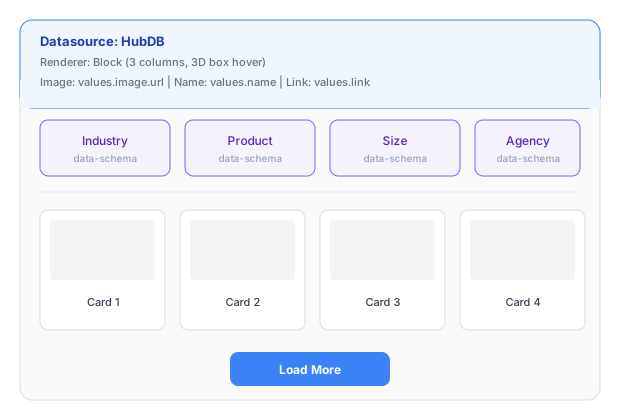
HubDB Page Layout
Each filter uses the data-schema mode to automatically detect its options from the HubDB data. All four filters combine with AND logic — selecting “Technology” in Industry and “Small” in Size shows only items that match both criteria.