
A non-visible module included on all theme templates to provide additional configuration options.
What is the Page Settings Module?
The Page Settings Module is a hidden configuration module that controls page-specific settings for headers, footers, and animations.
Module characteristics:
- Non-visible on page
- Included on all templates
- Page-specific overrides
- Header/footer customization
- Animation controls
- Static module
Module capabilities:
- Override global header
- Customize footer settings
- Change header/footer variants
- Control page visibility
- Manage animations
- Per-page configuration
TABLE OF CONTENTS
Page Speed Impact
Module Options
Page Speed Impact

How does the Sec Values module affect page speed?
-
Low impact: Optimized module code limits load-time resources.
-
Medium impact: Using image or video backgrounds can slightly affect performance.
Performance Tips:
-
Convert images to WebP format for next-gen optimization
-
Compress images with TinyPNG or similar tools
-
Refer to the Performance Guide for best practices to optimize your website’s speed.
Note: For more detailed performance advice, review the POWER Performance Guide!
Page Speed Impact
Low impact: Overwriting your header in the page settings module has the same potential impact as the header itself.
Header override consideration: Changing header settings doesn't add significant overhead.
Medium impact: If animation on scroll is used in the viewport it can negatively impact page speed (viewport size varies by device/browser).
Optimization tips:
- Use an SVG for your logo if possible
- Don't load oversized JPG, PNG, or WebP logos, size them accordingly
- To reduce image file sizes without losing quality, use TinyPNG to compress your images (JPG, PNG, WebP)
Note: For more detailed performance advice, review the POWER Performance Guide!
Module Options
Where do I find the Page Settings Module?
Accessing Page Settings
Edit Page → Contents
Access the Page Settings module from the Contents tab.
Navigation steps:
- Open page in page editor
- Click "Contents" tab
- Locate "Static modules" section
- Find "Page Settings"
Module visibility: The Page Settings module is not visible on the page, it can only be selected from the Contents tab under Static modules.
Hidden module: Not displayed on page, only accessible through Contents tab.
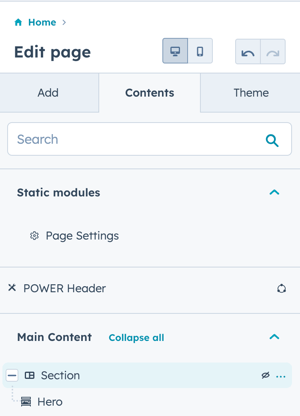
Edit Page → Contents → Page Settings
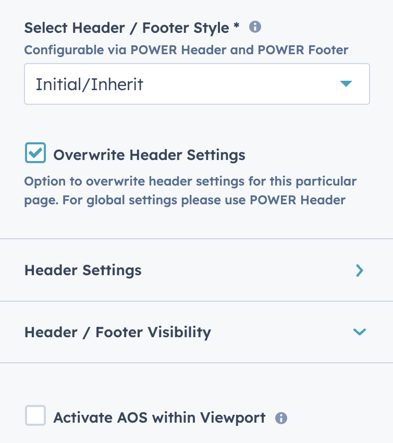
The default selection here will inherit the header/footer type for the specific page type (IE Website page, Blog, Landing page). You can set the header type to another page type header/footer type through this dropdown.
Default behavior: Each page type (Website, Blog, Landing Page) has assigned header/footer style.
Select Header / Footer Style
The POWER Header and POWER Footer include four variants based on page types, this setting allows you to choose any of the style variants to be used instead of the default.
Header/Footer variants:
- Website Page variant
- Blog variant
- Landing Page variant
- Custom variant (if configured)
Use cases:
- Landing page needs blog header
- Blog post needs landing page header
- Website page needs custom header
- Consistent header across page types
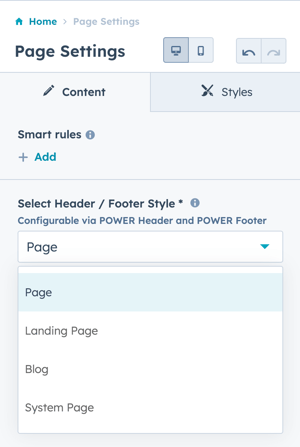
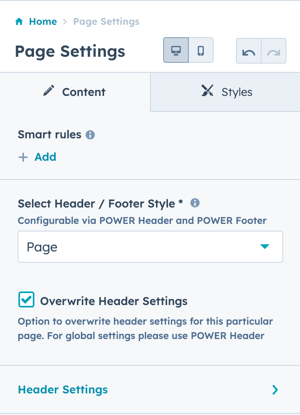
How do I overwrite header settings?
Overwrite Header Settings
Check the box to access the Header Settings.
Enable override: Checking box reveals header customization options.
Overwrite Header Settings → Header Settings
Header customization options available after enabling override.
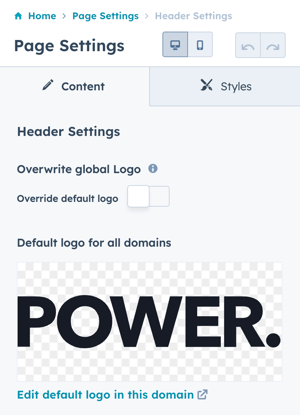
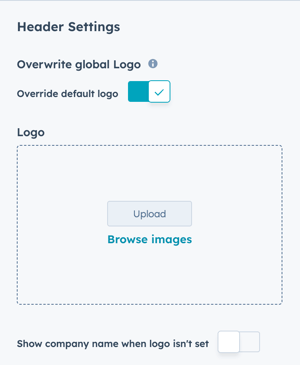
Overwrite Header Settings → Header Settings → Overwrite global Logo
Click the Toggle to upload a new logo file or browse images available in your files.
Logo override:
- Upload new logo
- Browse existing files
- Page-specific logo
- Replace global logo
Includes option to Show company name when logo isn't set.
Fallback option: Show company name text if no logo configured.
Logo use cases:
- Campaign-specific branding
- Event pages
- Landing pages
- Partner co-branding
- White-label pages
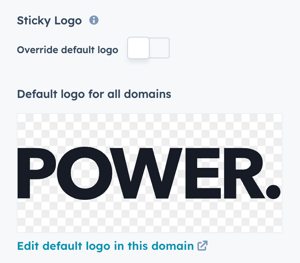
Overwrite Header Settings → Header Settings → Sticky Logo
Click the Toggle to override default logo for use with the Fixed on Scroll option.
Sticky logo purpose: Different logo when header becomes fixed during scrolling.
Sticky logo use cases:
- Smaller logo for fixed header
- Different color for scrolled state
- Condensed logo version
- Better space utilization
- Improved visibility
Configuration:
- Upload alternative logo
- Used when header fixed
- Independent from main logo
- Optional setting
How do I customize header CTAs?
Header CTA Customization
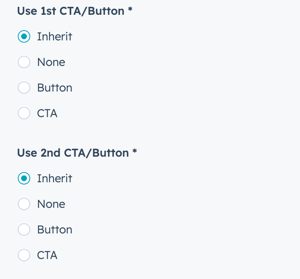
Overwrite Header Settings → Header Settings → Use 1st CTA/Button
Option to Inherit, change to None, or configure a new Button or CTA.
First CTA options:
- Inherit: Use global header CTA
- None: Remove CTA from this page
- New Button: Configure custom button
- New CTA: Configure HubSpot CTA
Overwrite Header Settings → Header Settings → Use 2nd CTA/Button
Option to Inherit, change to None, or configure a new Button or CTA.
This can be used to add an additional Button or CTA, even if there is not a 2nd CTA/Button configured in the original header.
Second CTA flexibility: Can add second CTA even if global header doesn't have one.
CTA customization use cases:
- Campaign-specific CTAs
- Landing page conversions
- Event registration
- Product-specific actions
- A/B testing
- Page-specific offers
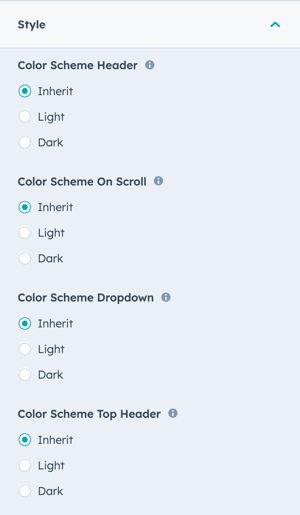
Overwrite Header Settings → Header Settings → Style
Option to change the color scheme settings for the Header, On Scroll, Dropdown, and Top Header.
Choice of Inherit (from header variant selected), Light or Dark.
Option to change the settings for Transparency and/or Glassmorphism for the Header and Top Header.
Choice of Inherit (from header variant selected), Transparent or Not Transparent / Glassmorphism or No Glassmorphism.
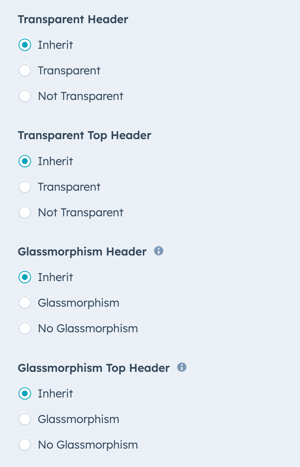
This setting is especially helpful if you are using transparency or glassmorphism as your default header/footer and you're not using an image background and would like to override the setting to remove the transparency, etc.
Header / Footer Visibility → Hide Header
Option to hide the header for an individual page.
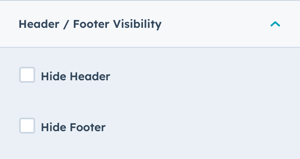
Header / Footer Visibility → Hide Footer
Option to hide the footer for an individual page.
Activate AOS within Viewport
New with the release of v28, this is deactivated by default to improve performance by reducing the impact on page speed.
If checked, this option allows Animation on Scroll (AOS) in the viewport area of the user's device on page load (not recommended).
When unchecked, any Animation on Scroll within the viewport will be deactivated. The viewport is based on the user's specific device and browser size, which provides the most accurate control over AOS.