
Applying Theme Styles to a HubSpot CTA
To use your theme's button styling while keeping HubSpot's built-in tracking and marketing features, create the CTA using the Advanced → Embedded HTML template.
Step 1
Open the HubSpot CTA Editor and create a new CTA (or edit an existing one).
Step 2
Navigate to Embeds and Buttons, then select Advanced and choose Embedded HTML.
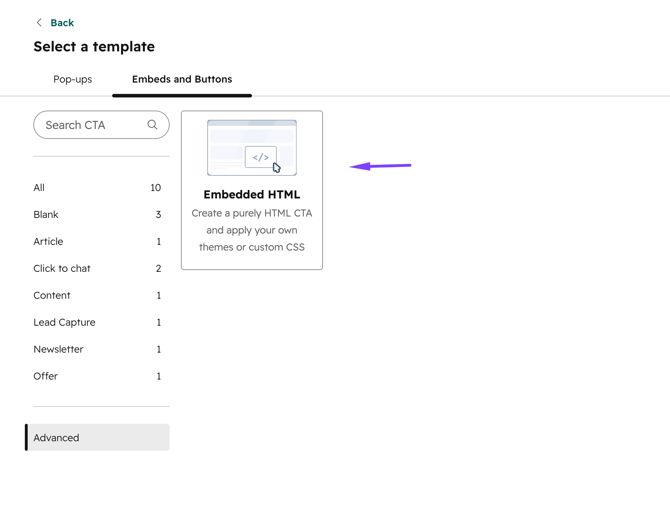
Step 3
In the HTML Version Editor, scroll to the bottom of the page and expand the Advanced section.
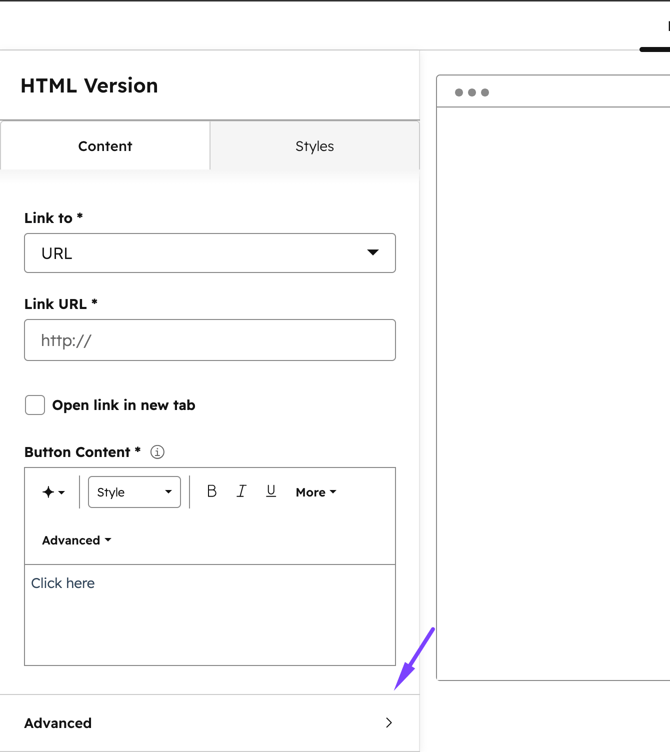
Step 4
In the Custom CSS Classes field, enter:
pwr-cta_button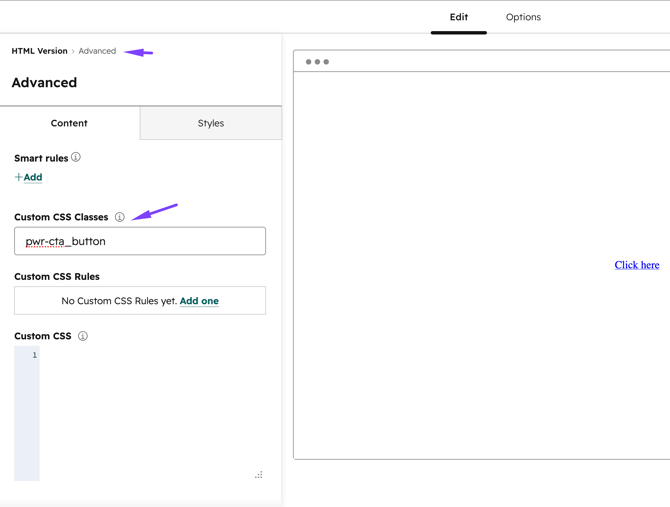
Step 5
Save and publish the CTA.
The CTA will now inherit the same styling as your theme buttons while still keeping HubSpot’s native CTA capabilities, including click tracking, analytics, performance reporting, and other marketing features.
This means that all button styles available in the theme such as Primary Solid, Regular Solid, Primary Border, Regular Border, and any custom button styles defined in the theme settings will now also be available for the CTA. You can simply select the CTA option in any module and apply the same styling options as regular theme buttons, ensuring full visual consistency across the website while still benefiting from HubSpot’s built-in tracking and marketing functionality.