
Theme Settings
Where are Effects Settings located?
Theme Settings Structure
There are 2 settings in Theme Settings for Effects:
Navigate to: Theme Settings → Effects
Overview:
This design group provides options to modify the effects used within POWER theme.
Purpose: Control interactive hover effects for boxes and buttons throughout your site.
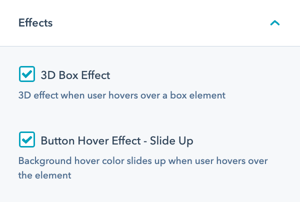
What is the 3D Box Effect?
Effects → 3D Box Effect
Control the 3D tilt effect that occurs when users hover over boxed elements.
What is the 3D Box Effect? When users hover over boxed elements (cards, service boxes, image boxes, etc.), the element tilts slightly in 3D space following the cursor movement.
Can I remove the tilting that happens when hovering over boxes?
Disabling 3D Box Effect
Yes, this is called the 3D Box Effect and can be turned off in Theme Settings under Effects.
Quick disable: Navigate to Theme Settings → Effects → 3D Box Effect
Action: Uncheck the box to deactivate the effect.
What is the Button Hover Effect?
Effects → Button Hover Effect - Slide Up
Control the slide-up animation that occurs when users hover over buttons.
What is the Slide Up Effect? When users hover over buttons and CTAs, the button element slides up slightly, creating a lifting effect.
When should I disable Button Hover Effects?
Use Cases for Disabling
Disable Button Hover Effect when:
Brand aesthetic:
- Traditional button design
- Flat, minimal design system
- Conservative brand requirements
- Subtle interaction preferences
User experience:
- Motion sensitivity concerns
- Accessibility requirements
- Prefer color-only hover states
- Reduce animation distractions
Uncheck the box to deactivate the Slide Up hover effect when hovering over a button.