

Did you purchase POWER Pro after December 8, 2022?
If you purchased POWER Pro after December 8, 2022, jQuery is loaded by default and must be deactivated in Theme Settings for optimal performance.
Quick action: Jump to Deactivating jQuery ↓
Important: If you purchased before this date, complete the full guide below to safely determine if jQuery can be deactivated.
Important Information Regarding v26
- Everyone can update to v26, removing jQuery is NOT automatic
- Removing jQuery is a performance-related enhancement
- Detailed instructions are available by completing the guide below
- Failure to follow the recommended steps can break your website
- Support for jQuery will continue through at least v30
- Removing the dependency is not required
- Making this change does not have to be immediate
- Our team is available to provide guidance based on your configuration
What are the different theme types?
Understanding Theme Types
You need to identify which theme type you're using before proceeding with jQuery removal.
How to check your theme type:
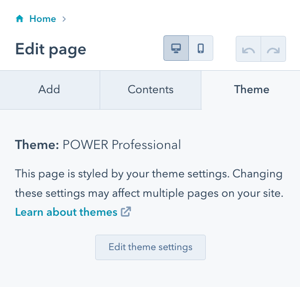
From the page editor, on the themes tab, you will see the name of the theme used on your website.
Important: If you have created more than one child theme or clone, you will need to verify which pages are using which theme.
Three theme type options:
- Marketplace Theme (no customization)
- Child Theme (linked to marketplace, allows updates)
- Cloned Theme (independent copy, no updates)
Determine Theme Configuration
Marketing → Files and Templates → Design Tools
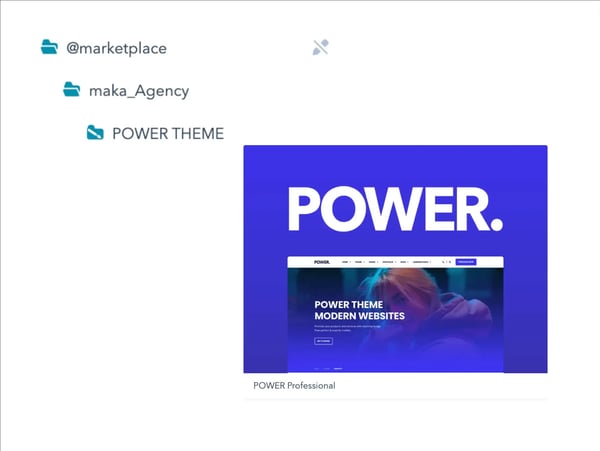
All accounts with the POWER Pro theme will have the @marketplace folder.
Marketplace Theme
Child Theme
If you created one or more child themes, you will see a folder for each child theme outside of the @marketplace folder.
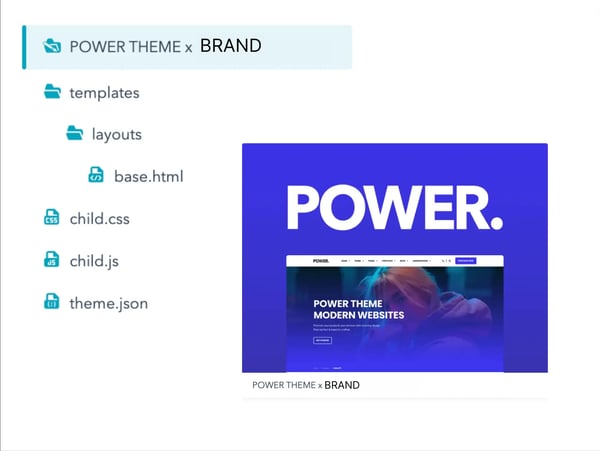
A child theme only contains the necessary files to associate it with the parent (marketplace theme) and the files needed to allow for customization, plus any elements you have customized (global modules, custom modules, and/or custom templates).
What is a child theme:
- Contains only necessary files to associate with parent theme
- Includes files needed for customization
- Contains customized elements (global modules, custom modules, templates)
- Inherits updates from marketplace theme
- Recommended approach for customization
When HubSpot first released child themes, the process included adding the fields.json file. This file does not allow the module fields or theme setting fields to be updated.
Important: Child theme file structure
Note: your child theme should include a themes.json file, there is only an issue if you have a fields.json file.
If your child theme includes a fields.json file, please submit a ticket so we can remove the file for you.
Unless you have manually cloned any of the templates and modules to your child theme to customize, there should be very few files in your child theme.
Otherwise, it is most likely a clone and not a child theme (in which case you will need the fields.json file).
Cloned Theme
If you created one or more cloned themes, you will see a folder for each cloned theme outside of the @marketplace folder.
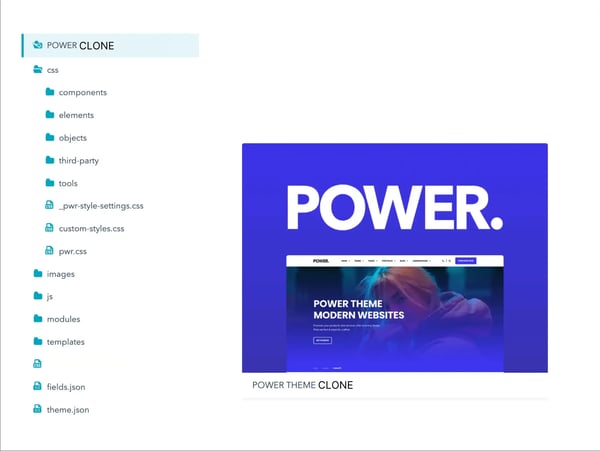
Before child themes were an available option, cloning the theme was the only way to add customization to the theme.
A cloned theme includes ALL files from the parent (marketplace theme).
This is considered a copy of the theme and does not inherit updates from the marketplace.
Which POWER setup matches the one used for your website?
⚠️ Follow these steps only after you've determined jQuery can be disabled or if you purchased the theme after v26 was released on December 8, 2022. If you have a child theme, make sure you have completed the steps to update the base.html file first.
Otherwise, jump to How to Debug ↓
How do I deactivate jQuery?
Removing jQuery
⚠️ Warning: Follow these steps only after you've determined jQuery can be disabled or if you purchased the theme after v26 was released on December 8, 2022.
Prerequisites:
- If you have a child theme, make sure you have completed the steps to update the base.html file first
- If you haven't verified jQuery dependencies, jump to How to Debug (below)
How do I deactivate jQuery in theme settings?
Deactivating jQuery for POWER Theme
Step 1: Navigate to jQuery settings
Theme Settings → Performance → Super Admin → jQuery
Step 2: Disable jQuery
Uncheck the box for "Enable jQuery (not recommended)".
Uncheck the box for "Enable jQuery Debug Tools".
Step 3: Complete performance optimization
Once jQuery is deactivated, follow the steps to disable Legacy Structure from v28 for improved performance.
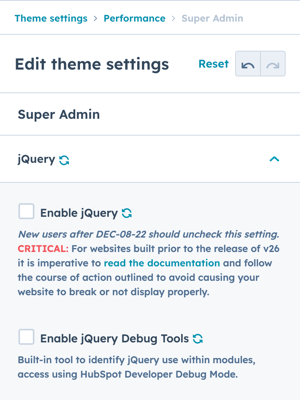
If you are new to CMS Hub or your existing website doesn't use jQuery, you also need to ensure you aren't including jQuery in the HubSpot settings.
Do I need jQuery checked in HubSpot site settings?
HubSpot Settings → Website → Pages → jQuery
Uncheck the box to remove this jQuery instance entirely.

⚠️ Follow these steps to identify custom modules using jQuery.
Note: the base.html file must be updated in the child theme before the Debug Tools will be available as outlined in the next steps for custom modules with jQuery from the guide above.
Theme Settings → Performance → Super Admin → jQuery
Keep the box checked for "Enable jQuery (not recommended)".
Keep the box checked for "Enable jQuery Debug Tools".
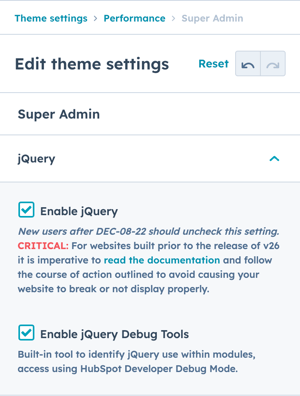
There are two ways you can use the Debug Tools:
- Review custom modules in Design Tools to identify pages to debug ↓
This is easier if you are a developer, are comfortable with Design Tools, and/or have very few custom modules. - Review live pages in debug mode to identify custom modules with jQuery ↓
This is easier if you are a marketer and/or have a relatively small number of pages.
If you have verified all modules/pages and none of your custom modules contain jQuery using the Debug Tools, you can safely update the theme settings to deactivate jQuery.
If you have identified custom modules containing jQuery, those modules would need to be converted to remove the dependency before the theme settings can be updated. Not a developer? Use our Guide ↑ to request help based on your theme configuration.
Method 1: Review custom modules in Design Tools to identify pages to debug
- Easier if you are a developer
- Comfortable with Design Tools
- Have very few custom modules
- Prefer systematic file review
Marketing → Files and Templates → Design Tools → [your child theme] → "modules" Folder
Any custom module or global module available in the child theme will need to be reviewed.
Right-click on the module and choose "Show dependents" to display a list of any website pages or assets using each module.
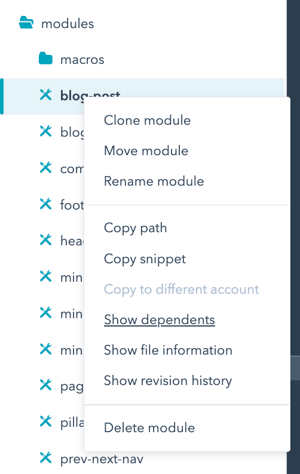
You will see any Live pages, Page drafts, or Blog Posts that contain the module and can open each page in a new tab.
From the Page Editor, choose the Contents tab to identify where the custom module is located on the page.
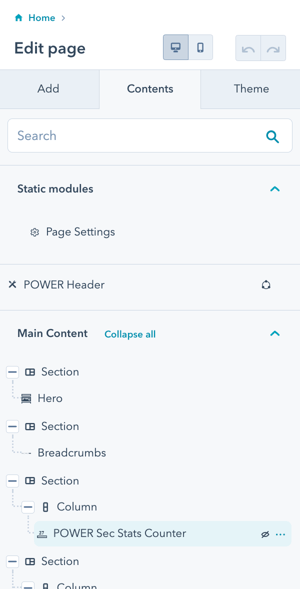
If the module uses jQuery, you will see a flag in the upper left corner of the module in the page editor or page preview.
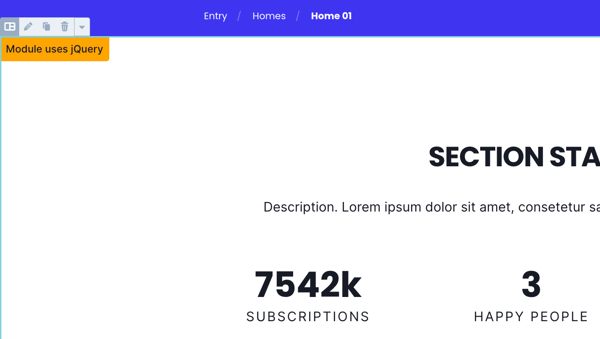
This module would need to be converted. For further details about the element within the module that depends on jQuery, you can open the live page or page preview and enter debug mode.
How do I access debug mode?
Accessing Debug Mode
To access debug mode, add this to the end of the URL:
?hsDebug=true
URL parameter notes:
- If there are several URL parameters present, you might need to exchange the ? with an &
- Example with existing parameters:
yoursite.com/page?param1=value&hsDebug=true - Example without parameters:
yoursite.com/page?hsDebug=true
What you'll see in debug mode:
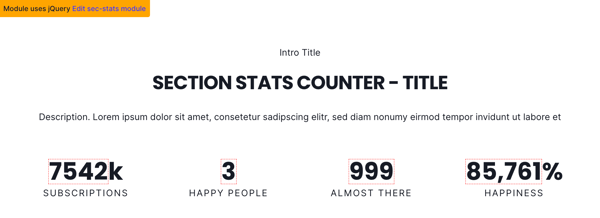
jQuery selects are visually marked with a red dotted line
Additional information available:
- Developer console shows detailed information
- Link back to edit the module via Design Tools (page previews only)
- Specific jQuery dependencies highlighted
- Element-level jQuery usage identified
If there are several URL parameters present, you might need to exchange the ? with an &.
jQuery selects are visually marked with a red dotted line, there will be additional information in the developer console of the browser, and there will be a link back to edit the module via Design Tools (page previews only).
Method 2: Review live pages in debug mode to identify custom modules with jQuery
Marketing → Website → Website Pages
All live and draft website pages, landing pages, and blogs (including any pages in content staging) should be reviewed.
Open the pages in the page editor and preview them in a separate tab. If the preview page contains a yellow flag at the upper left corner of a module, this module would need to be converted.
For more details enter Debug-Mode via the link in the banner at the bottom.
jQuery selects are visually marked with a red dotted line and there will be a link back to edit the module via Design Tools for page previews.
You can use the links included to compile a list of modules that require updating and provide it to your developer.