
The PWR Sec Hero module creates full-width hero banners typically positioned at the top of pages. Common use cases include:
- Homepage hero sections
- Landing page headers
- Product launch announcements
- Campaign-specific banners
- Event promotion headers
- Service page introductions
- Portfolio showcase headers
- Search-enabled page headers
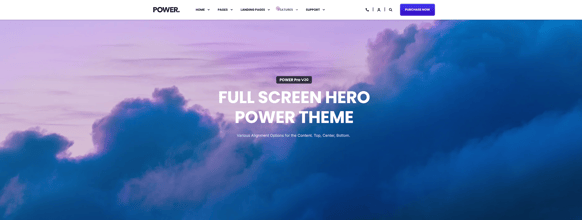
TABLE OF CONTENTS
Page Speed Impact
Setup Instructions
Module Options
Page Speed Impact

Medium Impact
- The hero module itself has moderate impact on page speed
- Additional impact from images, videos, and media content
- Enabling sliders adds extra code that affects performance
- Above-the-fold placement requires immediate resource loading
Performance Tips
- Optimize all images and videos before uploading
- Convert images to WebP format for better compression
- Use appropriate image dimensions for hero displays
- Limit slider slides to 3-5 for optimal performance
- Avoid auto-playing videos when possible
- Consider static content instead of sliders for critical pages
Note: For more detailed performance advice, review the POWER Performance Guide!
Setup Instructions
How to Set Up the POWER Hero Module
Content → PWR Sec Hero
The PWR hero module is designed to give you a full-width hero banner, usually used at the top of a page as an above-the-fold intro to your website or page. This provides options to add distinct CTAs or sliders to quickly capture attention at the top of your page.
Key features:
- Full-width design for maximum impact
- Multiple layout and height options
- Built-in slider functionality
- Integrated search capability
- Typewriter text effects
- Flexible content positioning
Module Options
These settings are available for the POWER sec hero module.
Building the Hero Module
Title
Set the main title of your module. This is the primary headline that visitors will see first.
Best practices:
- Keep titles concise (5-10 words)
- Use action-oriented language
- Highlight your main value proposition
- Test different headlines for impact
What is the typewriter effect?
Typewriter Effect?
Enable a typewriter-style animation for text below your title. This creates a typing effect that animates character by character.
Important limitations:
- Can only be enabled for single panel hero modules
- Will not be applied if you enable a slider on your hero module
- Best for short phrases (3-7 words)
Use cases:
- Highlighting key benefits or features
- Creating dynamic, attention-grabbing text
- Adding personality to landing pages
- Emphasizing rotating value propositions
Tip: Use sparingly for maximum impact. Too much animation can be distracting.
Title - Header Type
Set the HTML markup of your header (H1, H2, H3, etc.).
- H1: Page title (use once per page)
- H2: Major sections
- H3: Subsections
- H4: Minor subsections
Important: This controls the HTML heading type for SEO. By default, it will style your header based on your theme settings. You can override styling through the module's style settings
Description
Add a brief description to support your title and provide additional context.
How do I add buttons or CTAs?
Button Type
Choose between two options:
- Standard Button: Uses your theme settings style
- HubSpot CTA: Includes tracking and analytics
Choice between using a standard button from your theme settings style or a HubSpot CTA.
Buttons(s)
Add one or multiple buttons to your hero module.
Best practices:
- Limit to 1-2 buttons to avoid choice paralysis
- Use contrasting styles for primary vs. secondary
- Choose clear, action-oriented button text
- Test button placement and sizing
Basic information
Add a list of basic information items to your hero module. These appear as small pieces of text with icons displayed on your hero.
How do I add search functionality?
Search Input
Add a search input to your hero module to search across your website.
Use cases:
- Resource centers and knowledge bases
- Large content libraries
- E-commerce product searches
- Documentation portals
- Blog archives
Important: Search functionality requires proper configuration in your search settings.
Search Settings → Show search suggestions
Enable to automatically show suggestions as visitors type in the search box.
Search Settings → Limit
Set the maximum number of search results to display.
Search Settings → Limit → Search in Properties
Choose which page properties to search through:
- Title: Page and post titles
- Meta description: SEO meta descriptions
- HTML: Full page content
- Author Name: Content author names
- Author Handle: Author usernames
- Tag: Content tags and categories
Search Settings → Limit → Search in Page Types
Choose which HubSpot page types to include in search:
- Website pages
- Blog listings
- Blog posts
- Landing pages
- Knowledge base articles
Tip: Enable all relevant page types for your site structure.
Search Settings → Cross domain search
Enable to search across multiple domains or subdomains.
Search Settings → Search Domains
Add domains to search across using this format: subdomain.domain.extension
Examples:
- www.maka-agency.com
- blog.yourcompany.com
- support.yourcompany.com
Important: The default domain should be added as well for complete search coverage.
Search Settings → Specific Blogs
Choose specific blogs from your HubSpot blogs to include in search results.
Search Settings → Language
Choose the search language using ISO639-1 format.
Examples:
- en for English
- es for Spanish
- fr for French
- de for German
Default: All languages
How do I enable the hero slider?
Hero Slider → Use Slider
Enable to transform your hero module into a hero slider with multiple rotating slides.
Important limitations when slider is enabled:
- Only the content of your slides will be displayed
- Any content set outside of the slides will not display
- The typewriter effect cannot be used with sliders
Hero Slider → Slides
Configure individual slides for your hero slider. Each slide can contain:
- Unique title and description
- Different background images or videos
- Separate CTAs and buttons
- Custom styling options
Hero Slider → Settings
Configure slider behavior and transitions.
See our module slider settings article.
For comprehensive slider configuration including:
- Transition options (Manual, Autoplay, Continuous)
- Transition time and effects
- Number of slides
- Navigation arrows and bullets
- Keyboard control
- Loop settings
- Autoplay intervals
How do I adjust layout settings?
Layout → Height
Layout → Height Choose from multiple height options:
- Full height: 100vh (full viewport height)
- Large (fixed size): Pre-defined large height
- Regular (fixed size): Standard hero height
- Small (fixed size): Compact hero size
- Extra small (fixed size): Minimal hero height
- Dynamic height: Scales based on content
Recommended: Full height for homepage heroes, Regular for internal pages.
Layout → Intro Width
Control whether intro text spans the full width of your content area or is constrained.
- Narrow: Constrained width for better readability
- Full width: Spans entire content area
Layout → Content full width
Enable to have your content span the full width of the screen edge-to-edge.
Layout → Centered (horizontal alignment)
Enable to center your content horizontally within the module.
Default: Left-aligned content.
Layout → Vertical Alignment
Choose how content is positioned vertically:
- Top: Content aligned to top of hero
- Center: Content centered vertically (most common)
- Bottom: Content aligned to bottom
Tip: Center alignment works best for most hero sections.
What is the boxed section layout?
Layout → Boxed Section
Enable to set your module to a boxed section layout, offering additional positioning options.
Boxed section features:
- Content contained within a defined box
- Additional spacing and padding options
- Enhanced visual separation
- Modern card-style appearance
For more information on boxed sections see our boxed sections article.
How do I configure spacing?
Layout → Padding & Margin
Top and Bottom Select spacing options:
- Standard: Default theme spacing
- None: No spacing
- Small: Minimal spacing
- Medium: Moderate spacing
- Large: Maximum spacing
- First Section with Header: Special spacing for first page section
Tip: Use "First Section with Header" when the hero appears directly below your site navigation.
Refer to your theme settings for these for more information on this sizing.
How do I style the hero module?
Style → Title Extra Large & Description Large
Enable to make your title or description extra large and bold.
Important: Only suited for a few words. Not recommended if you have more than 3-4 words in your titles.
Use case: Single-word headlines or very short taglines for maximum impact.
Style → Color Scheme
Choose between color schemes:
- Light: Light background with dark text
- Dark: Dark background with light text
Important: Ensure proper contrast for readability, especially with background images.
Style → Title Size
Set the visual style from your theme settings that your title will inherit.
Important: This will not affect the HTML markup of your title, so it won't affect SEO. This only changes the visual styling.
Options: H1, H2, H3, H4, H5, H6 styles from theme settings.
Style → Title Style
Choose title text appearance:
- Default: Inherited from your theme settings
- Specific color: Custom color override
- Gradient: Create custom gradient effect
Tip: Use gradients sparingly for modern, eye-catching headlines.
Style → Primary & Secondary Button/CTA Style
Choose a pre-set style of button or CTA, or choose one of your custom button styles set within your theme settings.
Style → CTA Size
Choice of Long, Small, Large or Regular.
Style → Form Style
Control the appearance of forms within the hero module.
- Inherit (default): Uses theme settings
- Custom: Override for this module only
Use case: Contact forms, newsletter signups, or lead capture forms in hero sections.
Style → Section Shadow
Add a shadow box to your hero module to create a 3D effect.
Benefits:
- Adds depth and dimension
- Creates visual separation from other sections
- Modern, professional appearance
- Enhances focus on hero content
Tip: Use subtle shadows for best results. Heavy shadows can appear dated.
Style → Background
Overwrite the default background with custom options:
- Background Color: Solid color fill
- Background Image: Static image background
- Background Video: Video background for dynamic effect
- Background Gradient: Color gradient
Can I add shape dividers?
Style → Shape Divider
Add decorative shapes between your hero module and the next section.
Benefits:
- Visual separation between sections
- Modern, dynamic design element
- Smooth transitions down the page
- Brand personality expression
How do I add animations?
Animation
Control animations for your module elements.
Animation options:
- Animate on Scroll: Elements animate when they enter viewport
- Animation type: Fade, slide, zoom, etc.
- Animation delay: Stagger animations for cascading effect
- Section-specific animations: Animate title, description, buttons separately
Tip: Use subtle animations in hero sections. Too much motion above the fold can be overwhelming.
For more information see the website animation article.
How do I control module visibility?
Visibility
Choose to hide your module on specific screen sizes:
- Hide on desktop only
- Hide on tablet only
- Hide on mobile only
- Show on all devices (default)
Use cases:
- Display different hero versions for mobile vs. desktop
- Simplify mobile experience by hiding complex elements
- Create device-specific experiences
How do I configure accessibility?
Accessibility
Set ARIA labels for elements within your module to ensure compatibility with screen readers.
Elements to label:
- Hero section container
- Interactive buttons and CTAs
- Form inputs
- Search inputs
- Navigation elements
Best practices:
- Use descriptive, clear labels
- Avoid redundant information
- Test with actual screen readers
- Follow WCAG guidelines
How do I set up anchor links and custom classes?
Anchor Link ID
Set a specific anchor link for this module to:
- Create direct links to this section
- Build on-page navigation
- Enable smooth scrolling to hero
Example: Set as "hero-section" to create links like yoursite.com/page#hero-section
Custom Class
Add a custom class to target this module within your child.css stylesheet.
Use cases:
- Apply unique styling to specific hero instances
- Override theme styles for particular pages
- Create reusable custom styles
- Implement advanced customizations
Set a specific anchor link for this module or a custom class to target this module within your child.css stylessheet.